
Fixing a “500 Internal Server Error” on WordPress is simple, even if you’re technical. This error is one of the most common and most confusing WordPress issues. The message is generic, so it doesn’t tell you exactly what went wrong. However, the good news is that most causes are simple to fix, even if you’re not technical.
This guide explains what the error means, why it happens, and how you can safely troubleshoot it.
What the 500 Internal Server Error Means
This error indicates that your website attempted to load but encountered a server-side problem.

Common causes include:
- Corrupted .htaccess file
- Faulty theme or plugin
- PHP errors or version conflicts
- Insufficient memory limits
- Incorrect file/folder permissions
- Damaged WordPress core files
Common Reasons Why This Happens
Below are the most common triggers, which have been summarised for clarity.
1. Corrupted .htaccess File
Often caused by permalinks or plugin changes.
2. Plugin or Theme Conflicts
A faulty update can break the site.
3. PHP Memory Limit Too Low
WordPress may require more memory to run.
4. Outdated or Unsupported PHP Version
Plugins/themes may not work with older PHP versions.
5. Damaged WordPress Core Files
Files sometimes become corrupted during updates.
6. File Permission Errors
Incorrect permissions prevent WordPress from running correctly.
How to Fix the 500 Internal Server Error
Below is an overview of the most reliable fixes for fixing a “500 Internal Server Error” on WordPress.
1. Fix Your .htaccess File
A corrupted .htaccess file is the most common cause.
Steps include:
- Rename the file
- Re-save your permalinks in WordPress

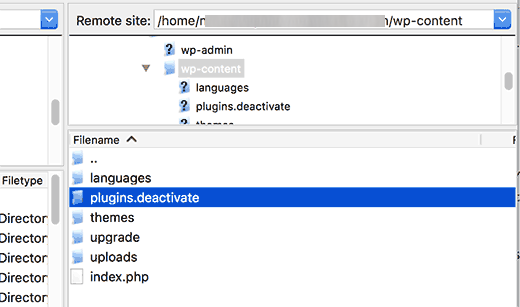
2. Disable Plugins
If a plugin breaks the site:
- Rename the /plugins folder
- Test the site
- Reactivate plugins one by one
3. Switch to a Default Theme
This helps determine if your theme caused the error.
4. Increase Your PHP Memory Limit
A higher limit may stop the error.
5. Update to a Supported PHP Version
Ensure you’re running a compatible version (e.g., PHP 8+).
6. Replace WordPress Core Files
Upload a fresh copy of WordPress (excluding wp-content and wp-config.php).
7. Check Permissions
Folders should be 755, files should be 644.
8. Restore From a Backup
Restoring from a clean backup is often the fastest solution.
Our Scope of Support
To ensure clarity and transparency, here’s what 1-grid can assist with:
What We Can Help With
- Hosting environment checks
- Confirming whether the error is server-side
- Checking logs and identifying possible triggers
- PHP version adjustments
- Restoring Acronis backups
- Basic plugin/theme disable guidance
Advanced Support (Paid Services)
What We May Be Able to Assist With
- Deep file-level investigation
- Custom code troubleshooting
- Manually repairing corrupted installations
- Fixing plugin/theme breakages
What We Are Unable to Assist With
- Editing or fixing custom-coded themes/plugins
- Cleaning malware within site files
- Fixing developer-built functions or scripts
- Rebuilding broken websites
FAQs
Q. Will this error fix itself?
No, manual troubleshooting is required.
Q. Is my site hacked if I see this error?
Not necessarily, as most causes are harmless technical issues.
Q. Can I fix this without technical experience?
Yes, many fixes are simple, especially with our step-by-step guides.
Q. Can 1-grid fix this error for me?
We guide you through the hosting side. Issues inside your WordPress installation may require your developer or paid advanced support.
Q. What if the error appears after I update something?
Try disabling plugins or themes as updates often trigger conflicts.
Additional Resources
Fixing Broken Permalinks
Causes of the 503 Error
WordPress: Fixing 403 Forbidden
WordPress: Plugin Management
How to Restore Acronis Backups
WordPress Common Issues
Need Additional Support?
We’re Here to Help:
Fixing a 500 Internal Server Error on your WordPress website doesn’t have to feel technical with this easy-to-reference guide. Stuck? Contact our Support Team for clarity and guidance (https://1grid.co.za/contact-us/). We’re ready to see how we can help!