
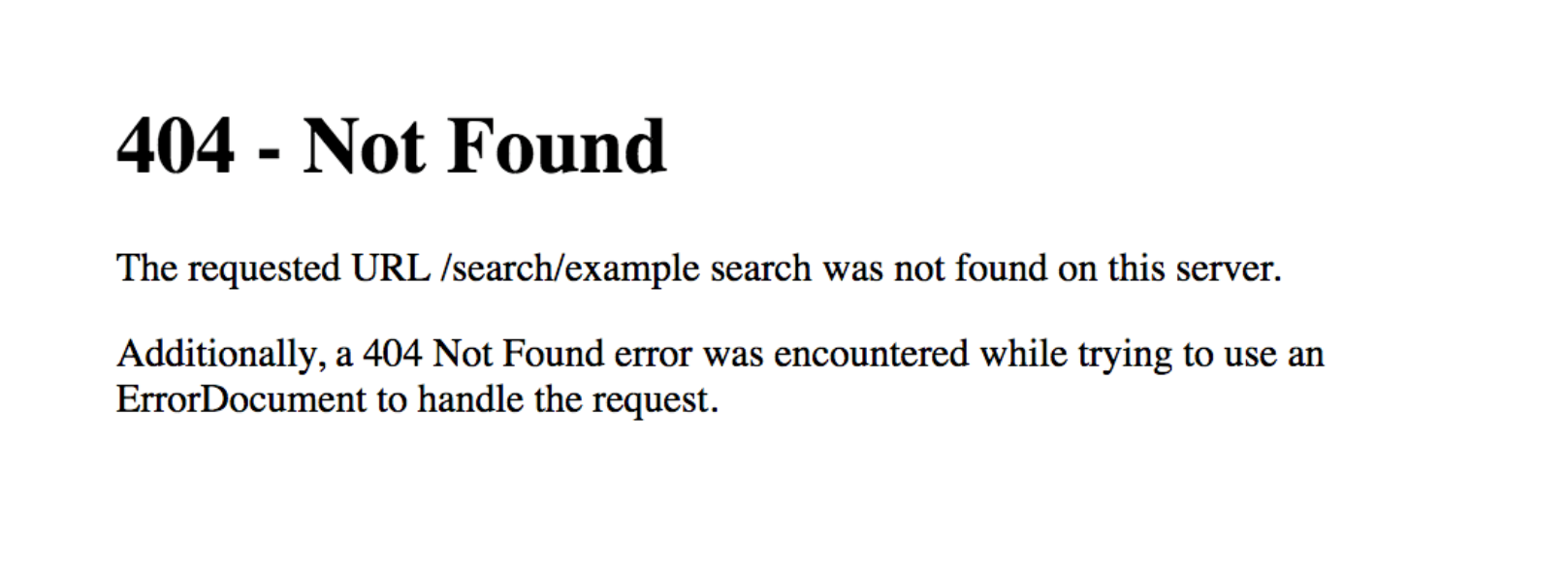
A broken menu link occurs when a navigation menu item points to a page or URL that WordPress can no longer find. This usually results in a “404 – Page Not Found” error when visitors click the menu item.
This is a common WordPress issue and, in most cases, can be fixed in just a few minutes.
This guide will empower you to quickly fix broken WordPress menu links (often showing 404 errors) by understanding permalinks, menu URLs, and common causes while clearly explaining 1-grid’s Scope of Support if you need any additional guidance.
Why This Happens
A broken menu link is typically caused by one or more of the following:
- Permalink rules are not refreshing correctly
- Page or post slugs are changing
- Pages being deleted or moved
- A corrupted .htaccess file
- Plugin or cache conflicts
- Site migrations or recent updates
Primary Fix: Reset Your Permalinks (Recommended First Step)
Resetting permalinks refreshes WordPress’s URL rules and resolves most menu-related 404 errors.
How to Reset Permalinks
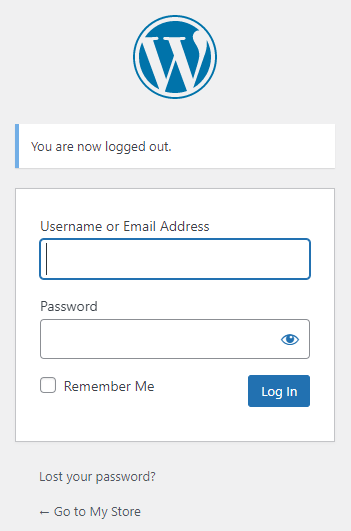
- Log in to your WordPress dashboard
- Go to Settings → Permalinks
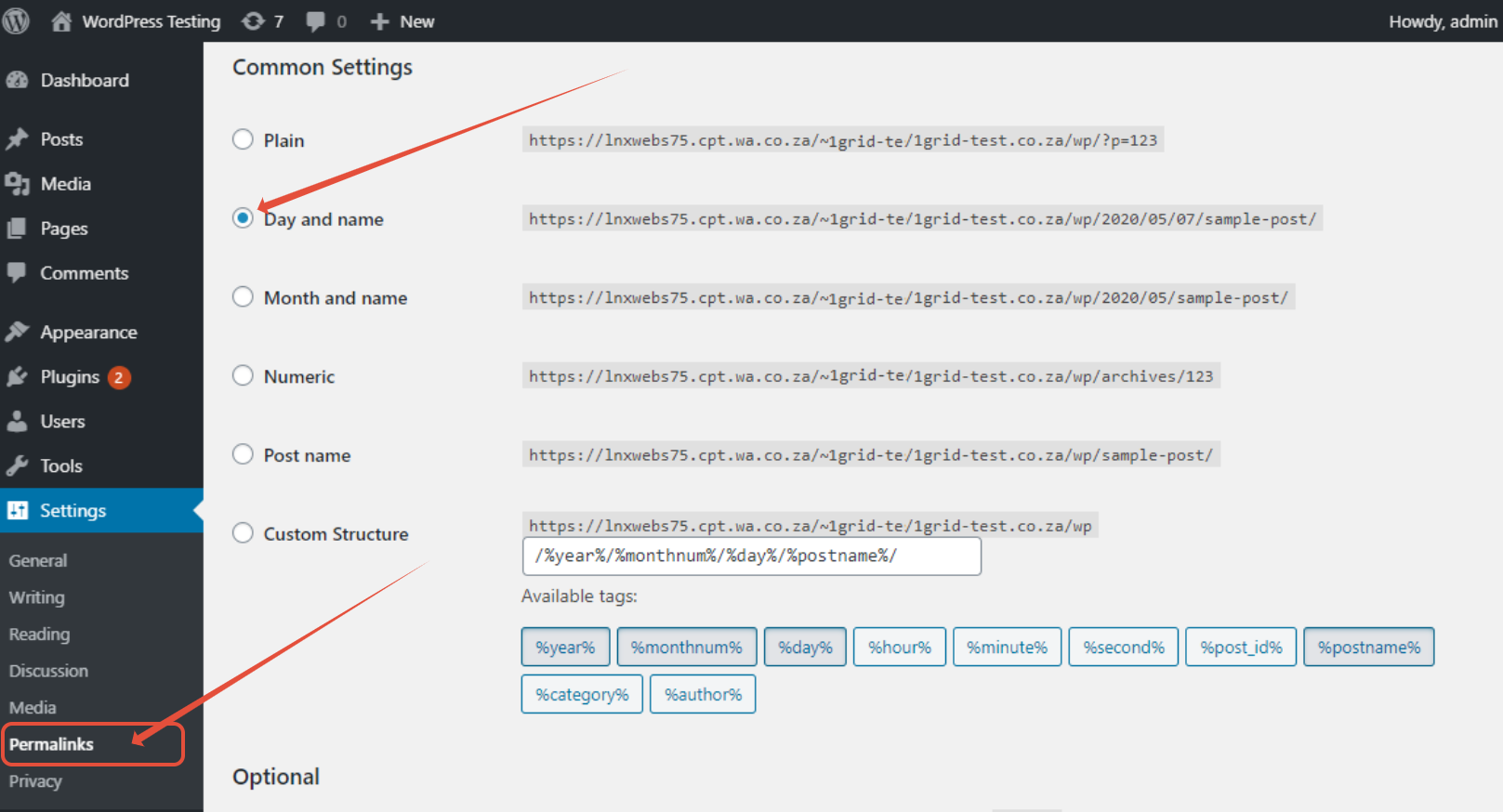
- Take note of your current structure (for example, Post name)
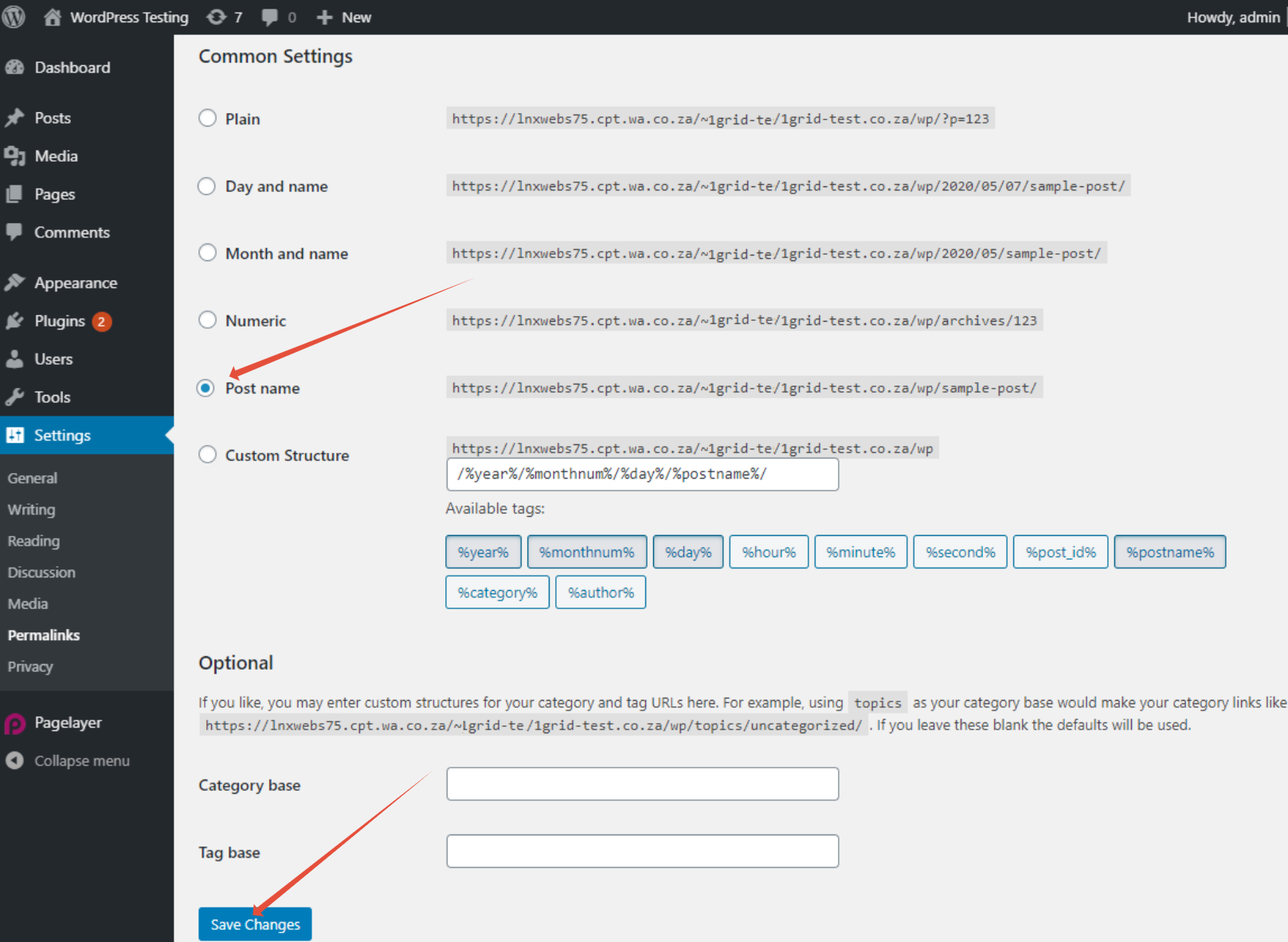
- Select Plain and click Save Changes
- Switch back to your original structure
- Click Save Changes again
This action forces WordPress to regenerate its rewrite rules and usually fixes a broken menu link immediately.
Secondary Troubleshooting Steps
1. Check Menu URLs
Sometimes the menu item itself is incorrect.
- Confirm the URL or linked page matches the correct page slug
2. Reset the .htaccess File
A corrupted .htaccess file can prevent WordPress from routing URLs correctly.
- Access your website via File Manager or FTP
- Locate the .htaccess file in the root directory
- Rename it (for example: .htaccess_backup)
- Return to Settings → Permalinks and click Save Changes
- A new, clean .htaccess file will be created automatically
3. Clear Caches
Cached pages may still point to outdated URLs.
- Clear your browser cache
- Clear your WordPress cache using your caching plugin
- If applicable, clear CDN cache
4. Check for Deleted Pages
- Go to Pages → Trash
- Restore the page if it was deleted accidentally
- If the page no longer exists, create a 301 redirect to a relevant page
5. Check for Plugin Conflicts
- Temporarily deactivate plugins
- Reactivate plugins one at a time to identify conflicts
Important Reminder: Backups
Before making structural changes, always ensure you have a recent website backup. This allows you to restore your site if anything goes wrong.
Our Scope of Support
If you’re stuck and need any additional guidance or support, here’s an outline of what we can do and what is not within our Scope of Support.
What We Can Help With
- Guidance on resetting permalinks
- Hosting-level access (cPanel / Plesk / File Manager)
- General WordPress troubleshooting advice
- Checking server-side configuration where applicable
Advanced Support (Paid Services)
We may assist with some services that require advanced support.
What a Developer Might Need to Help With
- Modifying custom themes or plugins
- Rebuilding deleted pages or site structures
- Providing development-level WordPress customisation
FAQs
Q. Why do my menu links show 404 errors, but pages still exist?
This usually happens when permalink rules haven’t refreshed correctly.
Q. Will resetting permalinks delete my content?
No, resetting permalinks does not remove pages or posts.
Q. Do I need a developer to fix this?
Q. Should I restore a backup?
Only if the issue started after major changes and cannot be resolved using the steps above.
Additional Resources
All Things WordPress to Keep You Connected
WordPress Common Issues
Need Additional Support?
We’re Here to Help:
Understanding how to fix a 404 error on your WordPress permalinks doesn’t have to feel technical with this easy-to-reference guide. Stuck? Check out our Scope of Support, and then contact our Support Team for clarity and guidance (https://1grid.co.za/contact-us/). We’re ready to see how we can help!