
A 403 Forbidden error appears when your web server understands the request but refuses permission to access the page or resource.
This is a server-side permission issue, not a browser or device fault.
This guide will empower you to understand and resolve a WordPress 403 Forbidden error confidently, while clearly defining when 1-grid can assist and when developer-level intervention is required.
Common Reasons This Happens
Here are some common reasons that the 403 Forbidden error happens, which we’ve summarised clearly for quick understanding.

- Incorrect file or folder permissions
- Corrupted or misconfigured .htaccess file
- Faulty or over-restrictive plugins (especially security plugins)
- Theme permission conflicts
- Malware or injected access rules
- Server-level security rules (e.g. ModSecurity, firewall rules)
Quick Checks Before Troubleshooting
- Refresh the page (hard refresh recommended)
- Clear browser cache or use an Incognito window
- Confirm the URL is correct
- Disable VPN connections temporarily
How to Fix a 403 Forbidden Error
Below is a summary of the most common fixes. Where available, we’ve provided full step-by-step guides to assist you further, and these are available in our Knowledge Base.
1. Check and Correct File Permissions
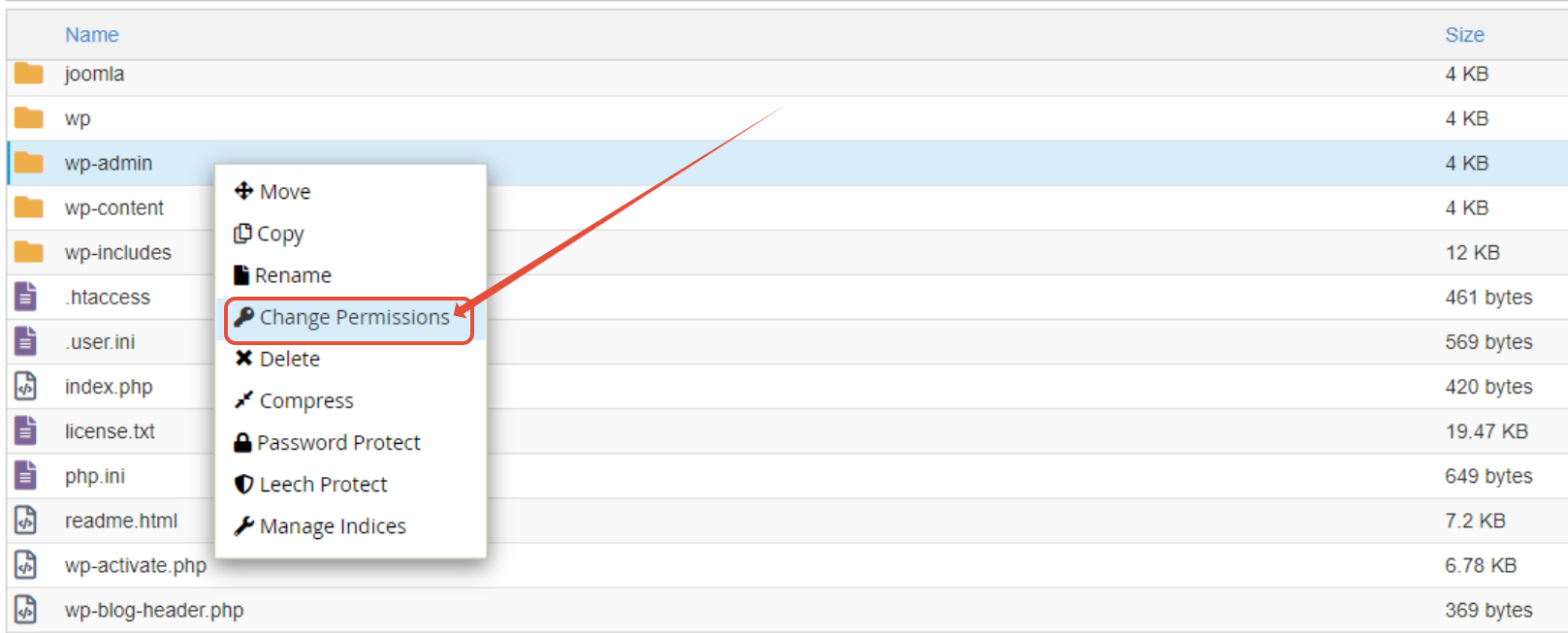
- Folders: 755
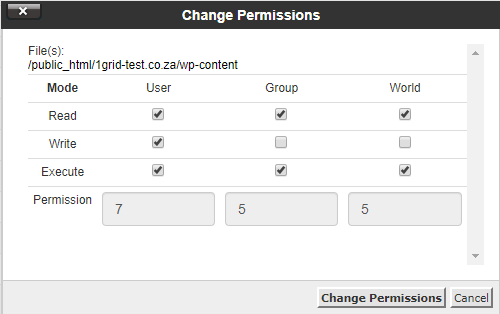
- Files: 644
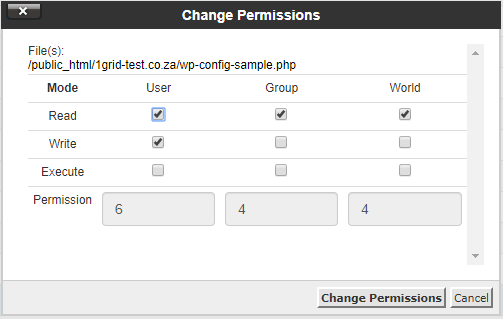
- wp-config.php: 644, 640, or 600
2. Reset the .htaccess File
- Rename or remove the existing file

- Regenerate it via WordPress → Settings → Permalinks → Save
IMPORTANT: This does not delete content.
3. Deactivate Plugins
- Bulk deactivate via the dashboard, or
- Rename /plugins folder via File Manager / FTP
- Reactivate plugins one at a time to identify the cause
4. Test Your Theme
- Temporarily switch to a default WordPress theme
- Identify theme-level permission conflicts
5. Scan for Malware
- Malware can block access to your website, so scanning this regularly is so important.
- Use reputable security plugins
- This makes backups critical for WordPress websites.
Our Scope of Support
If you’re stuck and need any additional guidance or support, here’s an outline of what we can do and what is not within our Scope of Support.
What We Can Help With
- Hosting environment checks
- File permissions guidance
- Access to File Manager / cPanel / Plesk
- Server-level diagnostics where applicable
Advanced Support (Paid Services)
What We May Be Able to Assist With
- Deep plugin/theme conflict analysis
- Performance and resource optimisation
- Custom server rule adjustments
What May Require a Developer
- Modify custom theme or plugin code
- Debug third-party development issues
- Clean hacked files without a backup or developer involvement
FAQs
Q. Is a 403 error caused by my hosting?
Not usually, as it is most often linked to permissions, plugins, or security rules.
Q. Will fixing this error delete my website?
No, these steps do not remove content when done correctly.
Q. Do I need a developer?
Only if the issue is caused by custom code or deeply embedded malware.
Q. Should I restore a backup?
Yes, this is always recommended, but it is important if the error appears after recent changes.
Additional Resources
WordPress: All You Need to Stay Connected
Plugin Management for WordPress
Theme Management for WordPress
WordPress Common Issues
Need Additional Support?
We’re Here to Help:
Understanding how to fix a 403 error on your WordPress website doesn’t have to feel technical with this easy-to-reference guide. Stuck? Check out our Scope of Support, and then contact our Support Team for clarity and guidance (https://1grid.co.za/contact-us/). We’re ready to see how we can help!