

Viewing your logged support tickets and their statuses, like open, closed, and in between, in your 1-grid Customer Zone makes it easy to stay up to date with your queries and their progress with our Support Team. Here’s how to find them, understand their status, and what to do if you need more assistance.

Where to View Your Support Tickets in Your Customer Zone
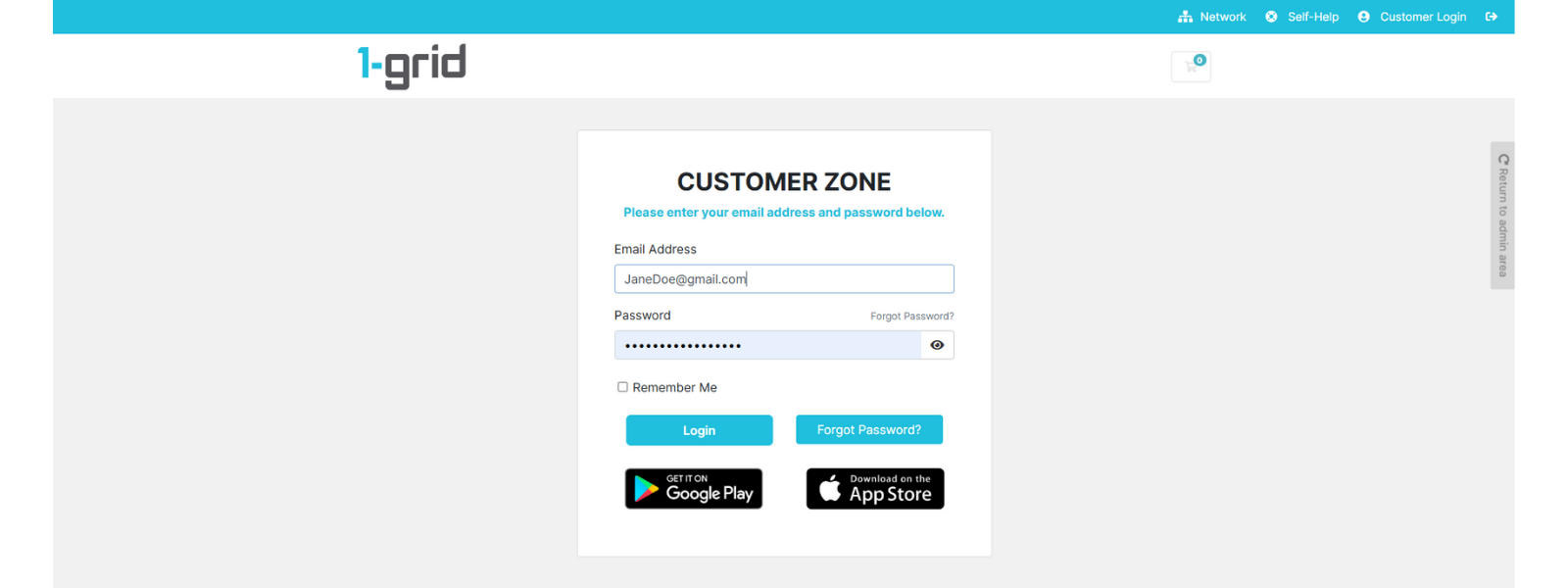
1. Log in to your Customer Zone
2. Enter your Email Address and Password
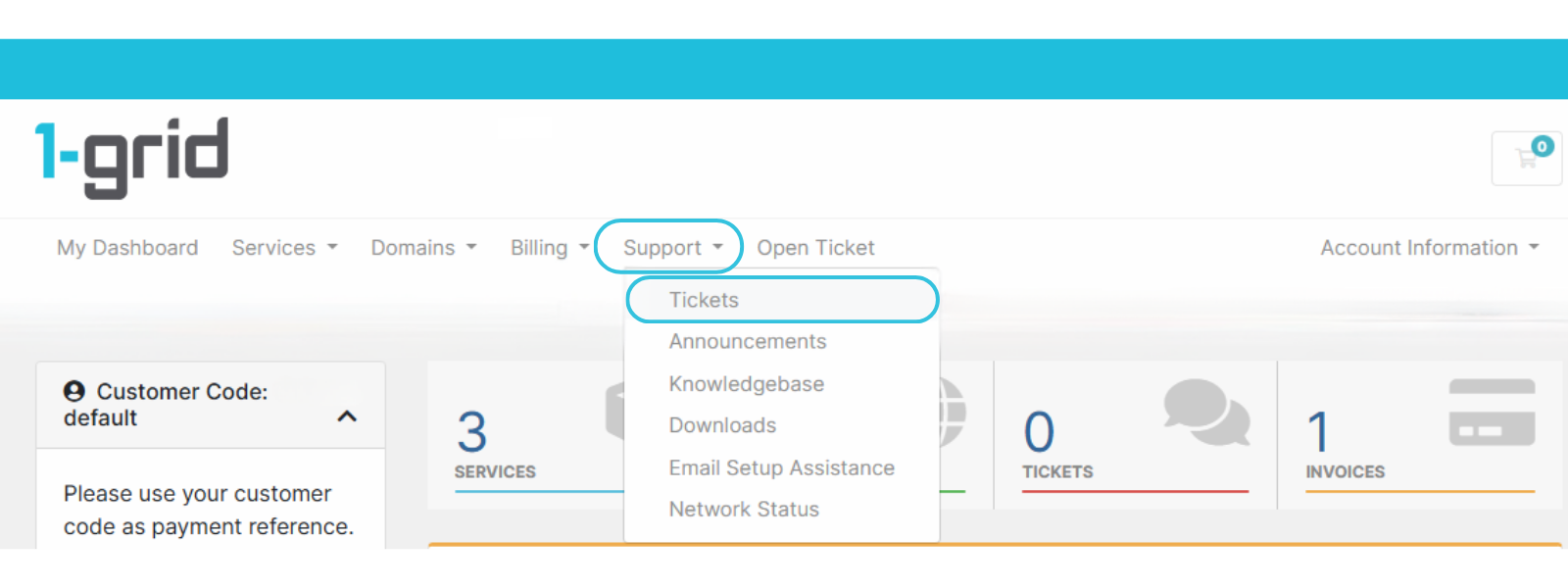
3. Navigate to Support → Tickets
Different Ticket Statuses, and What They Mean
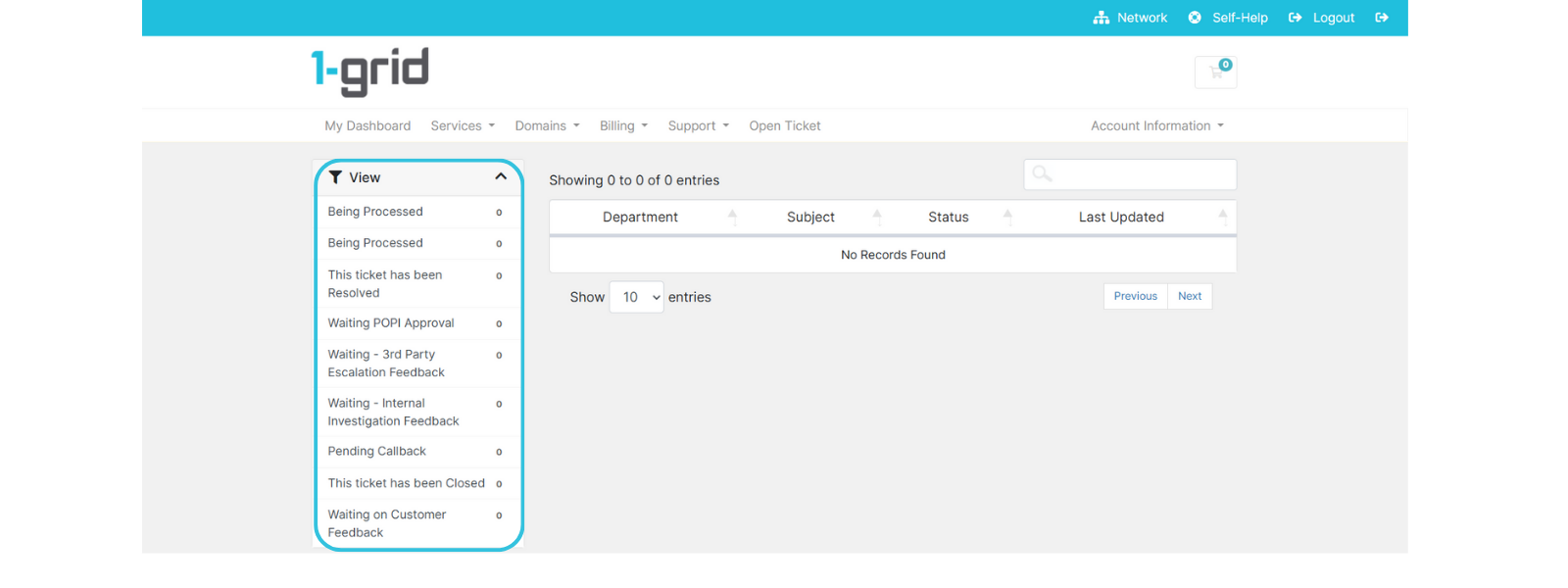
You will see all current ticket statuses that could apply to any of your Support Tickets under the View section, once you have navigated via Support to the Tickets dashboard.
Being Processed
We indicate the ticket as received, and it is either in “Open” or “Pending” status.
This ticket has been Resolved
The ticket shows the issue is resolved and no further action is required, but you can reopen it within 8 hours without creating a new one.
Waiting – 3rd Party Escalation Feedback
This is when the issue has been escalated to a 3rd party vendor externally for further assistance or more information before we can offer a resolution.
Waiting – Internal Investigation Feedback
We escalate the issue to another internal department for further assistance or action toward a resolution.
Pending Callback
We mark the ticket for a call follow-up when we cannot resolve it immediately via the ticket and need a verbal discussion to move toward resolution.
This ticket has been Closed
We show this status when we have not received any response for further action or assistance, so we assume the issue is resolved. It does not reopen the ticket but instead creates a new one linked to the previous ticket and assigns you a new ticket number.
Waiting on Customer Feedback
This is when the ticket is waiting for further feedback from you as the customer before we can assist further or resolve the query in full.
FAQs
Q: Can I provide feedback after the ticket is closed?
Yes, your feedback response creates a new ticket for our Support Team and automatically links it to the previous ticket for easy reference.
It is important to note that this will, however, create a new ticket number, so when you follow up with our Support Team by call or chat, make sure to provide them with both ticket numbers.
This makes it easier for them to find both and gain a clearer understanding of the issue and the progress.
Q: Why do tickets close automatically?
It keeps the support queue efficient and focused on active queries, but we never lock you out of getting help.
Additional Resources
Why Is My Ticket Closed?
Customer Zone: How to log a new Support Ticket?
Introduction to the 1-grid Android Application
1-grid APP: How do I view and log Support Tickets?
How to Verify Your 1-grid Account for Support
How to Keep Your 1-grid Account Details Up to Date
Adding a Sub-Account or Technical Contact to Your 1-grid Account
Deleting a Sub-Account or Technical Contact from Your 1-grid Account
Preventing Unauthorised Customers from Accessing 1-grid Support
Need Additional Support?
We’re Here to Help:
Navigating to and viewing your logged Support Tickets in your 1-grid Customer Zone doesn’t have to feel like a maze, so this easy-to-understand guide makes it easy. Stuck? Contact our Support Team for help (https://1grid.co.za/contact-us/). We’re ready to see how we can help!