

Gmail is one of the strictest email providers when it comes to filtering spam. This means even legitimate emails may sometimes be blocked or delayed. If you’re seeing email error messages when sending to Gmail accounts, there’s no need to worry! This guide will help you understand what’s happening and how to fix it.
Common Gmail Error Messages
Gmail has several SMTP errors and codes that may appear, but we’ve identified 4 common email error messages when sending to Gmail that you may see:
1. “Message blocked”
This means that Gmail suspects the message or server is spam.
2. “550-5.7.1 [IP] Our system has detected an unusual rate of spam”
This indicates that Gmail has blocked the IP or domain due to reputation issues.
3. “421-4.7.28 This message does not meet IPv6 sending guidelines”
The sender is not compliant with the Gmail IPv6 policy.
4. “451 4.7.0 Temporary rate limit exceeded”
Gmail is throttling messages due to volume.
Why These Errors Happen
- Gmail blocks suspicious or bulk senders to protect users.
- Missing or incorrect authentication (SPF, DKIM, DMARC).
- Domain or server flagged by MailChannels for spam-like activity.
- Invalid recipient addresses.
Troubleshooting Checks
- Check the error code carefully, as this will tell you why Gmail rejected the email.
- Verify SPF and DKIM records are enabled to ensure that these are working correctly.
- Clean up your mailing list by removing invalid or inactive addresses.
- Avoid sending suspicious content, such as not using spammy words, particularly in subject lines and content that contains phrases like “free,” “urgent,” “cash,” “guaranteed,” “prize,” “no catch,” and “limited supplies”, excessive links, or suspicious attachments.
- Check the MailChannels status, and if the mail has been blocked, you need to review it before resending.
- Next, run a domain test by using Google Postmaster Tools or mail-tester.com to see if Gmail flags your domain.
Steps to Resolve Error Messages with a TXT (SPF) Record Update via cPanel
Updating the SPF record should help to eliminate email error messages when sending to Gmail.
1. Log in to cPanel.

2. Click on Zone Editor.

3. Click on Manage.

4. Click on TXT.
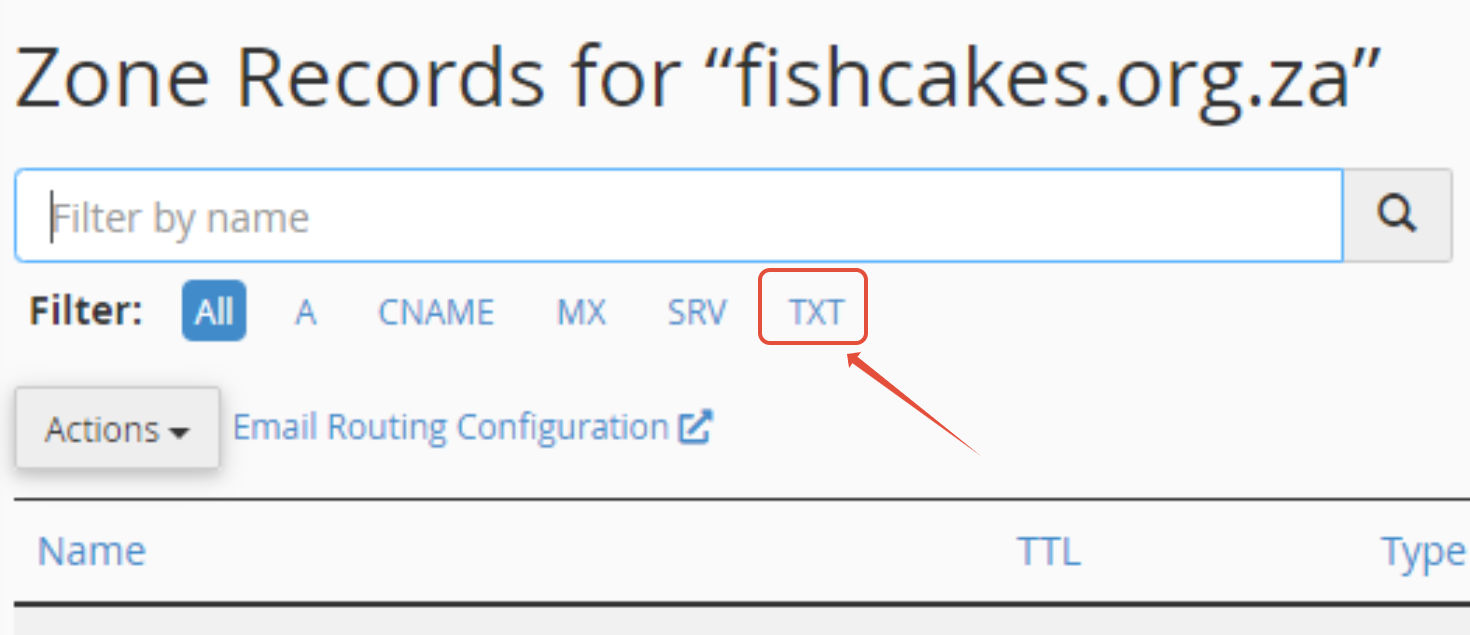
5. Click on Edit.
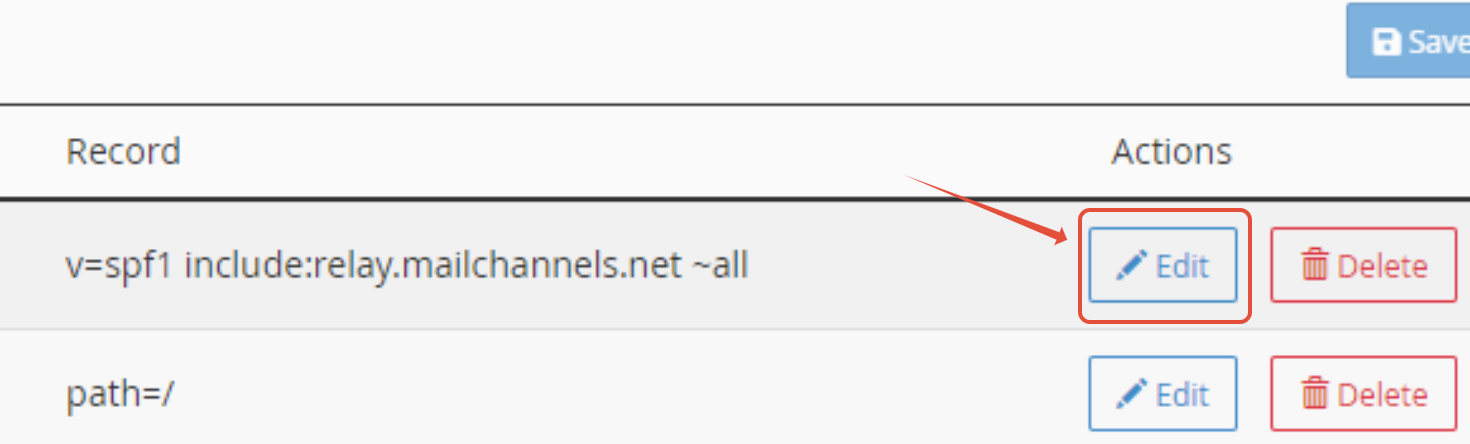
6. You can then add the standard SPF record (v=spf1 a mx include:relay.mailchannels.net ~all)
NOTE: If an SPF record already exists, you can replace it with the record below:
v=spf1 a mx include:relay.mailchannels.net ~all
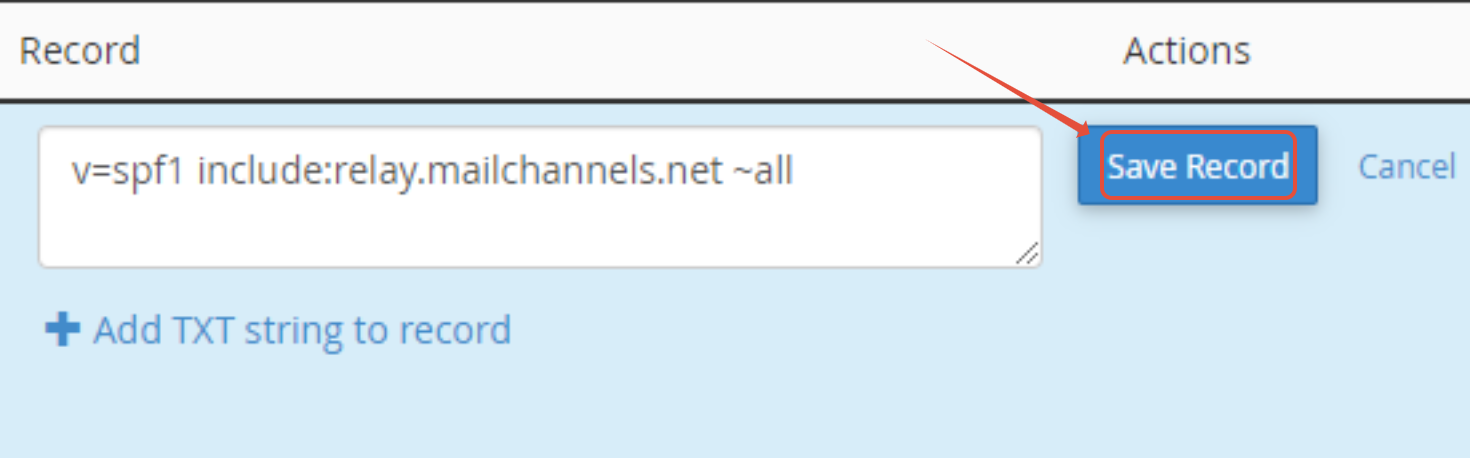
7. Click Save Record.
Prevention Best Practices
- Keep your DNS records updated and rotate keys.
- Avoid bulk sending without verified mailing tools.
- Monitor MailChannels reports regularly.
- Educate team members on safe sending practices.
When to Contact Support
If you’ve checked the records, cleaned your lists, and followed the steps above, but you are still receiving email error messages when sending to Gmail, you can reach out to 1-grid Support with:
- The full bounce-back error.
- Your domain name and recent changes.
- Confirmation that SPF/DKIM are enabled (preferably a screenshot).
FAQs
Why does Gmail block my emails, but other providers don’t?
Gmail applies stricter filters and reputation checks compared to many other providers.
Will setting up SPF and DKIM fix Gmail blocks completely?
They greatly reduce the chance of blocks, but Gmail also looks at sender reputation and message content.
How long does a MailChannels block last?
It can last until sending practices improve and the block is lifted.
What should I do if I see “550 Too Many Invalid Recipients”?
Clean up your contact list and ensure you only send to valid, opted-in addresses.
Can I prevent this from happening again?
Yes, you can by keeping your domain authenticated, sending responsibly, and monitoring your reputation regularly.
Additional Resources
Preventing Bounce-Backs or Emails Landing in Spam When Sending to Gmail
Gmail SMTP Errors and Codes
Gmail IPv6 Policy
Mailchannels Error Codes
How to Avoid MailChannels Blocks
Blocked via Mailchannels Due to Spam
MailChannels FAQs
How to Log In to cPanel via Your 1-grid Customer Zone
Setting Up Email in Outlook via Windows Control Panel
How to Set Up Email on Android for Your 1-grid Email Accounts
Settings to Configure Your 1-grid Email Accounts Across Devices
What Is Email Spoofing? How It Works and How to Protect Yourself
How to Spot a Scam Email: Phishing, Spoofing and Red Flags
Email Headers FAQs
Email FAQs
How to Enable DKIM and SPF on Your Mail Domain
Why SSL? The Purpose of Using SSL Certificates
What is a Domain Name Server (DNS)?
How to Update Your Domain’s Nameservers at 1-grid
SpamTitan FAQs
Need Additional Support?
We’re Here to Help:
Understanding Gmail error messages and figuring out how to fix them doesn’t have to feel so technical with this easy-to-reference guide. Stuck? Contact our Support Team for clarity and guidance (https://1grid.co.za/contact-us/). We’re ready to see how we can help!