
When Outlook is acting up with tasks like failing to sync, crashing, or showing profile errors, you don’t always need to rebuild everything.
Repairing your Outlook profile often resolves corruption or misconfiguration while keeping your data intact so that you can quickly get back to using your 1-grid email accounts on your devices.
This guide will help you with how to repair your Outlook Profile in a few simple steps.

- What an Outlook Profile Is and Why It Can Break
- When to Repair vs Recreate
- What Issues This Can Fix
- Common Errors or Issues During Repair
- Steps to Repair Outlook Profile (via Outlook)
- Steps to Repair Outlook Profile (via Windows Control Panel)
- When You Need to Recreate the Outlook Profile
- Preventing Profile Issues and Best Practices
- FAQs
- Additional Resources
What an Outlook Profile Is and Why It Can Break
Like any email client you use, your Outlook profile stores settings, accounts, data files, folders, and connection information. This means that over time or after updates, conflicts, crashes, or corrupted files may cause the profile to malfunction.
Common causes include:
- Improper shutdowns
- Add-ins or third-party extensions
- Changes in server or DNS settings
- Corrupted data files (PST/OST)
When to Repair vs Recreate
Here’s a quick overview of different scenarios that may occur, and the recommended action to help resolve profile issues.
| Situation | Repair Profile | Recreate Profile |
| Sync fails, folder missing, or minor errors | Try to repair first. | |
| Severe corruption or repeated failures | Recreate the profile. | |
| Account settings changed (server, host) | The repair may not fully resolve, so this might require recreation. | Recreate the profile. |
IMPORTANT: Always back up PST/OST or data before attempting repair or recreation.
What Issues This Can Fix
- Outgoing/incoming emails are not sending or syncing.
- “Cannot open your default email folder” errors.
- Missing folders or search issues.
- Unexpected behaviour due to corrupted settings.
Common Errors or Issues During Repair
Repair fails or times out?
- Try a manual repair or recreate the profile.
The password prompt repeatedly appears?
- Confirm the correct credentials, and remove cached credentials.
Add-ins causing issues?
- Temporarily disable Outlook add-ins before repair.
Corrupt OST/PST file?
- The profile repair may fail, so a data file repair or recreation is needed.
Network connectivity problems?
- Ensure internet connectivity, or that firewalls aren’t blocking mail ports.
Steps to Repair Outlook Profile (via Outlook)
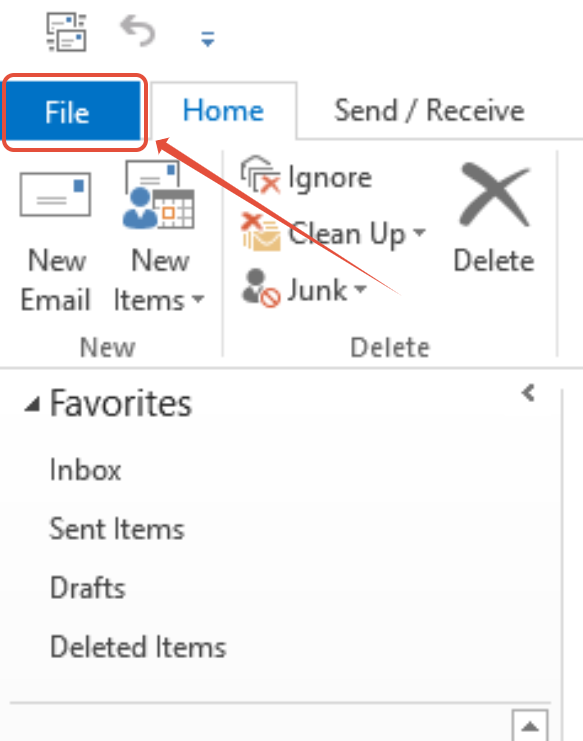
1. Click on File in Outlook.
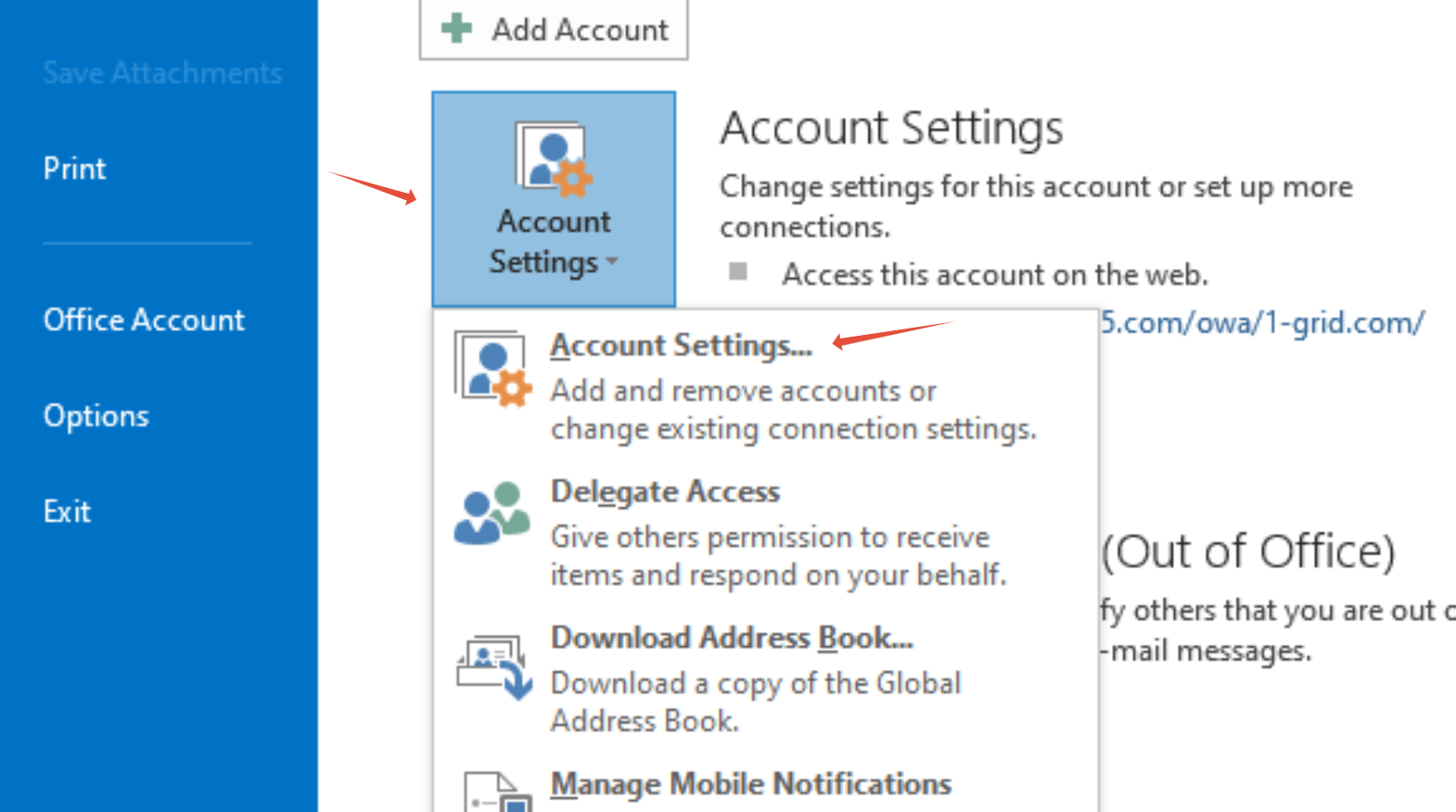
2. Click on Account Settings > Account Settings.
3. Click on E-mail, then click on Repair.
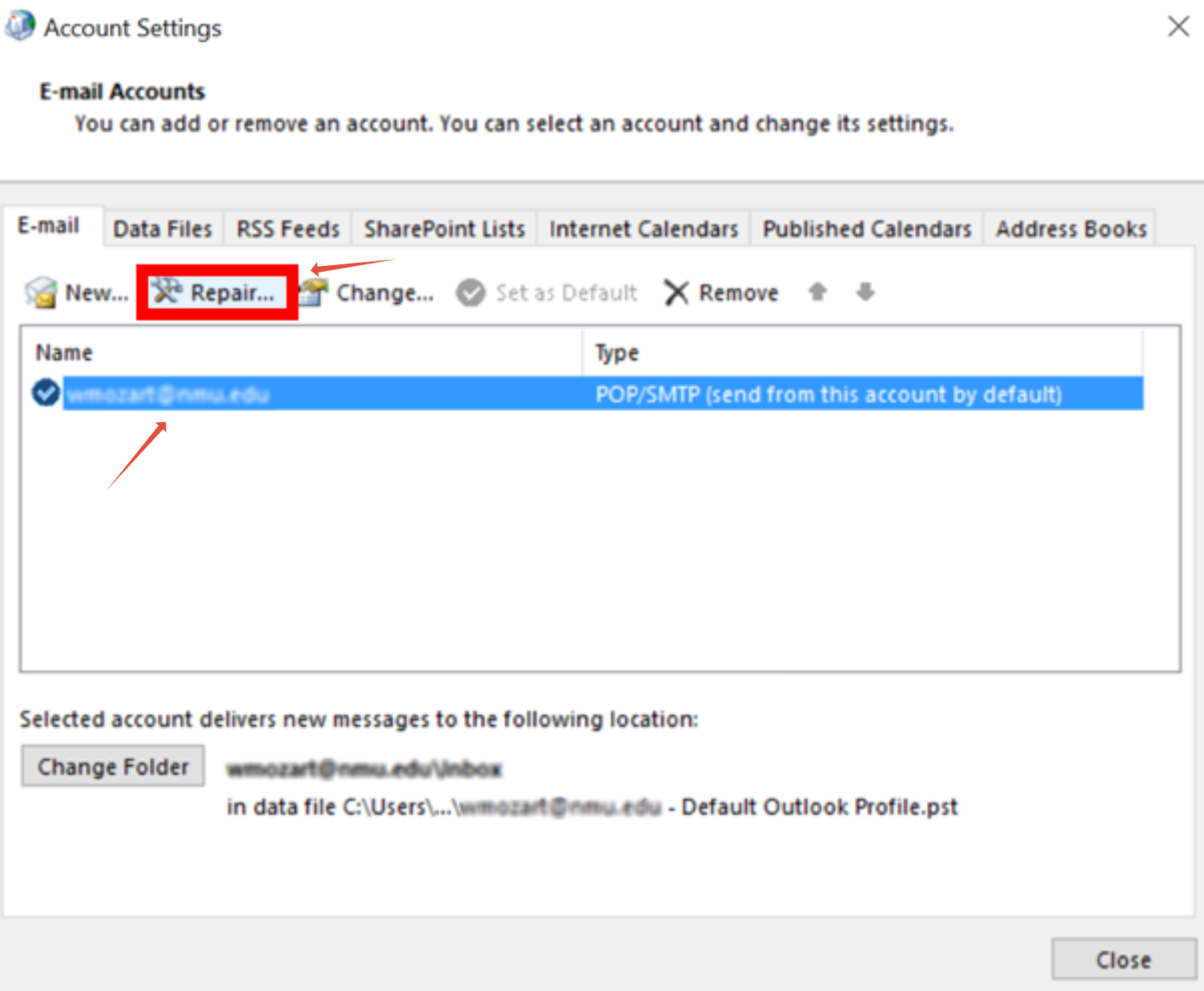
IMPORTANT: Once you click on repair, it will search for the most relevant settings to allow Outlook to work again.
Steps to Repair Outlook Profile (via Windows Control Panel)
1. Close Outlook completely.
2. Open Control Panel, and search for Mail (Microsoft Outlook).
3. On Windows 10/11, you may need to search “Mail (32-bit)”.
4. In the Mail Setup window, click Show Profiles.
5. Select your Outlook profile and click Properties.
6. Click Email Accounts, then click Repair (or Account Settings → Repair depending on version).
7. The Repair wizard will run diagnostics and attempt to fix SMTP/IMAP/OST settings.
8. If prompted, confirm login credentials, re-enter password if needed.
9. After the repair completes, restart Outlook and test sending/receiving mail.
10. If the repair fails to fully restore, consider creating a new profile.
When You Need to Recreate the Outlook Profile
If repairing fails or the profile remains unstable, recreate a fresh profile:
1. Go to Mail → Show Profiles via the Windows Control Panel.
2. Click Add to create a new profile and configure your account from scratch.
3. Point data files (PST/OST) to existing files, if needed.
4. Set the new profile as the default and test.
Preventing Profile Issues and Best Practices
- Avoid abrupt Outlook shutdowns or system crashes.
- Keep Outlook and Windows updated.
- Limit unnecessary add-ins or extensions.
- Consider archiving older emails to reduce the data file size.
- Back up PST/OST files or use online mail storage.
FAQs
Will repairing my profile delete emails or settings?
No, repairing will attempt to fix the configuration without removing your data. It should preserve your mailbox content and settings.
My “Repair” option is greyed out, so what do I do?
This may depend on your Outlook version. Use Account Settings → Repair or consider creating a new profile.
After the repair, I still see errors, so what should I do now?
Try disabling any add-ins, checking data files for corruption, or ultimately recreating the profile.
Can I repair Outlook for Mac?
Outlook for Mac doesn’t have the same “repair” function; instead, you may need to remove and re-add the account or rebuild identity via Outlook Preferences.
Should I disable any antivirus or the firewall before doing the repair?
Temporarily disabling outbound email filtering rules or firewall rules may help repair connectivity; just be sure to re-enable them afterwards.
Additional Resources
How to Import PST Contacts to Office 365
How to Import a PST File into Outlook
Restoring Emails in Outlook Using a .pst File
How to Repair Your Outlook (PST/OST) Data File
Settings to Configure Your 1-grid Email Accounts Across Devices
How to Set Up Email on Android for Your 1-grid Email Accounts
Setting Up Email in Outlook via Windows Control Panel
Troubleshooting Steps for Email
Email Error Messages: What Do They Mean and How to Fix Them
What Is Email Spoofing? How It Works and How to Protect Yourself
How to Spot a Scam Email
Email Headers FAQs
Email FAQs
How to Enable DKIM and SPF on Your Mail Domain
Why SSL? The Purpose of Using SSL Certificates
What is a Domain Name Server (DNS)?
How to Update Your Domain’s Nameservers at 1-grid
MailChannels FAQs
SpamTitan FAQs
Need Additional Support?
We’re Here to Help:
Repairing your Outlook Profile doesn’t have to feel challenging with this easy-to-reference guide. Stuck? Contact our Support Team for clarity and guidance (https://1grid.co.za/contact-us/). We’re ready to see how we can help!