
Keeping your Customer Zone password secure is one of the simplest and most powerful ways to protect your 1-grid account, your services, and your personal information. Whether you’re updating your password for security, peace of mind, or regular maintenance, the process is quick and straightforward when you’re already logged in.
Creating a password that is strong and using Two-Factor Authentication (2FA) means even stronger protection of your account. Together, they reinforce the strength of security for accessing your account by reducing the risk of someone compromising your password, while adding an extra layer of protection, just in case.
This guide will walk you step-by-step through how to update your 1-grid Customer Zone password while logged in, share practical tips for choosing a strong password, and help you feel confident that your account remains safe and in your control.
Why Updating Your Password Matters
Keeping your Customer Zone password fresh helps protect your account against unauthorised access, improves your security posture, and gives you peace of mind. Whether you’ve recently shared access, updated your devices, or just want stronger control, updating your password is a simple step with big benefits.
You’ll keep your account safer and maintain control over your services without hassle.
When to Update Your Password
You should update your password when:
- Every few months to keep it fresh
- Your account may have been exposed on another system
- You suspect someone else might know your current password
- You simply want a stronger password for better protection
Tips for Choosing a Strong Password
A strong password makes your account significantly harder to compromise. When creating yours, aim to:
- Use at least 12 characters for better protection
- Mix uppercase and lowercase letters
- Include at least one symbol (e.g. # $ ! % &)
- Avoid dictionary words, names, or predictable phrases
- Consider using a password manager to generate and store it securely
TIP: Stronger passwords reduce the risk of unauthorised access and give you greater peace of mind over your 1-grid account.
How to Update Your 1-grid Customer Zone Password (Logged In)
Follow these steps while you are already logged into the Customer Zone:
1: Log In to Your Customer Zone
- Go to: https://1-grid.com/client/clientarea.php
- Enter your registered email address and current password.
TIP: Starting from a logged-in state helps you eliminate the need for password resets or email loops.
2: Access Your Account Information
- In the Customer Zone dashboard, click Account Information.
- Click Change Password.
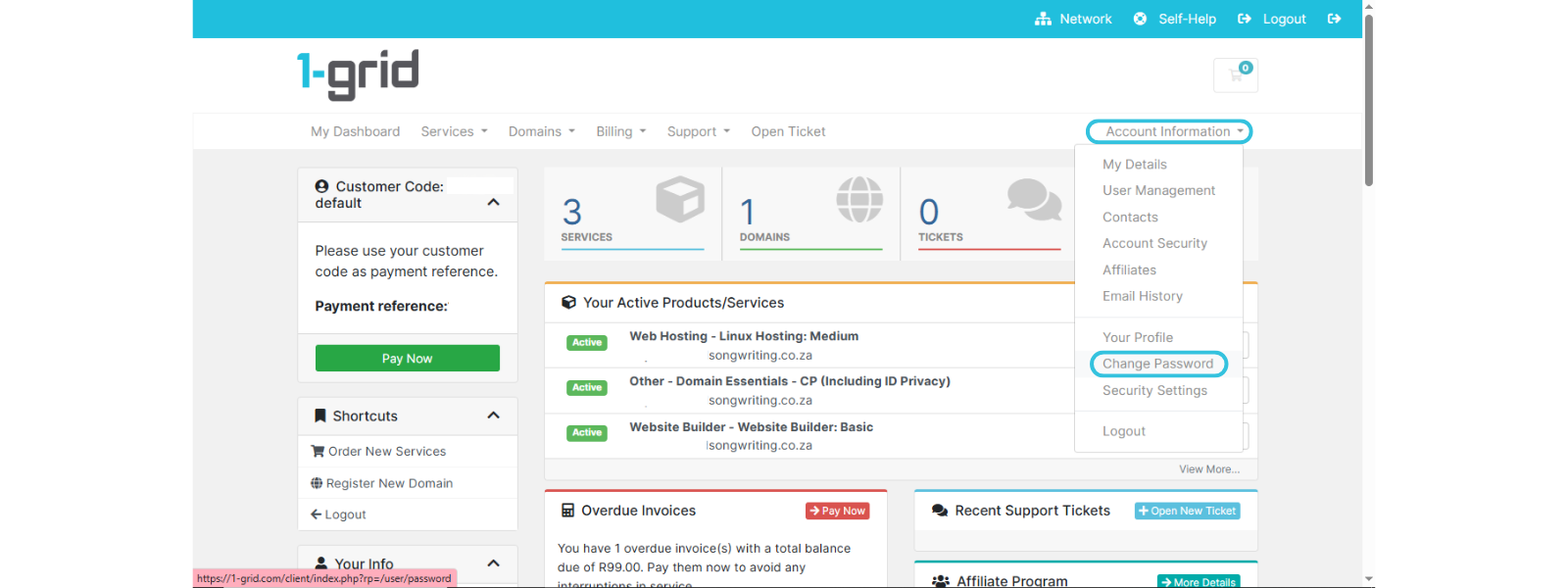
TIP: This takes you to your core account controls, where password management lives.
3: Change Your Password
- Enter your current password
- Enter your new password
- Confirm your new password
- Click Save Changes
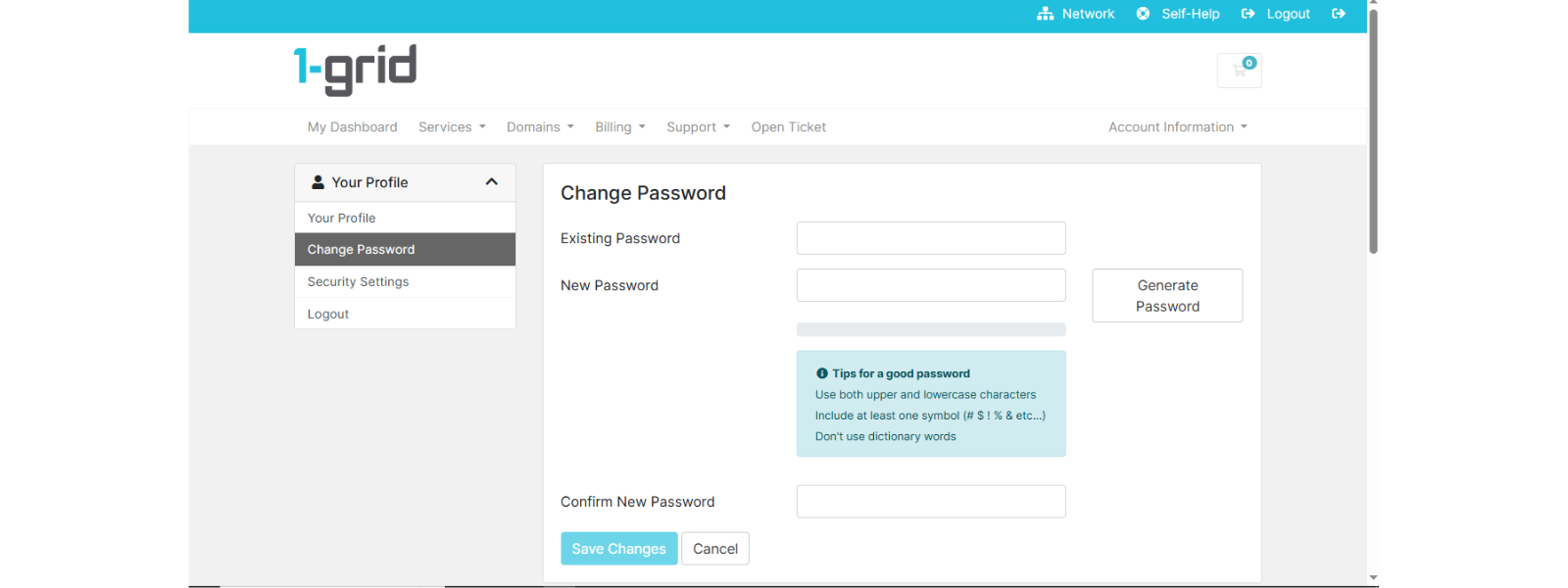
You can also select Generate Password (if desired) to auto-create a strong, secure password.
IMPORTANT: Updating to a stronger password protects your account from unauthorised access.
Our Scope of Support
If you’re stuck and need any additional guidance or support, here’s an outline of what we can do and what is not within our Scope of Support.
What We Can Help With
- Guiding you through updating your password
- Helping with any errors during the update
- Suggesting password best practices
What We Cannot Assist With
- Retrieve your existing password
- Change your password on your behalf
- Force password changes
FAQs
Q: What if I forget my password and cannot log in?
Use the Forgot Password option on the login page to reset your password via email.
Q: Can I update my password on my phone?
Yes, you can update your password from any device using a browser while you’re logged in.
Q: What happens if the passwords don’t match?
You will see an error prompting you to re-enter them, so be sure your entries are identical.
Q: Can I use a password generator?
Yes, the Generate Password option creates a strong, secure password for you.
Additional Resources
Choosing a Strong Password
Resetting Your 1-grid Password (if you’re logged out)
Keeping Your 1-grid Account Details Up to Date
Preventing Unauthorised Access to Your Account
How to Verify Your 1-grid Support Account
Everything You Need to Know About Two-Factor Authentication (2FA)
Need Additional Support?
We’re Here to Help:
Changing your password while logged into your Customer Zone doesn’t have to feel like a challenge with this easy-to-reference guide. Stuck? Check out our Scope of Support, and then contact our Support Team for further clarity and guidance (https://1grid.co.za/contact-us/). We’re ready to see how we can help!