
With 1-grid, you can remove access/delete a user under a sub-account and delete a technical/support contact to remove them from different levels of access to your account and support on your behalf. Deleting a Sub-Account or Technical Contact from your 1-grid account keeps your account secure while giving the right people access to logins, support, account functions, technical functions and management.

- Different Ways to Remove Access to Your Account While Keeping It Secure
- Why Remove/Delete Them?
- Security and Authorisation
- How to Delete a Sub-Account (User) or Technical/Support Contact
- How to Remove Access for a User from a Sub-Account
- Managing Existing Sub-Accounts or Technical/Support Contacts
- FAQs
- Additional Resources
Different Ways to Remove Access to Your Account While Keeping It Secure
Technical/Support Contacts
Deleting these contacts no longer authorises them to contact support on your behalf.
Sub-Accounts (Removing Access for a User)
This is different from technical/support contacts. Deleting a Sub-Account requires removing access for a user to no longer allow someone direct access to your Customer Zone via their own logins:
- If they already have a 1-grid user account, they can no longer log in to your account using their existing credentials.
- Important: They will no longer be able to do password resets actively, update account details, perform actions on the account, etc., as they will no longer form part of “User Management” on your Customer Zone.
Deleting a Sub-Account or Technical Contact from your 1-grid account means that neither will no longer allow others to interact with 1-grid support (tickets, chat, calls) and all previous permissions you assigned with no longer be valid.
Why Remove/Delete Them?
- No longer requires delegation of tasks
- Disallow admin, finance or technical staff to contact support directly
- Prevent smooth access to support channels
Security and Authorisation
For your protection, only authorised contacts’ listed email addresses on your account will receive support via tickets, chat, or calls.
How to Delete a Sub-Account (User) or Technical/Support Contact
1. Log in to your Customer Zone
2. Go to Contacts
3. Select the applicable Contact from the list
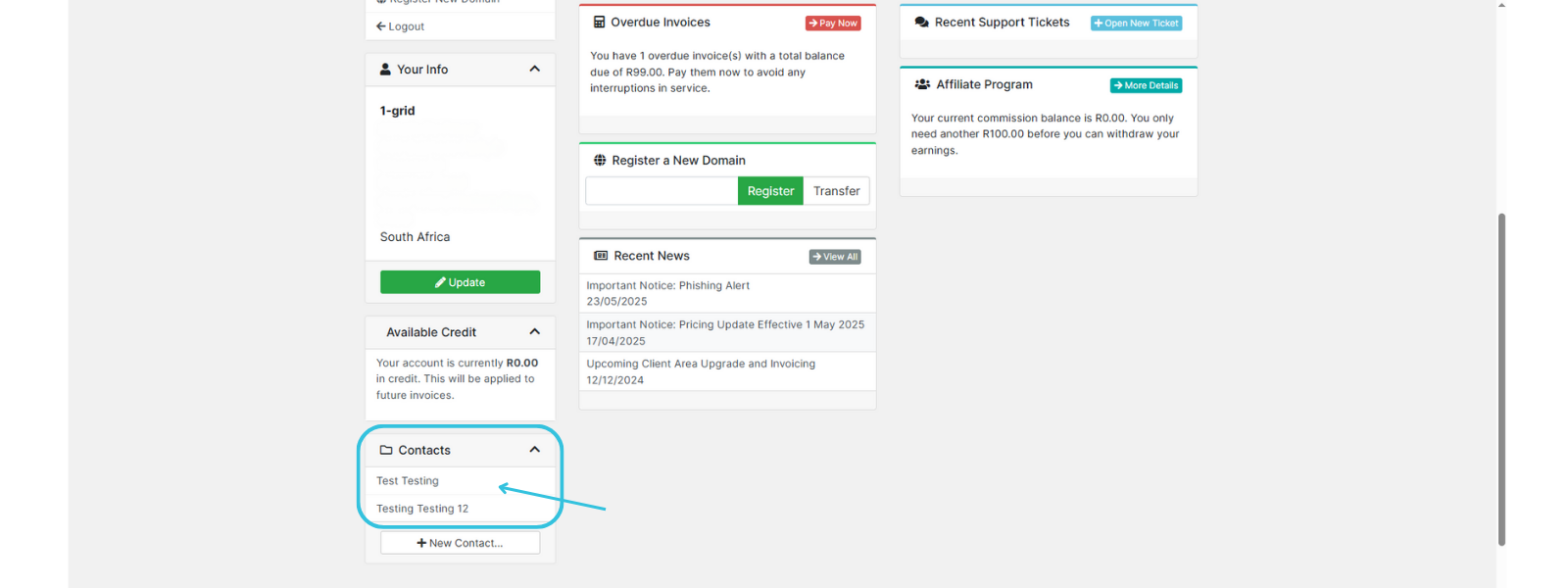
4. Click on Delete Contact

IMPORTANT: When deleting a Sub-Account, you need to navigate to “User Management” to remove their direct access from your Customer Zone. If this is not implemented, they will still be able to access your Customer Zone either using your own login details or direct access using theirs, depending on how they were set up at the time.
How to Remove Access for a User from a Sub-Account
1. Log in to your Customer Zone
2. Go to Contacts → +New Contact...
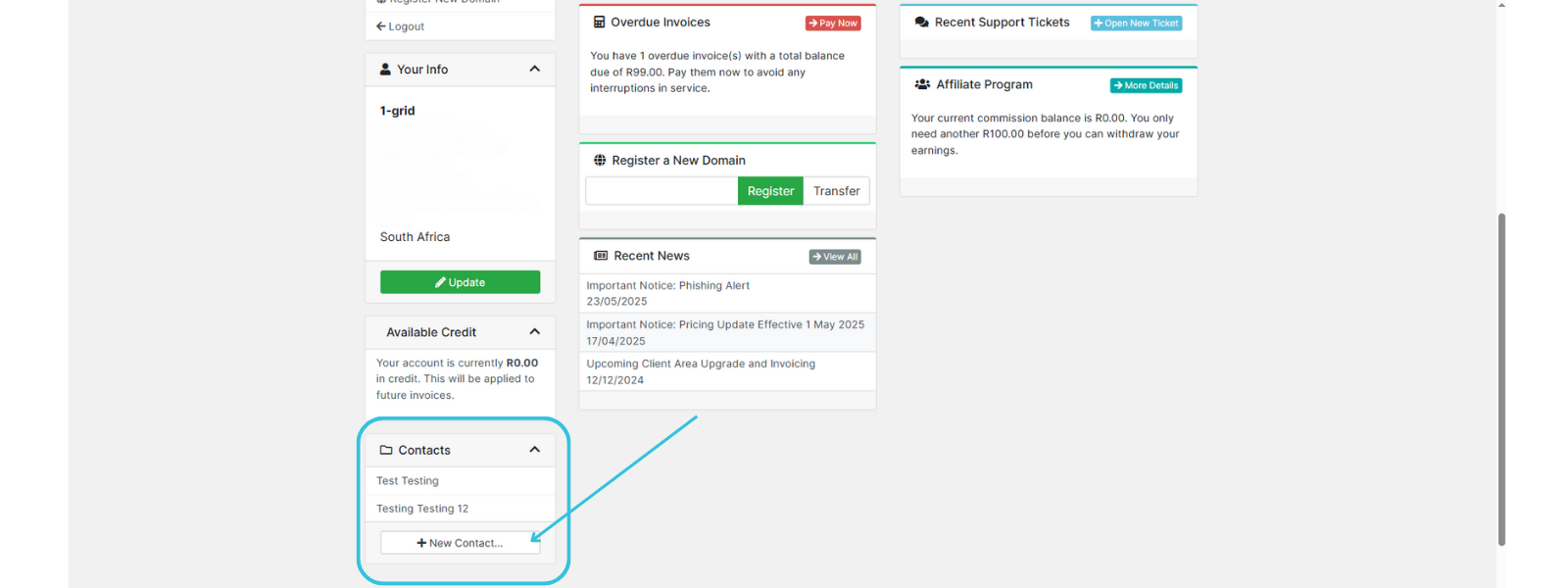
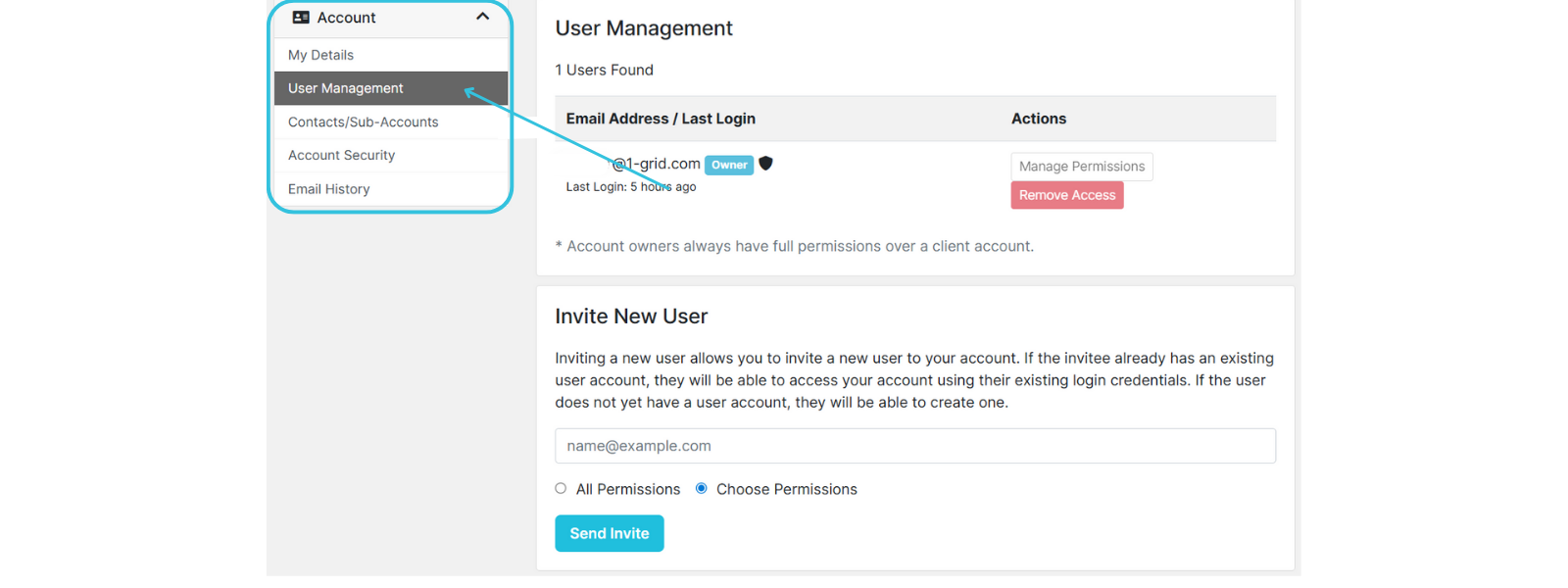
3. Select User Management
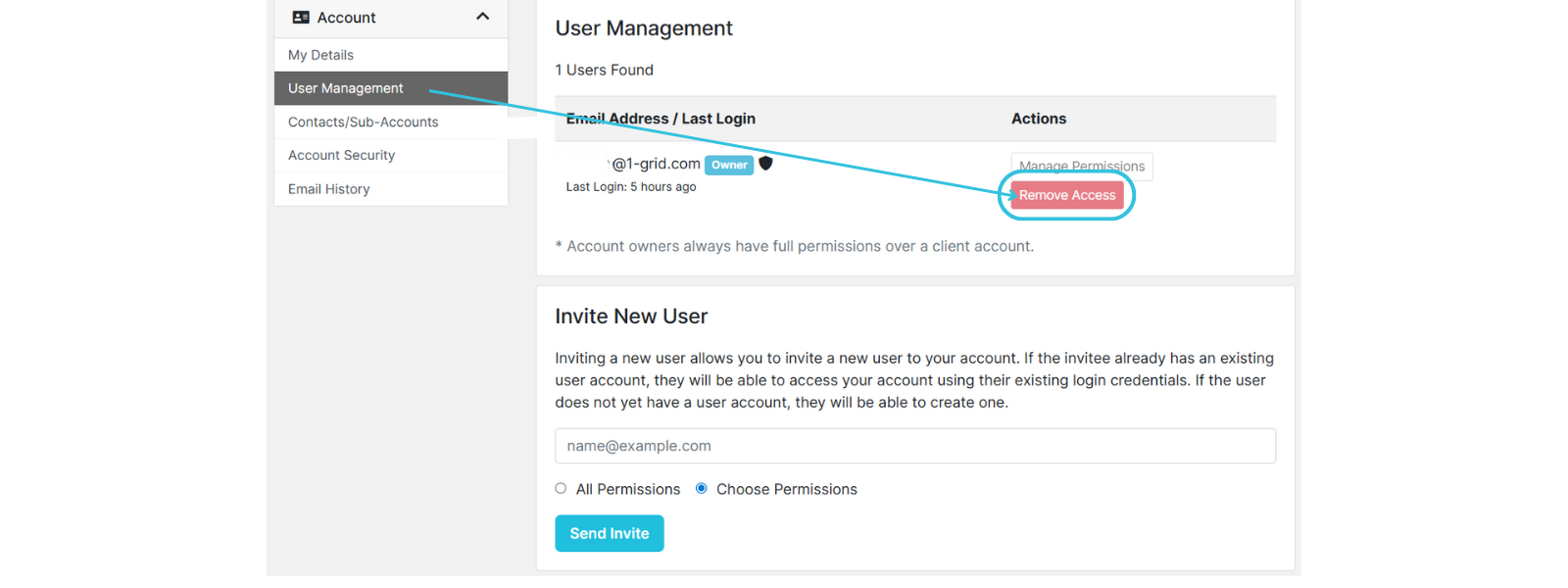
4. Click to Remove Access next to the applicable user email address
Managing Existing Sub-Accounts or Technical/Support Contacts
- Edit permissions/access anytime in Customer Zone.
- Add a new contact or sub-account if someone new needs access or permissions.
- Best practice: Review contacts regularly to ensure they’re up to date.
FAQs
Q: Can I remove more than one sub-account or technical/support contact at a time?
No, you can only remove one sub-account or technical/support contact at a time; however, you can repeat all the steps until you have removed all the required contacts.
Q: What happens if my staff changes?
Remove the old contact/sub-account and add the new person to keep support access and permissions current.
Additional Resources
How to Verify Your 1-grid Account for Support
Customer Zone: How to Update My Profile Security Question
How to Update My Security Question
Steps to Assist with Logging In to Your Customer Zone
Recovering a Lost 1-grid Customer Zone Password
Preventing Unauthorised Customers from Accessing 1-grid Support
Adding a Sub-Account or Technical Contact to Your 1-grid Account
How To Keep Your 1-grid Account Details Up to Date
Need Additional Support?
We’re Here to Help:
Deleting a Sub-Account or Technical Contact from your 1-grid account does not have to feel like a challenge because this easy-to-use guide makes it easy. Stuck? Contact our Support Team for help (https://1grid.co.za/contact-us/). We’re ready to see how we can help!