
Whether you’re updating your credentials as a precaution, responding to a security concern, or regaining peace of mind, we’re here to make the process for updating your password for a service hosted on cPanel simple, clear, and stress-free.
This guide will walk you through changing your cPanel password securely via your 1-grid Customer Zone to help you regain control of your hosting security in just a few clicks without needing technical expertise.
When Should You Change Your cPanel Password?
Regular password updates help protect your website, emails, and files from unauthorised access, and regular account management also ensures good health in managing your service access points.
You may want to update your cPanel password if:
- You’ve recently worked with a developer or third party
- You haven’t changed it in a long time
- You’re doing a routine security check
Choosing a Strong cPanel Password
A strong password helps protect your website, files, and email accounts, and significantly reduces the risk of hacking and downtime.
We recommend that your password:
- Uses upper and lowercase letters
- Includes at least one symbol (# $ ! % & etc.)
- Avoids dictionary words or personal details
You can also use a password generator for added security.
What Happens After You Change Your Password?
Updating saved passwords prevents access errors after the change.
This means:
- Your old cPanel password will no longer work
- You may need to update saved credentials in:
- FTP clients (as required)
- Email apps (if applicable)
- Website management tools (where applicable)
How to Change Your cPanel Password via Customer Zone Step-by-Step
Here are quick steps to change your password for cPanel while logged into your Customer Zone:
1: Log in to Your Customer Zone
- Go to: https://1-grid.com/client/clientarea.php
- Enter your registered email address and password.
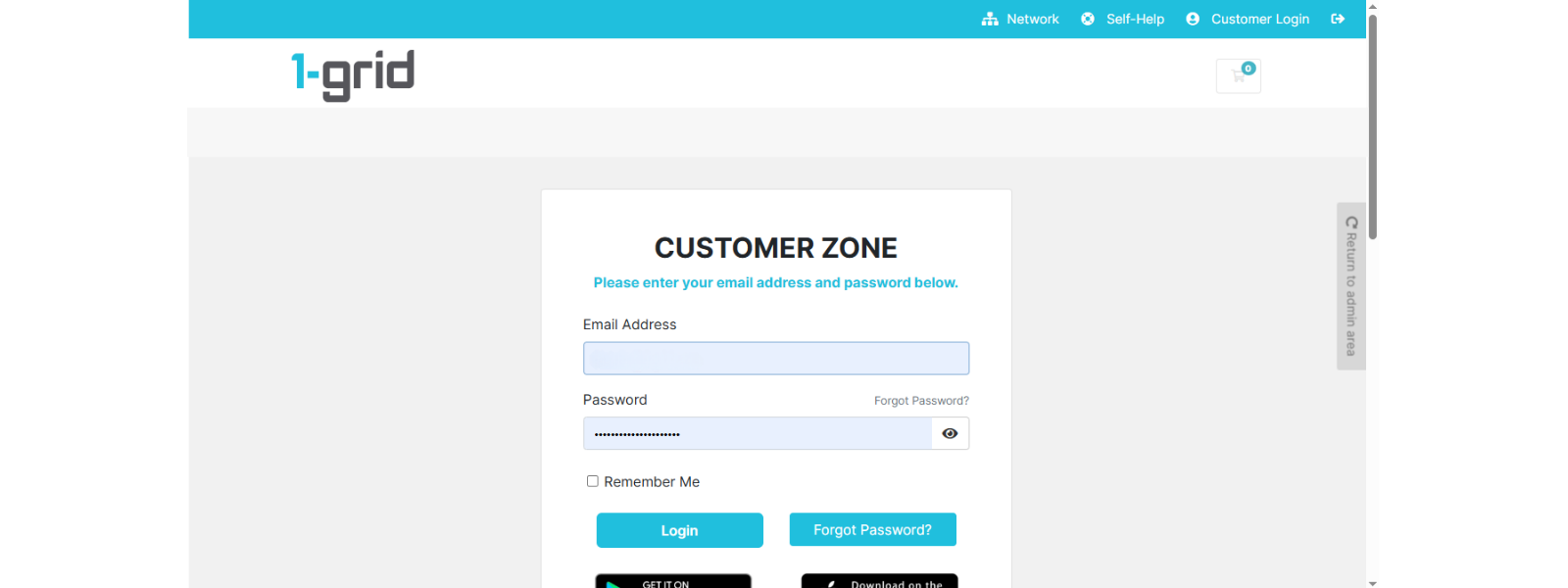
TIP: This ensures changes are made securely under your verified account.
2: Navigate to Your Services
- Click Services, then select My Services.
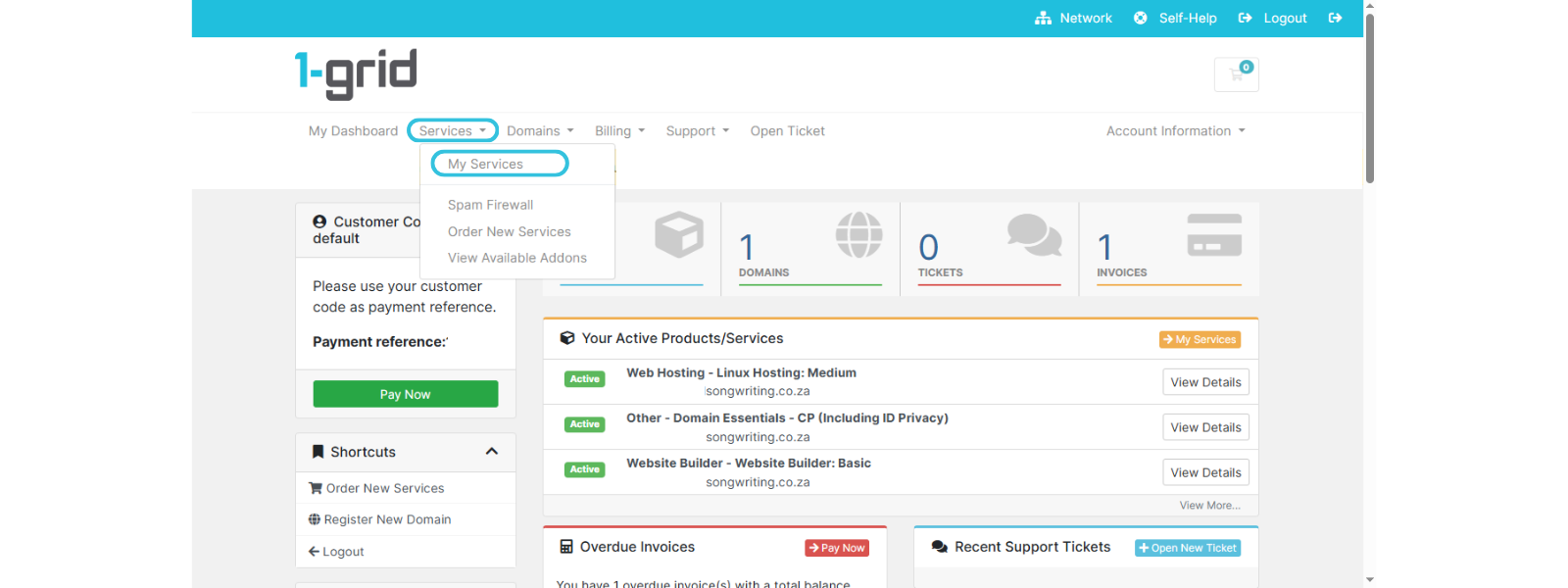
TIP: This displays all hosting products linked to your account.
3: Select the Hosting Product
- Locate the relevant hosting product and click on it.
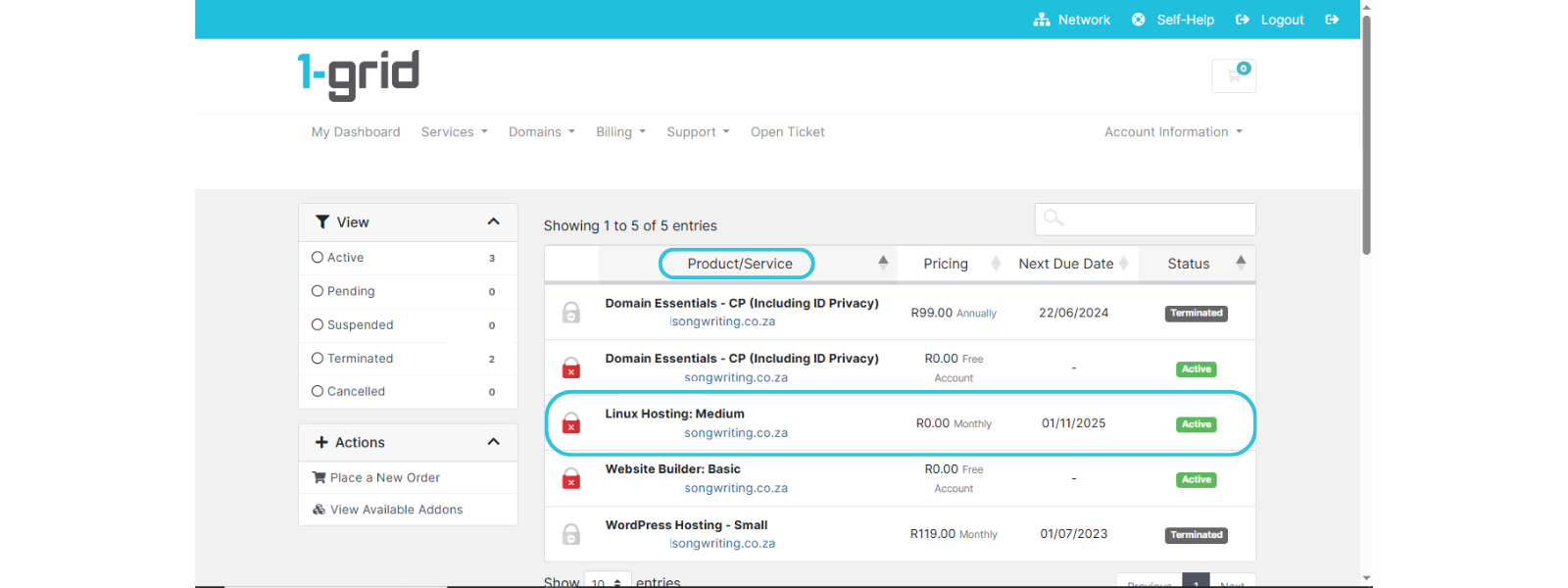
NOTE: If you are accessing your service from your “My Dashboard”, you can simply click on “View Details”.
4: Change the Password
- Click Change Password.
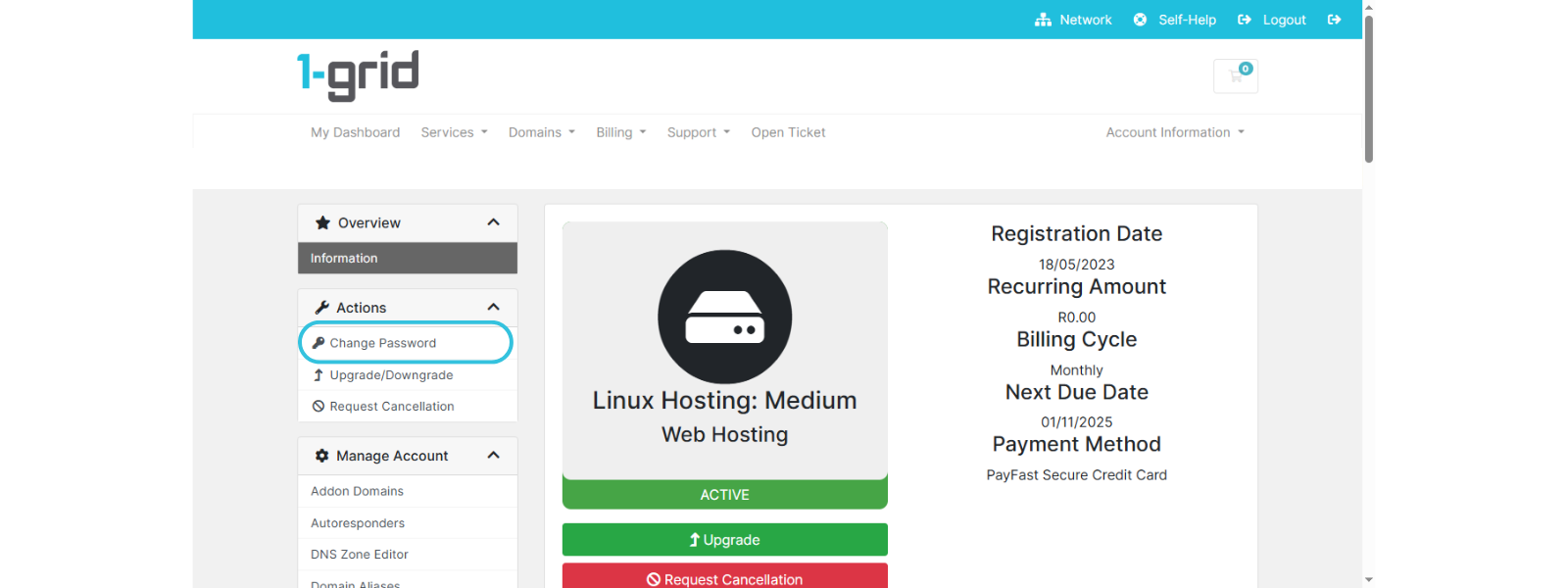
5: Create a New Password
- Enter your new password
- Confirm the password
- Click Save Changes
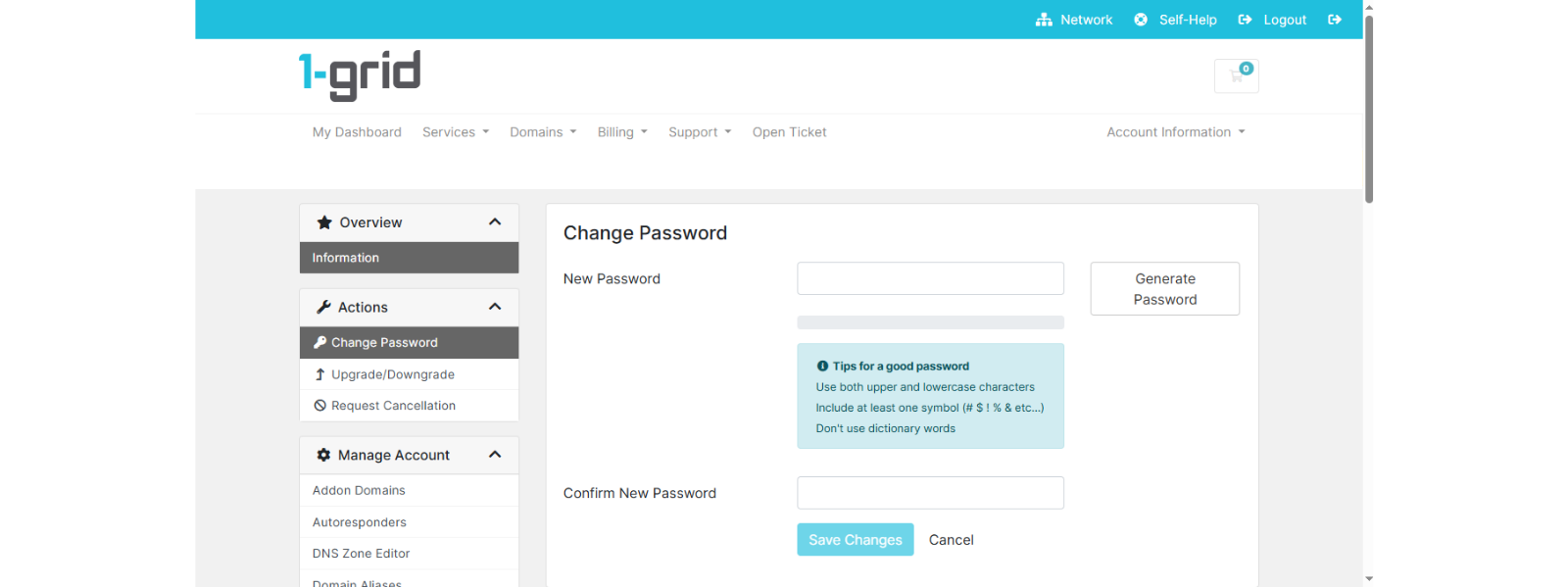
SECURITY TIP: Choose a strong password to prevent unauthorised access.
Our Scope of Support
If you’re stuck and need any additional guidance or support, here’s an outline of what we can do and what is not within our Scope of Support.
What We Can Help With
- Guiding you through the Customer Zone steps
- Confirming whether your password change was successful
- Helping you regain access to your Customer Zone if you’re locked out
Advanced Support (Paid Services)
While some tasks fall outside Standard Support, we can still help through our Paid Services offering. These tasks require specialised work and are quoted before we begin.
What We Are Unable to Assist With
- Set passwords on your behalf
FAQs
Q. Does changing my cPanel password affect my website?
No, your website stays online. You’ll only need to update saved logins where applicable.
Q. Can I change my cPanel password directly in cPanel?
Yes, but using the Customer Zone is often simpler and more accessible.
Q. What if I forget my new password?
You can reset it again via the Customer Zone or contact support for guidance.
Additional Resources
Everything About Passwords and cPanel
Tips to Choose a Strong Password
1-grid Customer Zone Password Reset (if you’re logged out)
Need Additional Support?
We’re Here to Help:
Changing your cPanel password via your Customer Zone doesn’t have to feel complicated with this easy-to-reference guide. Stuck? Check out our Scope of Support, and then contact our Support Team for further clarity and guidance (https://1grid.co.za/contact-us/). We’re ready to see how we can help!