This guide will take you through the steps of adding an image gallery to your website builder.
Step 1 – Login to Website Builder
- Please see our guide here on how to login to Website Builder from your Customer Zone.
Step 2 – Click on Login again on the start page.

Step 3 – Click on the + button

Step 4 – Click Add section here in the position you want

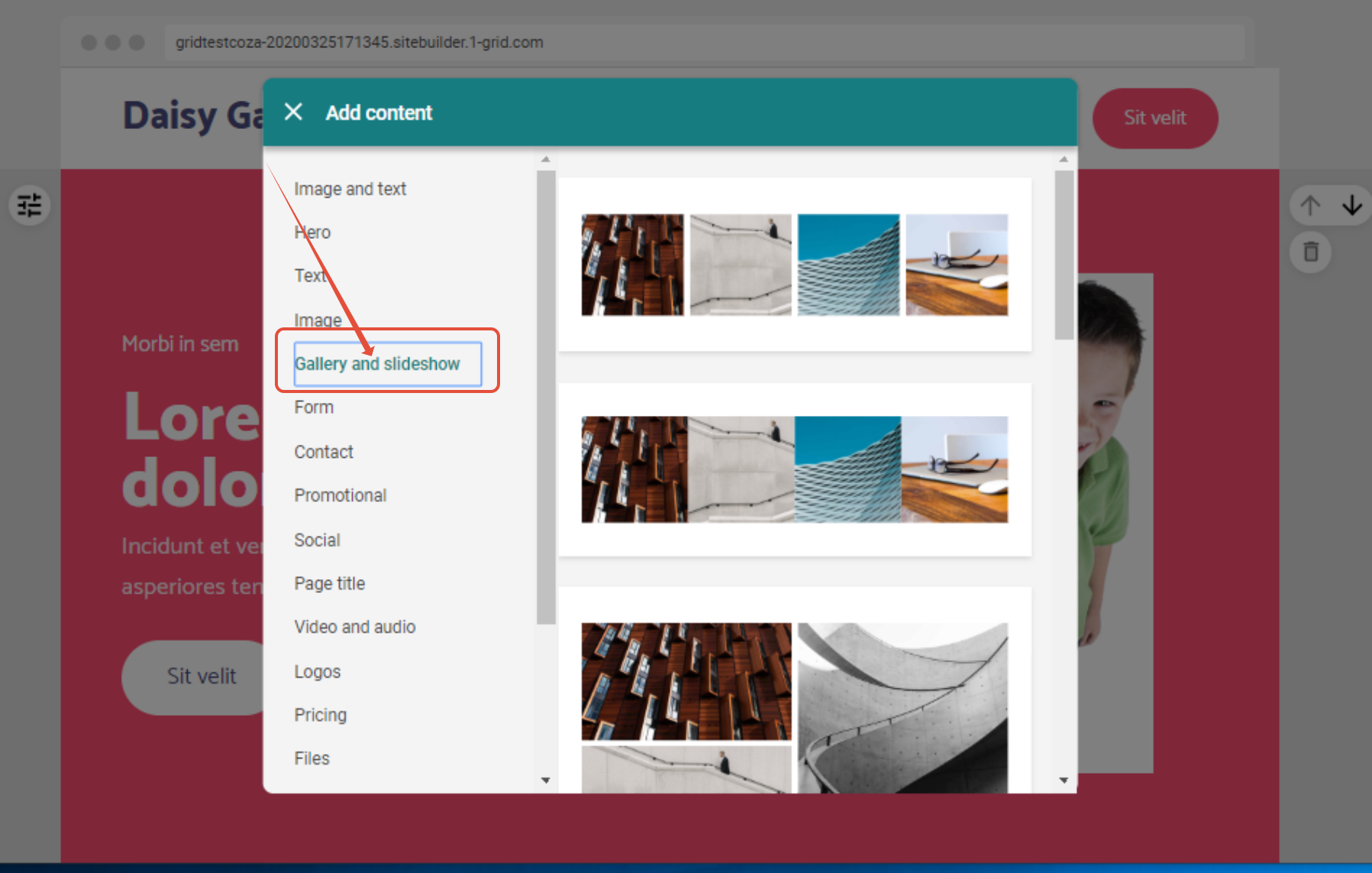
Step 5– Click on Gallery and Slideshow
- Select a gallery layout of your choice
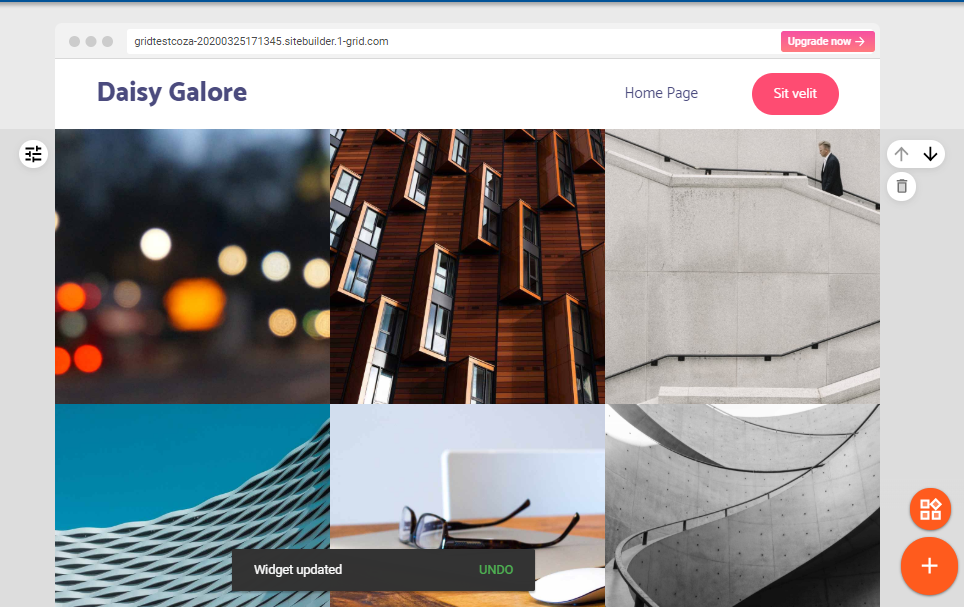
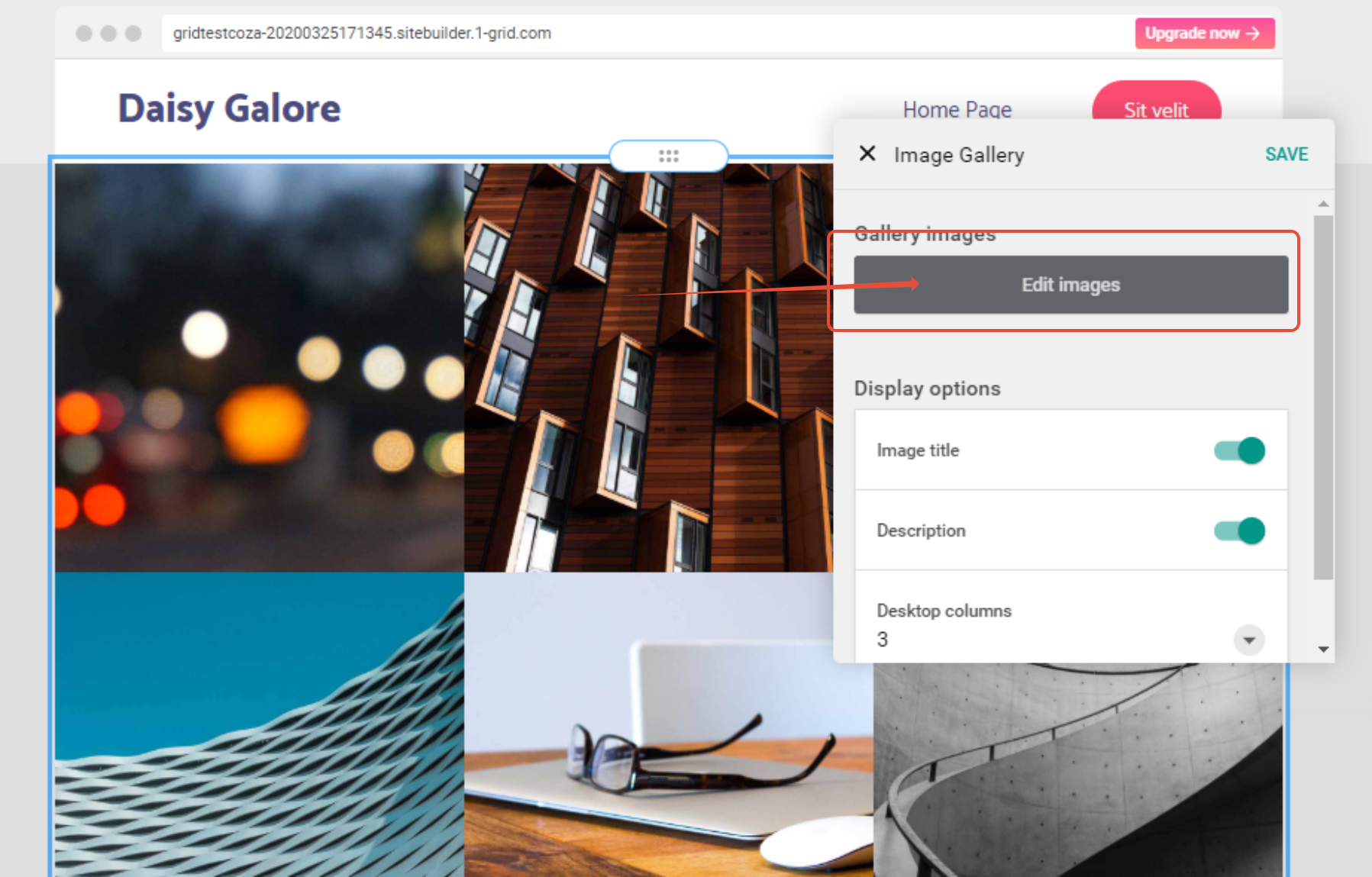
Step 6– Edit Images by Clicking on them
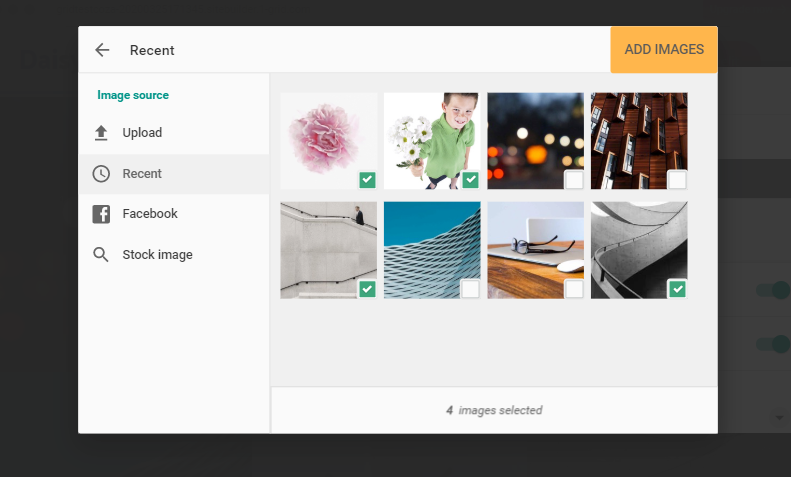
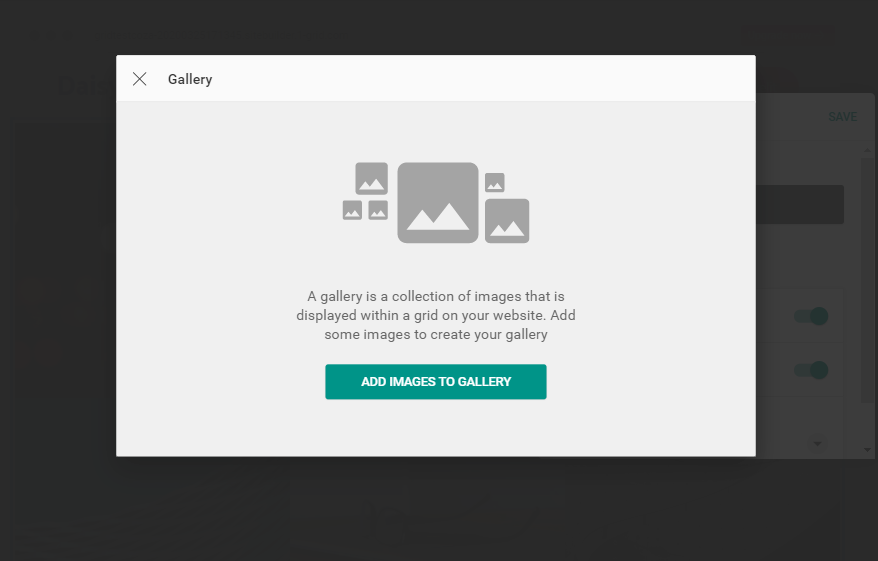
Step 7– Click Add images to Gallery
Step 8– Select images you would like to add and click Add Images.