
Your blog tells your story, your expertise, experience, and authority. When moving your website to 1-grid Website Builder, you don’t have to leave your WordPress posts behind. Our Website Builder includes a built-in import tool that helps you transfer your blog content quickly, safely, and with minimal effort.
This guide walks you through why 1-grid Website Builder is a great choice, how blog importing works, and how to migrate your WordPress blog posts step-by-step, even if you’re not technical.
Why Choose Website Builder with 1-grid?
Your website should be simple to manage, beautifully designed, and easy to grow.
1-grid Website Builder offers:
1. No-Code, AI-Powered Platform
Start from scratch, let AI build it for you, or choose from thousands of fully customisable business templates, all enhanced with AI-generated imagery.
2. Booking Functionality
Appointments and payments in one place for your customers.
3. Effortless Editing
Drag-and-drop tools make updating your site quick, intuitive, and code-free.
4 Mobile-Ready Design
All templates automatically adapt to phones, tablets, and desktops.
5. Fast, Secure Hosting
Powered by 1-grid’s local hosting infrastructure for speed, reliability, and peace of mind.
6. Built-In Tools to Grow Online
Integrated blogging, contact forms, SEO tools, and online store features.
7. Easy Migration from WordPress
Your existing content can be brought into Website Builder using a simple import tool, which means no plugins or coding required.
Making Blog Post Importing Easy
Migrating your content can feel overwhelming, but not with Website Builder.
The import feature allows you to:
- Transfer multiple WordPress blog posts at once
- Keep your blog structure and content consistent
- Save time and avoid copy-and-paste errors
- Start publishing immediately in your new builder
All you need is your exported XML file from WordPress, and Website Builder then allows for importing this.
Important to Know Before You Begin
Website Builder’s WordPress Import typically brings in the post titles, content, and images. It usually does not import comments, visit counts, original publication dates, tags, or other metadata.
For large blogs with many posts, the import process may take some time. Allow it to complete without interruption.
If you have specific content like media files that are not embedded within the posts, you might need to handle their import separately, such as PDF files.
How to Export Blog Posts from WordPress for Importing to Website Builder
Steps to Follow
1. Log in to your WordPress Dashboard
2. Navigate to Tools > Export
- Use the dropdown options to modify what you would like to import.
- Choose to export “Posts” or “All content” depending on your needs. If you only want blog posts, select “Posts.”
3. Click Download Export File
This will generate an XML file containing your blog post data.
IMPORTANT: While inline images will be imported, any attached files, such as PDF documents, will not be.
4. Save this file to your computer
How to Import Blog Posts from WordPress to Website Builder
Steps to Follow
1. Log in to Website Builder
- Once you have logged in to 1-grid Customer Zone, open Website Builder and access your editor.
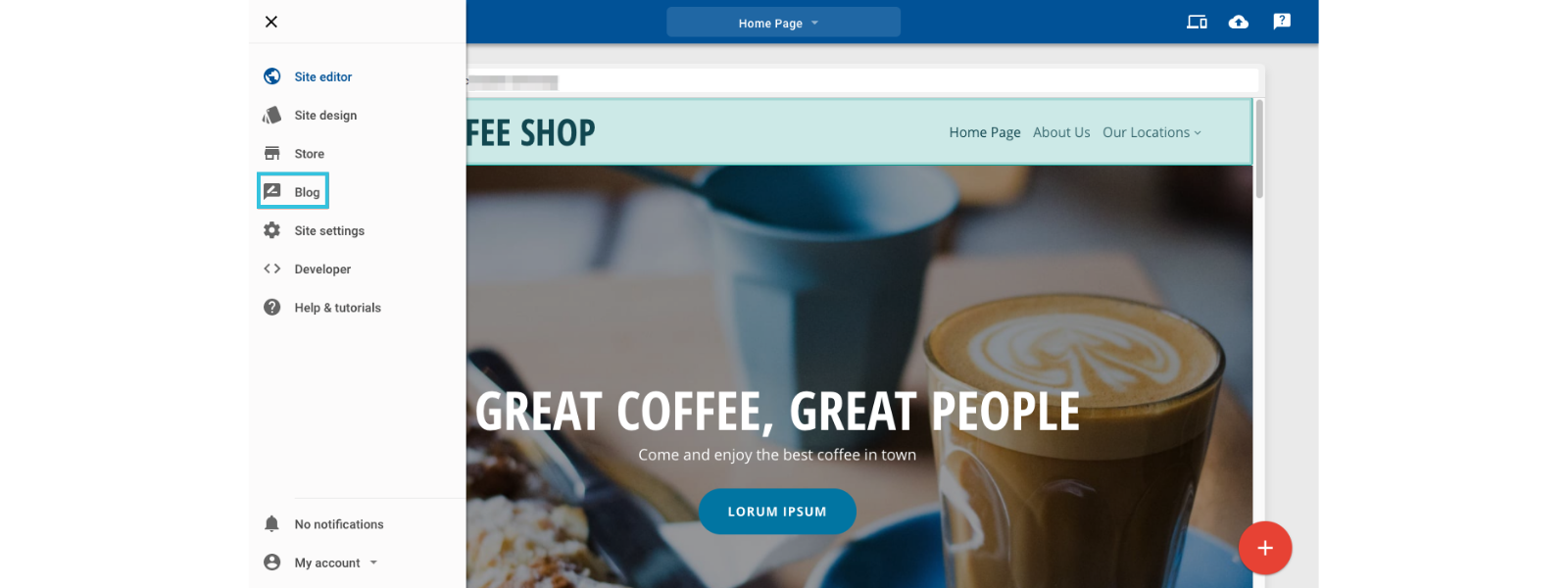
2. Open the Blog Section
- In the Website Builder editor:
- Select Blog from your left-hand menu
- Click WordPress Import
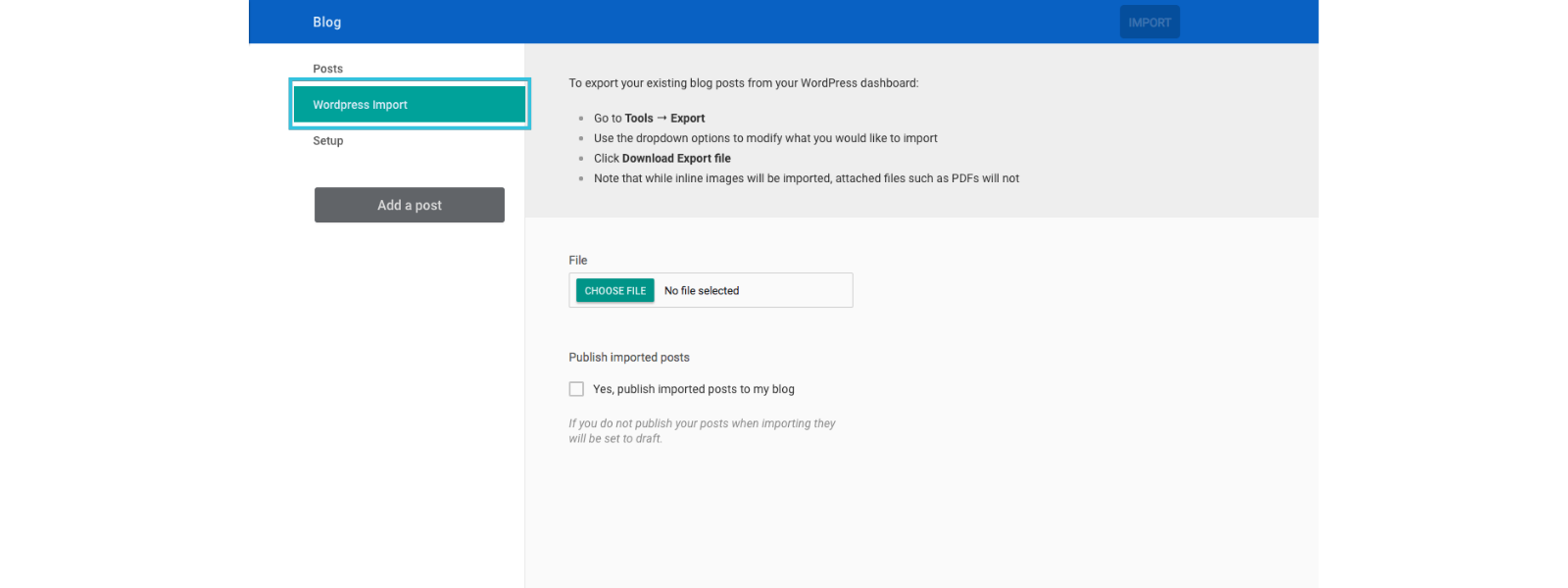
3. Select your XML file and click Import
- You will be prompted to upload the XML file you exported from WordPress.
- Browse for the XML file on your computer and select it.
4. Click Import
- Website Builder will automatically:
- Fetch the selected posts
- Bring them into your editor
- Convert them into Website Builder blog entries
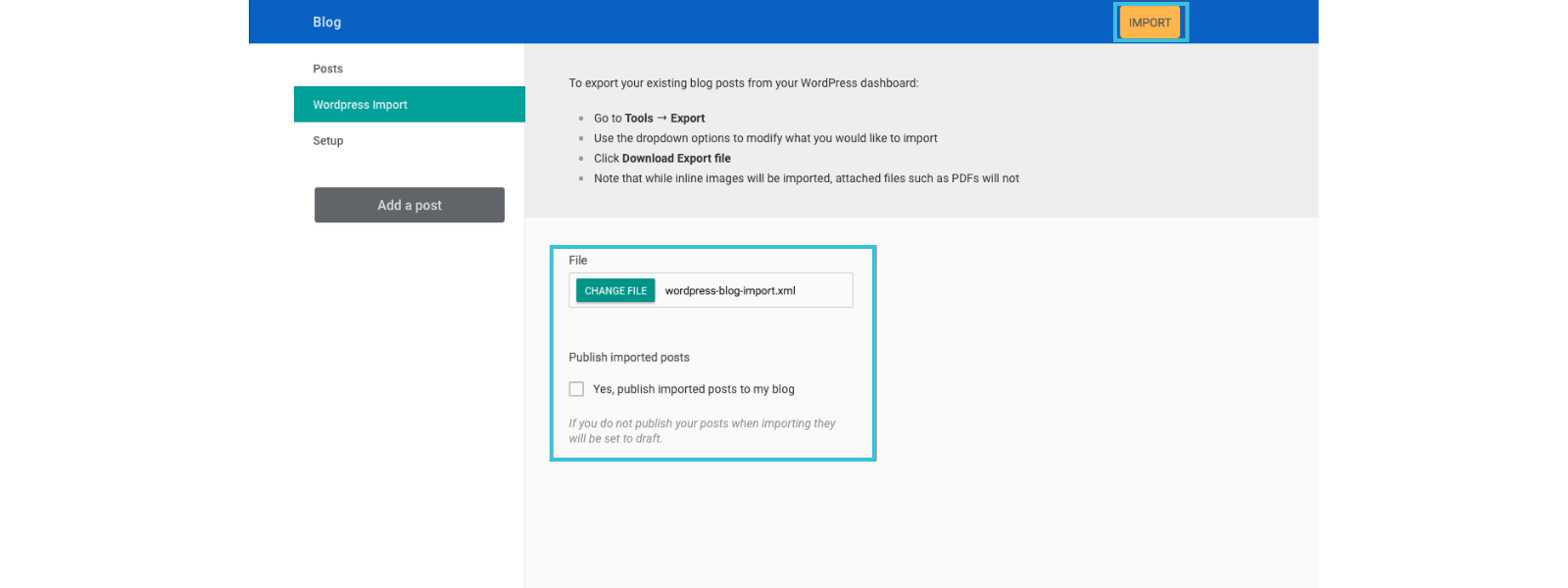
TIP: You can select “Yes, publish my imported posts to my blog” to do this automatically.
6. Review and Publish (Saved as Draft)
If you do not publish your posts when importing, they will be set to draft.
Once imported:
- Open any post
- Adjust formatting if needed
- Add new images
- Update SEO titles or descriptions
- Publish your posts
You now have all your content in one place, ready to grow your online presence.
FAQs
Q. Do I need access to my old WordPress dashboard?
No, not if you have already exported your file previously. The import tool only needs your XML file.
Q. Will images be imported?
Images are usually imported automatically, but you can replace or update them during editing.
Q. Can I import draft posts from WordPress?
Only published posts can be imported.
Q. Will my WordPress categories import?
Some metadata may be imported depending on your WordPress setup. You can reorganise categories after importing.
Q. Can I re-import or import new posts later?
Yes, you can run the import tool again anytime.
Q. Is this migration process included in support?
Website Builder provides the tool, but customers need to use the import function themselves. Our Support Team can guide you through the steps.
Additional Resources
Getting Started with Website Builder at 1-grid
All You Need for Using Website Builder
Need Additional Support?
We’re Here to Help:
Exporting or importing your blog posts from WordPress to Website Builder with 1-grid doesn’t have to feel technical with this easy-to-reference guide. Stuck? Contact our Support Team for clarity and guidance (https://1grid.co.za/contact-us/). We’re ready to see how we can help!