
You can set up email on Android devices for your 1-grid email accounts quickly and simply if you follow the correct steps and use the right settings. This guide will walk you through everything you need to know.
Before You Start
Make sure you have the following:
- Your full email address (e.g. [email protected])
- Your email password
- 1-grid’s mail server settings (find them here)
- The Android device you would like to set up your email on
- A stable internet connection
IMAP vs POP: Which One Should I Use?
When hosting your emails with 1-grid, it is important to think about how you would like your emails to be accessed and stored. This means that you need to consider which settings are right for you and understand how they work before you configure these settings in your preferred email client.
IMAP is preferred over POP because it empowers you to access and manage your emails in real-time from any device, as messages are stored on a remote server, ensuring your entire email history, folders, and read/unread status are perfectly synchronised everywhere. This eliminates the hassle of lost messages and inconsistencies when switching devices, making it ideal for the modern, multi-device world by keeping your digital life synchronised and accessible.
IMAP (Recommended)
This keeps your emails synced across all devices, such as your phone, tablet, desktop and your webmail. A copy of the email will be delivered to each device on which your email is set up.
POP
Using this setting downloads emails to your device only, and they may be removed from the server. This is why it is not the recommended approach.
Step-by-Step Setup on Android
You can set up secure email access on your Android mobile, using its primary email client or by adding a new email account.
1. Select the Mail icon on your device or open Settings on your device and go to Accounts → Add Account → Email (Other).

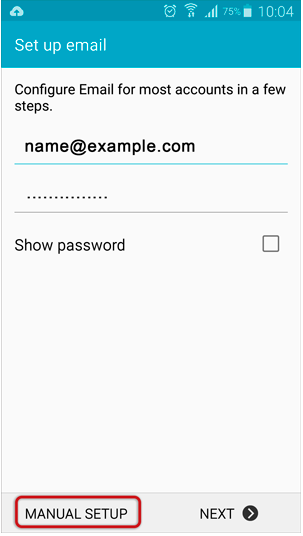
2. Enter your full email address and password.
3. Choose Manual Setup.
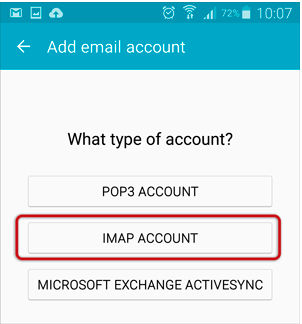
4. Select IMAP (recommended) or POP3.
 |  |
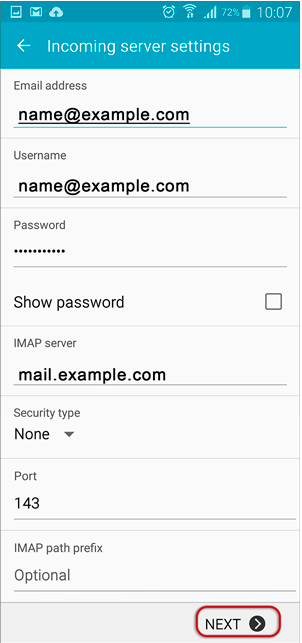
5. Enter Incoming Server Settings:
- Server: mail.yourdomain.com
- Port: 993 (IMAP with SSL/TLS) or 995 (POP with SSL/TLS)
- Security: SSL/TLS
- Username: full email address
- Password: your email password
6. Click on Next.
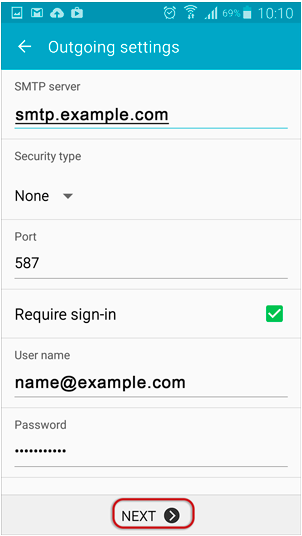
7. Enter Outgoing Server Settings (SMTP):
- Server: mail.yourdomain.com
- Port: 465 or 587
- Security: SSL/TLS
- Authentication required: Yes (use the same email and password)
8. Click on Next.
 |  |
9. Select your sync preferences (frequency, notifications).*
10. Give the account a name (optional) and choose a display name for outgoing mail.
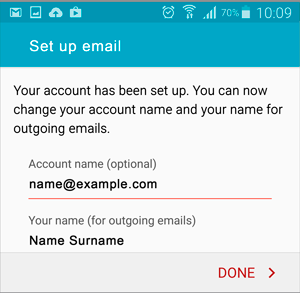
11. Tap Done.
12. Test if you can send and receive emails from your Android device.
TIP: Mobile devices typically automatically update their software and features regularly. Should you have an issue with your setup of the email account on your mobile device specifically, we would highly recommend contacting your mobile network service provider, such as CellC, Vodacom, MTN or Telkom’s Support to better assist, as they are trained to deal with setups on all versions of your mobile device.
Common Issues and Fixes
Authentication Failed
- Check that your full email address and password are correct.
SSL or Certificate Warning
- Make sure that SSL/TLS is selected.
- Confirm server matches mail.yourdomain.com.
Cannot Connect to Server
- Verify the port numbers you have entered are correct.
- Try switching between 465 and 587 for SMTP.
Email Not Syncing
- Enable background sync, allow app permissions, and disable battery optimisation for the email app you are using.
Slow Performance
- Ensure that you have a stable internet connection.
- Make sure that you have the latest update for your email app.
Best Practices
- Always use IMAP with SSL/TLS for best security and syncing.
- Use a strong, unique password for your email accounts.
- Keep your Android device and email app updated.
- Periodically review the accounts on your device and remove any that you no longer use.
FAQs
Q: Can I set up my 1-grid email on more than one device?
Yes, you can. We suggest that you use IMAP to ensure that your emails sync across all devices.
Q: Why do I get SSL warnings?
This usually means the wrong server name or encryption method was selected. Double-check the settings above.
Q: Can I use the Gmail app on Android?
Yes, you can use the “Other account” option and enter your settings manually.
Q: Can I change from POP to IMAP later?
Yes, but you will need to remove the POP account and re-add it as IMAP. It is important to note that moving from POP to IMAP does not guarantee that all previous emails will sync or be available once you have moved over to IMAP.
Additional Resources
Settings to Configure Your 1-grid Email Accounts Across Devices
Email Setup How-Tos
Troubleshooting Steps for Email
Top 10 Common Email Issues!
SpamTitan FAQs
MailChannels FAQs
Need Additional Support?
We’re Here to Help:
Setting up your emails doesn’t have to be tricky with this easy-to-use guide. Stuck? Contact our Support Team for guidance (https://1grid.co.za/contact-us/). We’re ready to see how we can help!