

Update your stored mobile credentials quickly to restore access, sync folder streams, and resume your local mailbox communications.
If you have recently updated your mailbox password through your email hosting provider or control panel, you must update the saved password on your iPad to restore access. Your Apple tablet stores your password locally to maintain a persistent connection to your incoming and outgoing mail servers. If the password on your iPad does not match your current mailbox password, your email will stop synchronising and repeatedly prompt you to sign in. This guide walks you through navigating your iPadOS menus, updating your stored mail credentials, and running connectivity verification tests natively on your 1-grid Web Hosting account.
Before You Begin
Before rewriting your account authentication properties inside your tablet, ensure you meet these baseline requirements:
- An active 1-grid email-only or hosting package.
- Your physical Apple iPad connected to a stable internet data stream (Wi-Fi or mobile data).
- A record of your brand-new email password exactly as it was configured on your server.
💡 Critical Guardrail: Updating the password fields inside your iPad settings does not change your actual email password on the server. This guide is strictly intended for users who have already changed their master password via cPanel, Webmail, or the Client Portal, and now need to mirror that updated key on their mobile tablet hardware.
Follow These Steps
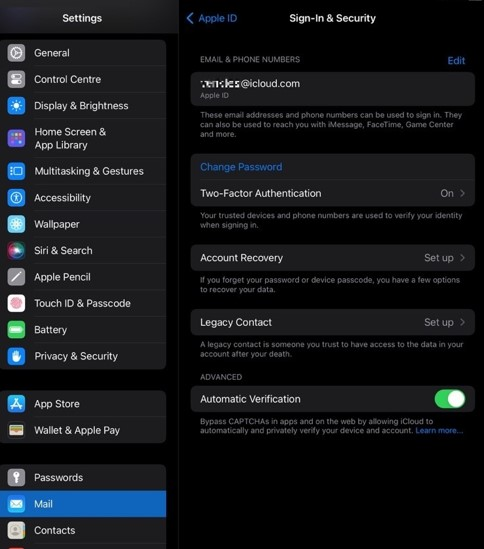
1. Open Your iPadOS Settings App
Unlock your iPad and tap on the primary gear-shaped Settings application icon on your home screen layout.
2. Navigate to Your Mail Account Directory
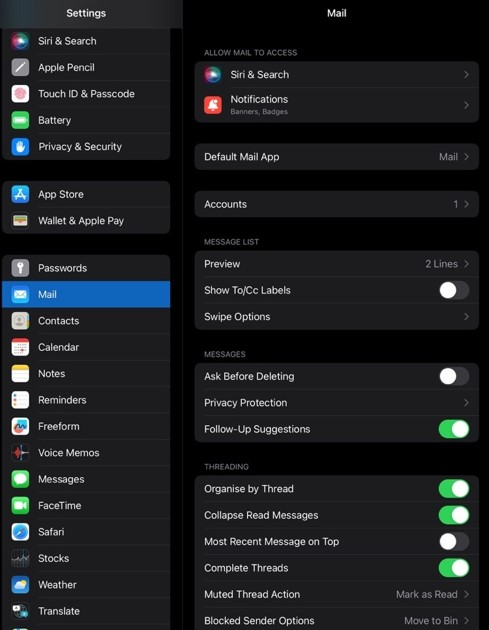
Scroll down the left-hand navigation sidebar panel menu list to open your account routing files. Depending on your specific version of iPadOS, follow the appropriate navigation track:
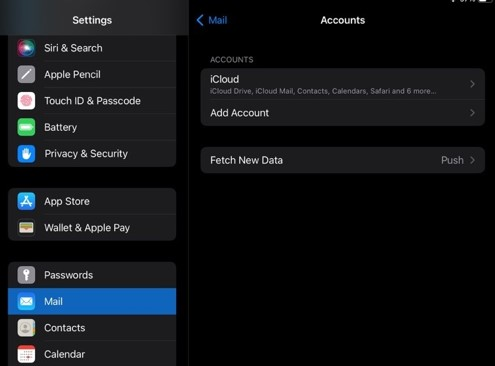
- On Newer iPadOS Versions: Scroll down the left pane, tap on Mail, select Accounts, and click on the specific business email address row item you want to update on the right-hand panel view.
- On Legacy iOS/iPadOS Versions: Scroll down the screen layout, tap on Mail, Contacts, Calendars, and select the targeted email account profile card from your active connections list.
3. Access the Account Details Panel
Once your target profile is highlighted, tap on the Account text string line row again to launch your details. This view displays your incoming user IDs, host addresses, and authentication options.
4. Overwrite the Password Fields
Locate the Password field row inside your account credentials block. Delete the old cached character string completely, and carefully input your fresh, active mailbox password.
⚠️ Case-Sensitivity Warning: Ensure you enter the alphanumeric layout exactly as it was built, paying absolute attention to uppercase letters, lowercase letters, numbers, or special punctuation keys.
5. Check Advanced Outgoing (SMTP) Settings
Scroll further down the properties sheet and tap on SMTP under the Outgoing Mail Server section block cluster panel. Click on your primary server hostname (e.g., mail.yourdomain.co.za). If your outgoing server authentication properties require independent validation fields, delete the old password string here as well, overwrite it with your fresh key, and tap Done in the top right corner.
6. Save and Verify Your Changes
Return to the primary Account profile screen and tap Done or Save in the top-right toolbar actions header strip. Your iPad will close the panel layout and execute a brief background network handshake to verify the new credentials against our mail servers. Once approved, the interface will slide back to your main accounts catalogue cleanly.
7. Run a Complete Transmission Test
Press your Home button, launch the native Apple Mail app, and execute an exhaustive send-and-receive verification loop:
- Pull down on your screen pane layout to force your inbox folder structure to fetch new entries.
- Compose a quick test email text script and mail it to a secondary, external address.
- Verify that the outbound mail moves cleanly out of your Outbox and that test replies land back inside your inbox folder row smoothly.
Understanding Mobile Mail Protocols: Incoming vs. Outgoing
Mobile platforms handle incoming and outgoing digital mail traffic through separate, independent channels. Understanding this split prevents connection failures:
Incoming Mail Server (IMAP or POP)
The incoming data stream controls how your iPad reads data stored on your 1-grid web hosting allocation disk sector. Updating your main account block configuration updates this track immediately, allowing you to pull folder layouts and new messages onto your local screen.
Outgoing Mail Server (SMTP)
The Simple Mail Transfer Protocol (SMTP) is an isolated automated gateway that verifies your identity right before permitting you to broadcast mail across external internet communication links. If you update your main login credentials but forget to update your SMTP server properties, your iPad will download incoming mail flawlessly but will throw immediate delivery failures whenever you try to reply to a client.
Keep Your Email Account Secure
If you have recently changed your password because of suspicious activity, it is an excellent opportunity to review your overall email security profile.
Create a Strong Password Layout
When creating a new password baseline, make sure you use at least 12 characters where possible. Always include a random mix of uppercase and lowercase letters, numbers, and special characters. Avoid names, birthdays, or easily guessed words, and consider using a memorable passphrase for added security.
Best Practices for Mailbox Protection
To help keep your business mailbox secure over the long term, use a unique password for every individual account and store passwords in a trusted password manager. Change your credentials immediately if you suspect unauthorised access, keep your iPad updated with the latest security patches, and only sign in to trusted websites or secure Wi-Fi networks.
What Happens Next?
Once your tablet credentials match your back-end hosting system allocations, operations resume in real time.
- Instant Background Syncing: New incoming customer briefs, attachments, and calendar data download to your tablet natively without manual re-keying.
- Multi-Device Alignment: If you synchronise this mailbox profile across secondary mobile phones or office computers, remember that you must repeat this identical credential override sequence on every separate terminal to avoid account-wide security lockouts.
Important Things to Know
- The Multi-Device Lockout Trap: If you leave an old, un-updated phone or secondary laptop running in the background with your old password saved, that machine will keep hammering our servers with wrong credential lookups. This can cause our security firewalls to flag the activity as a brute-force attack and temporarily block your local network IP address.
- Apple ID Distinction: Your unique web hosting email password is a completely independent security entity; changing it has zero impact on your personal Apple ID profile logins or iCloud space parameters.
- Zero Mail Deletion Risks: Rewriting or correcting your stored credentials inside your settings app updates your security handshake rules only; it will never delete, purge, or modify your historical messages or archived folders.
Common Mistakes to Avoid
- Entering your old password out of habit inside the newly opened field row boxes.
- Typing or dropping case-sensitive lowercase or uppercase characters when inputting complex characters on a virtual mobile keyboard.
- Leaving out the necessary SMTP outgoing password update when configuring custom corporate mail server links.
- Confusing your standard email mailbox password with your personal Apple ID password parameters.
- Closing out or shutting down your iPad Settings app panel before the loading verification checkmark finishes spinning.
If This Didn’t Work
Should your iPad continue to push continuous, repetitive password error prompts or block your incoming mail synchronisation streams post-save, navigate to your central portal to confirm your underlying domain registration is fully active and not expired. If connection timeout errors persist, follow our blueprint guides on How to Find Your Email Server Settings to verify your incoming and outgoing host addresses are spelt accurately.
You’re Ready!
Your tablet email connectivity credentials have been successfully updated. Aligning your mobile hardware devices with your web hosting configurations keeps your business communications flowing seamlessly, letting you handle client briefs on the move with complete ease.
Related Articles
- How to Change Your Email Password
- Viewing Your Email Settings in Windows Plesk
- Viewing Your Email Settings in cPanel and Webmail
- Change Your Email Password on Your iPhone with 1-grid
- Finding Your Email Server Settings
Need Help?
If your iPad interface throws persistent verification-rejected alerts, or if outbound mail deliveries remain permanently blocked inside your mobile outbox logs, contact our Support Team, as they are ready to provide guidance and support.
Before launching a ticket, please assemble:
- Your primary email address and active server service plan metrics.
- Your precise iPad model and active iPadOS version number distribution details.
- The exact text string layout of any specific error notifications displayed on screen.
- A screenshot of your Incoming and SMTP configuration window views (with your password fields securely masked).