

Securely set up your CuteFTP desktop client to manage, upload, and organise website assets directly from your computer.
This guide will help you configure CuteFTP to connect to your 1-grid hosting account, allowing you to securely upload, download, and manage your website files. Whether you’re publishing a new website, updating existing content, or maintaining your hosting account, configuring CuteFTP correctly ensures a reliable connection between your computer and your web hosting server. Once your site has been configured, you’ll be able to reconnect with just a few clicks, making future website management faster and more efficient.
Before You Begin
Before linking your local machine to your server via CuteFTP, make sure you have:
- An active 1-grid web hosting account
- The CuteFTP desktop software installed on your computer
- Your explicit FTP connection parameters ready (FTP Hostname, FTP Username, and FTP Password)
- Your FTP port number (usually port
21for FTP/FTPS or port22for SFTP)
💡 Tip: If your domain was registered very recently, network DNS propagation might still be running behind the scenes. During this window, you may need to type your server’s raw IP address into the host field instead of your domain name until the network update completes.
Follow These Steps
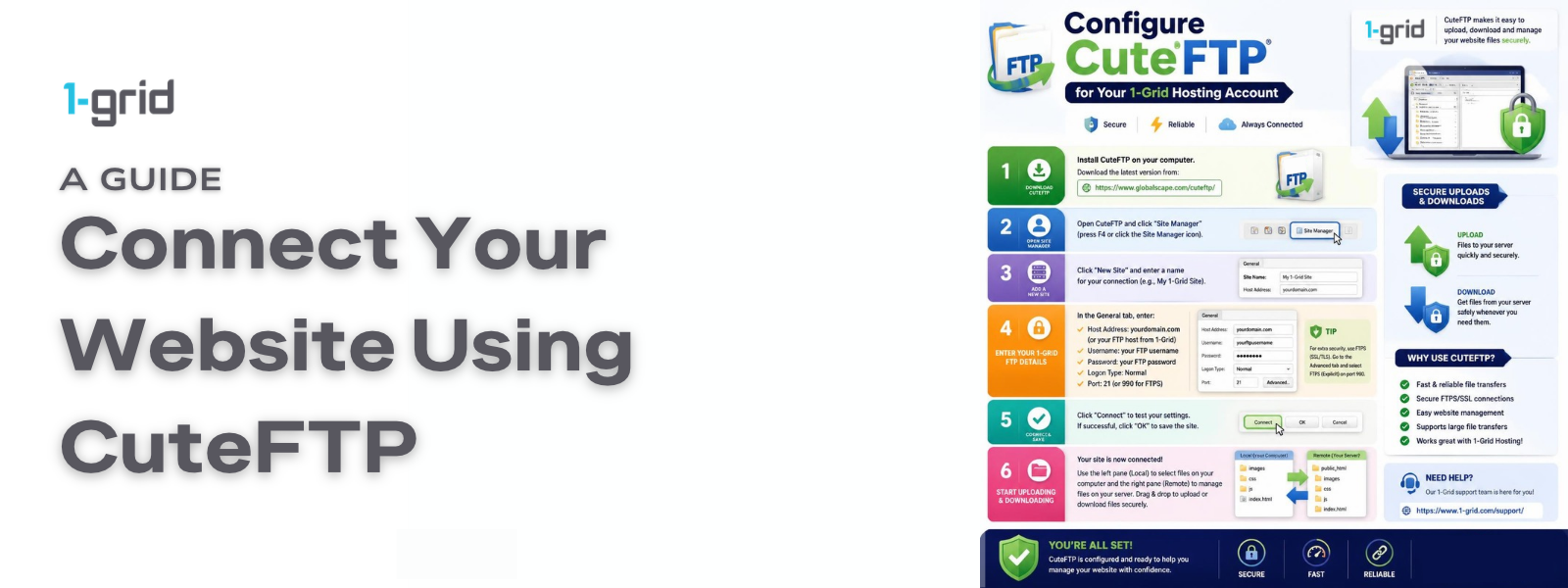
1. Open CuteFTP
Launch the CuteFTP application program on your computer.
2. Open Site Manager
Select the Site Manager tab module from the main application view workspace. This local cache screen is where CuteFTP securely stores your persistent website connection profiles.
3. Create a Folder (Optional)
If you manage multiple web hosting platforms or digital portfolios:
- Right-click the General FTP Sites directory header row.
- Select New → Folder, type an organisational folder name (e.g.,
Business Websites), and save it to keep your site listings structured.
4. Create a New FTP Site
Right-click your newly built folder panel block (or right-click General FTP Sites) and select New → FTP Site to initialise the central Site Properties parameter window.
5. Enter a Site Label
In the Label text field row, enter a memorable identification reference for your connection (e.g., My Business Website). This moniker text is strictly for your internal reference.
6. Enter Your Host Address
Enter your explicit server destination address string into the Host Address field. Type your unique hostname (e.g., ftp.yourdomain.com or yourdomain.com). If your domain name is brand new and still propagating across local ISP networks, paste your hosting server’s raw numerical IP address here instead.
7. Enter Your Login Details
Input your explicit account transmission details exactly as provided inside your activation metrics:
- Username: Your full unique FTP account username string.
- Password: Your unique FTP account password string. (Note: These fields are entirely case-sensitive).
8. Save the Configuration
Click OK at the bottom of the property layout frame to securely cache your site entry mapping inside CuteFTP for all future deployment loops.
9. Connect to Your Website
Highlight your freshly saved FTP site profile link card from the left-hand navigation pane and click the Connect socket icon button on the top toolbar. Once authorisation handshakes pass, your remote server files will render on screen.
10. Disconnect When Finished
Once your file sync actions read complete, click the active Disconnect broken socket link icon button to terminate your live network stream session cleanly.
What Happens Next?
Once authenticated, CuteFTP maps your machine directly to your server allocation.
- Live File Directory Interactions: Dragging local code documents across panels lets you upload website files, download assets, create folders, or delete files directly on your live storage space.
- The Root Path: For almost all standard deployments, ensure your live public files are dropped directly inside the public_html directory root.
Important Things to Know
- Local Security Storage: CuteFTP caches your profile connection strings strictly on your local machine; saving configuration data inside the app does not alter your website setup.
- Distinct Login Parameters: Your specialised FTP transmission credentials are entirely different from your primary 1-grid Client Portal billing login details.
- Protocol Encryption Priority: Standard FTP transfers data without encryption layers. We strongly recommend configuring FTPS or SFTP protocols inside the site manager properties to secure your administrative account keys across public paths.
- Commercial Third-Party App: CuteFTP is a commercial software platform. If you prefer free options, you can use alternative desktop options like Connect to Your Hosting with FileZilla.
Common Mistakes to Avoid
- Inputting your primary web application administrator password instead of your designated server FTP transfer password.
- Dropping public image assets or script indices outside of the mandatory
public_htmlroot folder panel directory. - Attempting to connect via your domain name string before regional internet service provider DNS propagation loops are fully complete.
- Transmitting sensitive framework files over unencrypted standard FTP lines when secure protocols are available on your tier.
- Terminating the app window before background upload queues finish writing data streams completely.
If This Didn’t Work
If connection initialisations return immediate socket rejections, check whether your client IP has been temporarily firewalled due to repetitive failed login attempts. Verify that your local computer security profiles, malware scanners, or office routers aren’t actively blocking outward network requests on port 21 or 22.
You’re Ready!
Your CuteFTP client program interface is completely configured to communicate with your server cloud. Routine website updates, code adjustments, and media directory backups can now process smoothly directly from your desktop.
Related Articles
- How to Find Your FTP Credentials
- Connect to Your Hosting with FileZilla
- Using File Manager in cPanel
Need Help?
If your client application loops endlessly during authentication handshakes, or throws unexpected socket errors that stall your asset deployments, contact us. Our Support Team is ready to offer guidance and support.
To ensure our engineering support teams can diagnose your connection issue quickly, please provide:
- Your primary domain name and active hosting package details
- The exact FTP hostname and username configurations utilised
- The complete error log text displayed inside your CuteFTP connection log terminal history window
- A screenshot of the error notice view showing on your screen
- The specific security transfer protocol selection chosen (FTP, FTPS, or SFTP)