

Set up your SmartFTP desktop client securely to upload, download, and manage your website files seamlessly.
This guide will help you configure SmartFTP so you can securely connect your computer to your 1-grid hosting account and transfer website files. Whether you’re uploading a new website, updating existing files, or downloading backups, SmartFTP provides a simple way to manage your hosting files from your desktop. Once configured, your connection can be saved for quick access whenever you need it on your 1-grid Customer Zone account.
Before You Begin
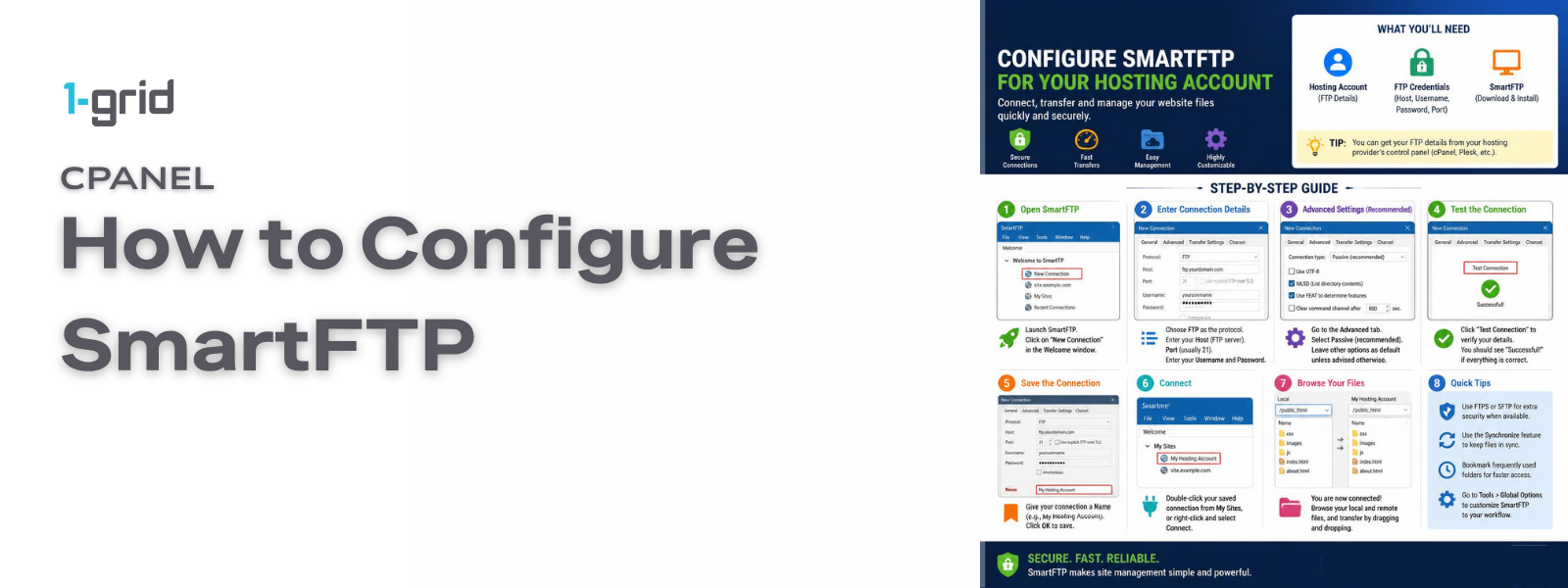
Before linking your desktop environment to your hosting server, make sure you have:
- An active 1-grid web hosting account
- The SmartFTP desktop software installed on your machine
- Your explicit FTP connection details ready (FTP Hostname, FTP Username, and FTP Password)
💡 Tip: Your FTP credentials are completely separate from your website administrator dashboard logins. If you do not know your transfer details, retrieve them from your How to Find Your FTP Login Details guide inside your cPanel hosting panel first.
Follow These Steps
1. Open SmartFTP Favourites
Launch the SmartFTP application on your desktop. Navigate your cursor to the top toolbar layout and click Favourites → Edit Favourites.
2. Create a Folder (Optional)
If you oversee multiple hosting plans or digital profiles:
- Input a recognisable, distinct label name and save it to keep your account lists structured.
3. Create a New Favourite
Highlight your newly built organisational folder, click the New Favourite button, and type a clear name for your web resource (e.g., My Business Website).
4. Enter Your Website Details
Complete the configuration field rows with your explicit server connection details:
- Host Address: Type your primary server string (e.g.,
ftp.yourdomain.co.zaor your hosting IP address). - Protocol/Connection Type: Where available, choose FTPS or SFTP to ensure your data transfer pipeline is completely encrypted.
- Username: Input your full FTP account username string.
- Password: Input your unique FTP account password variable string.
5. Save the Connection
Once you have cross-checked your user parameters, simply close out the Favourites editing window box framework. SmartFTP caches this site profile mapping automatically.
6. Connect to Your Website
Go to the primary menu toolbar, click Favourites, open your newly organised system folder, and click your saved site link layout. SmartFTP will initiate a server connection handshake. Once authorised, your remote server files will render on screen.
7. Verify the Connection
Before pulling down or pushing updates, check that your remote directory root maps perfectly. Drag a small local test file into the window to verify that your account read/write capabilities are working correctly.
8. Disconnect
When you finish updating your directories, click the active Disconnect socket icon button in the toolbar header to safely terminate your network file stream session.
What Happens Next?
Once your connection favourite card is saved, the connection path profiles are stored locally.
- Real-Time Transfers: File movements, code refactors, or media uploads execute directly across your server disk allocation.
Important Things to Know
- Third-Party Application: SmartFTP is an optional desktop utility tool; you can alternatively perform all matching adjustments inside your web browser via How to Use File Manager in cPanel.
- Typographical Errors: Typos within technical user fields or host address fields are the number-one cause of socket validation timeout errors.
- Local Network Blocks: Security firewalls or local antivirus scanning scripts can occasionally flag connection ports
21or22, requiring a temporary local network rule exception.
Common Mistakes to Avoid
- Typing a generic domain layout string before your custom domain pointing zone or DNS propagation is fully complete.
- Lowercasing or messing up uppercase alphanumeric layout structures inside your user field strings.
- Defaulting to unencrypted transmission types when your active server container package supports FTPS or SFTP paths.
- Mapping your local project files into the wrong remote target folder location.
If This Didn’t Work
If connection handshakes loop endlessly or throw error warning boxes, verify that your client IP has not been temporarily blocked due to excessive wrong password attempts by checking your How to Reset an FTP Password guide. Double-check that your server plan shows an active state inside your central customer portal.
You’re Ready!
Your SmartFTP client software workspace is completely configured to sync with your server node. You can now easily deploy scripts, manage data directories, and handle your backups straight from your desktop environment.
Related Articles
- How to Find Your FTP Login Details
- How to Use File Manager in cPanel
- How to Reset an FTP Password
- FTP vs FTPS vs SFTP Explained
Need Help?
If your local computer cannot successfully establish an encrypted session to your server, or if authentication loops block your site asset deployments, contact us. Our Technical Support Team is ready to provide you with support and guidance.
To ensure our teams can inspect your connection issue quickly, please provide:
- Your primary domain name and active web hosting account selection
- The exact FTP hostname and username input configurations utilised
- The exact text configuration of any error messages displayed on screen
- A screenshot of the error notice showing inside SmartFTP
- The exact software version number distribution of SmartFTP running on your machine