
Learn how to create an email account with Professional Email from 1-grid, where you can easily create new mailboxes for your team from your Admin Dashboard for your Professional Email package. This ensures secure, professional email addresses under your domain.
Professional Email and Its Benefits
Our Professional Email product is an email-only package that provides you with access to your email on any device, anywhere. Our solution is web-based, such as Gmail or Outlook Live, meaning you don’t need to use a desktop or mobile email client like Outlook for it to work. Simply log in using account details received through any web browser on your computer, tablet or mobile phone, and you’re ready to go.
It’s a solution that offers two options based on your needs, which give you a range of tools and options to suit your business needs:
Benefits of Using Professional Email
1. Credibility and Trust
A professional email address, associated with your domain, conveys credibility and builds trust with customers and partners by showing that you are established and invested in your business infrastructure.
2. Branding
It reinforces your brand identity when your email address aligns with your business name, contributing to a more cohesive and memorable brand image to support your marketing efforts and communications.
3. Secure and Reliable
With a professional email address, you can ensure your communications are well-guarded and more secure. Added customer support ensures that you have assistance when needed and minimises downtime.
Accessing Your Professional Email Admin Panel
1. Log in to your Customer Zone.

2. Enter your Email Address and Password.
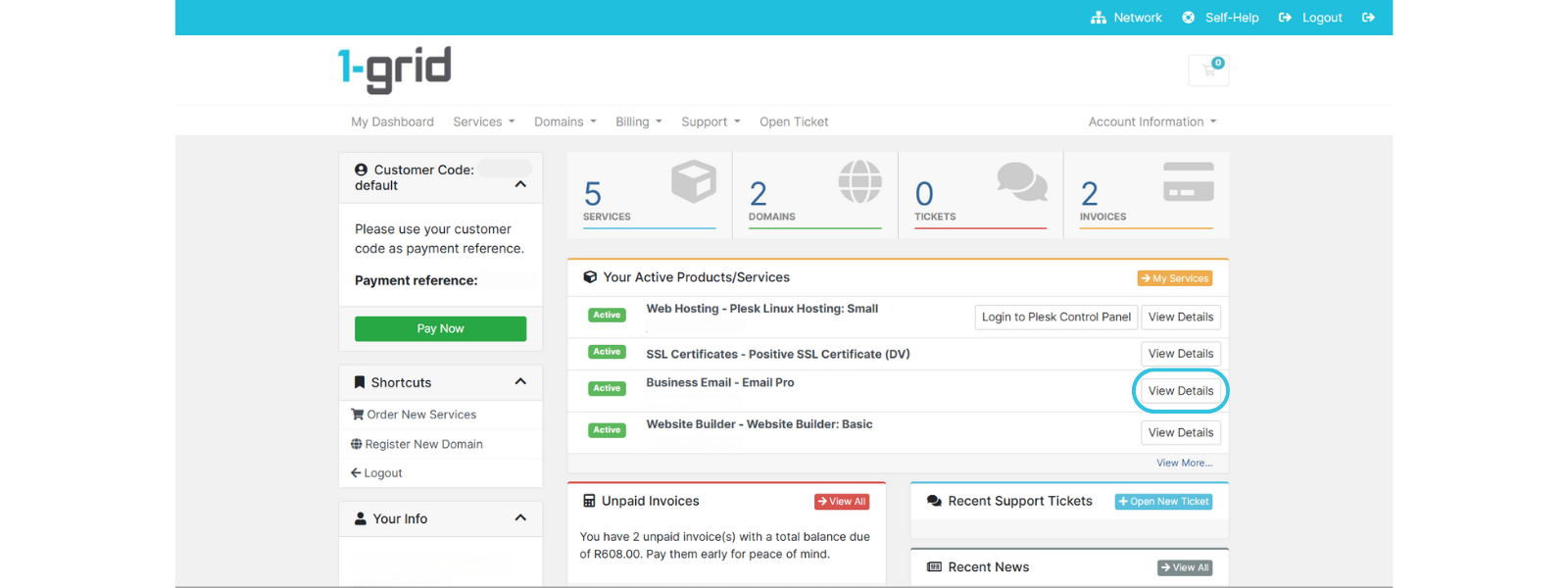
3. Navigate to Your Active Products/Services section → View Details (on the relevant Professional Email package).
Steps to Create a New Email Account
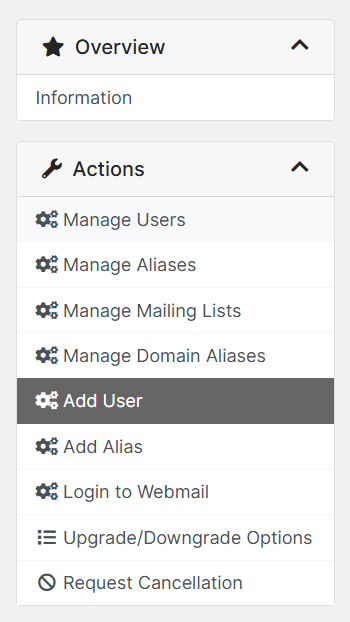
1. Click on Add User.
2. Enter the required new Email Account details such as Username, Password, and Display Name.
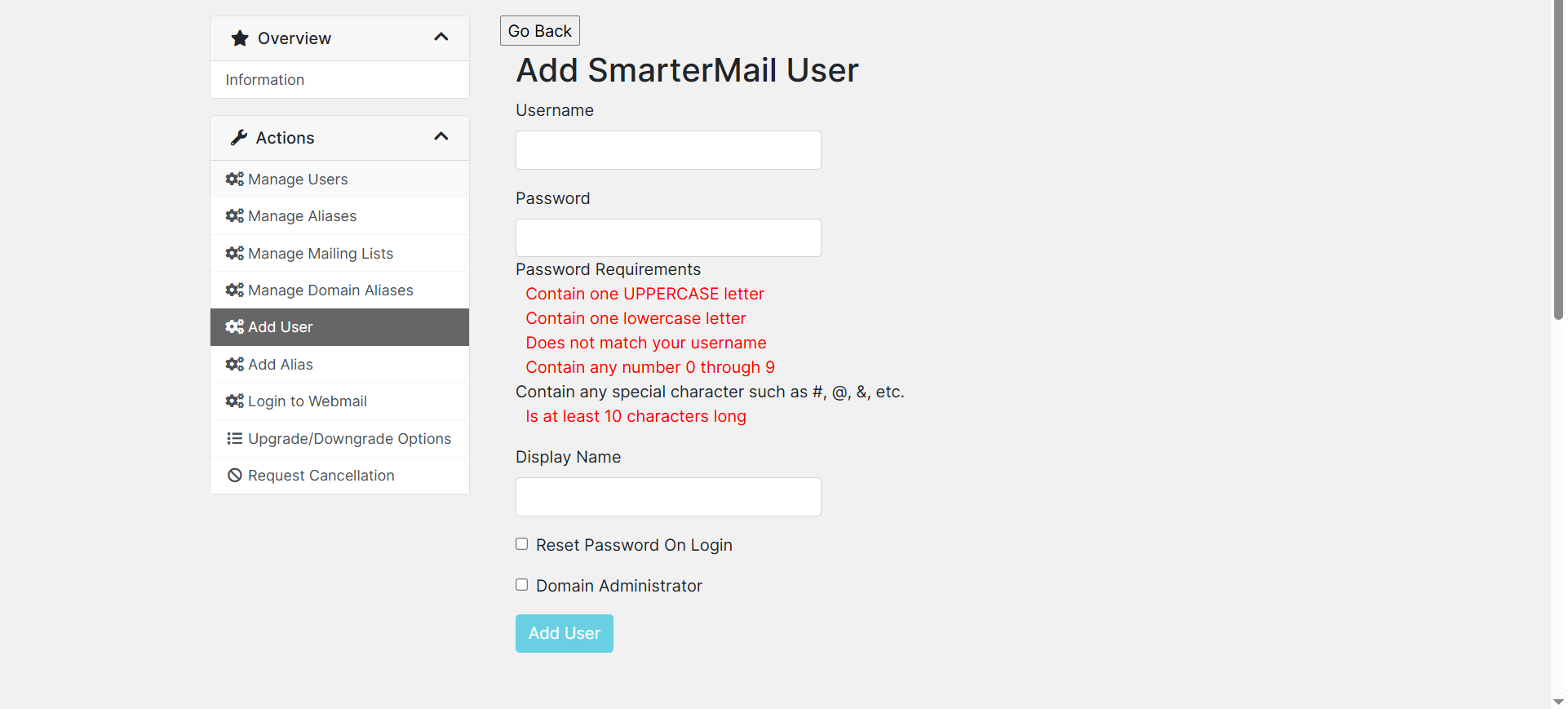
3. Click on Add User.

IMPORTANT: The number of mail users that you can create depends on the package you have purchased and how many user mailboxes you have selected.
Managing Your New Mailbox
- Access via Webmail anywhere, on any device, by navigating to http://mail01.1-grid.com through your browser.
- Update your DNS Settings to make sure that they are correct.
Best Practices
- Use strong, unique passwords.
- Assign clear mailbox names ([email protected]).
- Regularly review and remove unused accounts via Manage Users in your Admin Dashboard.
- Do not use email as a primary storage function and ensure that any important information is backed up and stored in another location.
FAQs
Q: How many email accounts can I create with my plan?
You pay per email account, so you can decide how many email accounts/users you would like when purchasing our Professional Email package.
Email Basic is currently R65 per email account per month, while our Email Pro is R95 per email account per month.
It is important to remember that each package also offers different storage sizes, so this may also impact your ability to create more email accounts at a later stage.
Q: Where do I log into Webmail?
You can log into Webmail directly via your Admin Dashboard, or via the direct Webmail link (http://mail01.1-grid.com).
Q: Can I use Outlook or my mobile device to check mail?
Our Professional Email product offers similar functionality at a fraction of the cost to MS Exchange Email (Outlook), while you can access the webmail link at any time via your mobile as well, using your credentials.
Q: How do I reset the password for an email account?
You can do this by managing a user under Manage Users in your Admin Dashboard, via your Customer Zone.
Additional Resources
Professional Email Product Page
What is Professional Email from 1-grid
How to Access an Email Account for Professional Email?
Email for Business: How to Reset Your Email Password from Your Customer Zone
Email for Business: How to Update Your DNS Settings
Other Email for Business How-To Guides
How to Verify Your 1-grid Account for Support
How to Keep Your 1-grid Account Details Up to Date
Adding a Sub-Account or Technical Contact to Your 1-grid Account
Deleting a Sub-Account or Technical Contact from Your 1-grid Account
Preventing Unauthorised Customers from Accessing 1-grid Support
Need Additional Support?
We’re Here to Help:
Creating a professional email doesn’t have to seem complicated, so this easy-to-use guide makes it easy. Stuck? Contact our Support Team for help (https://1grid.co.za/contact-us/). We’re ready to see how we can help!