
Setting up email in Outlook via your Windows Device Control Panel for your 1-grid email is quick and simple if you follow the correct steps and use the right settings. This guide will walk you through everything you need to know.
Before You Begin
Make sure you have the following:
- Your full email address (e.g. [email protected])
- Your email password
- The required email server settings (IMAP/POP & SMTP, ports, SSL/TLS) (find them here)
- Outlook is installed on your computer or laptop
- Stable Internet connectivity
IMAP vs POP: Choosing Which One to Use
IMAP (Recommended)
This keeps your emails synced across all devices, including your phone, tablet, desktop, and webmail. A copy of the email will be delivered to each device where your email is set up.
POP
Using this setting downloads emails to your device only, and they may be removed from the server. This is why it is not the recommended approach.
Email Settings You’ll Need
| Setting Type | Value / Notes |
| Incoming (IMAP) | Hostname: mail.yourdomain.com Port: 993 (SSL/TLS) Username: full email address Encryption: SSL/TLS |
| Incoming (POP) | Hostname: mail.yourdomain.com Port: 995 (SSL/TLS) Username: full email address Encryption: SSL/TLS |
| Outgoing (SMTP) | Hostname: mail.yourdomain.com Port: 465 or 587 Encryption: SSL or TLS Requires authentication: yes (use the same credentials) |
IMPORTANT: Remember to change “yourdomain.com” after “mail.” with your actual domain name when applying the Hostname during configuration.
Step-by-Step Outlook Setup via Control Panel
IMPORTANT: We recommend that you set up secure email access with SSL/TLS protocols that encrypt your email communication during transfer. This then prevents eavesdropping, data interception and protects your login credentials and sensitive information.
1. Locate your Search bar via your taskbar on your Windows machine, then type in Control Panel.
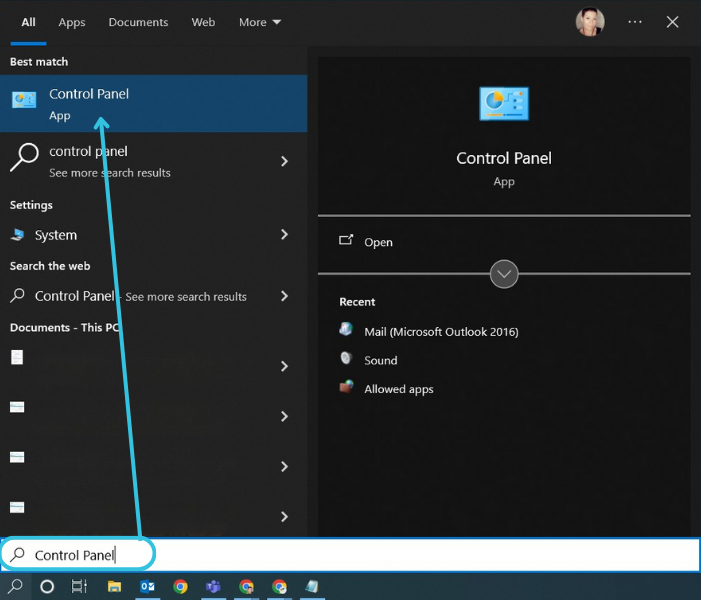
2. Click on Control Panel to open it, and search for Mail, then click on Mail.


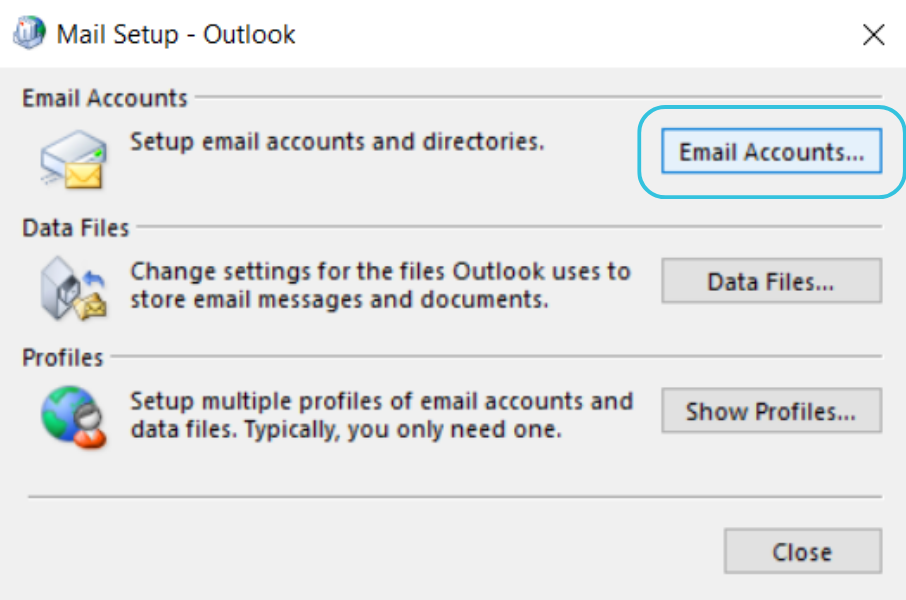
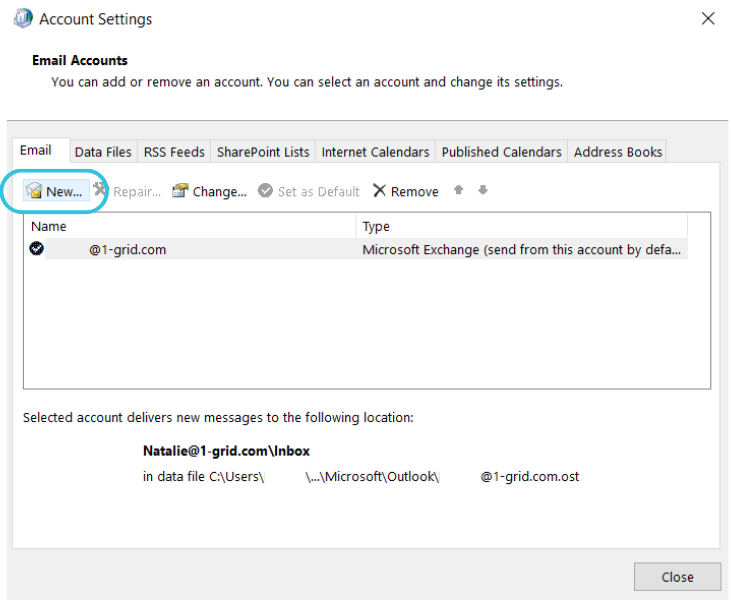
3. Click Email Accounts, then select New (or “Add Account” depending on version).
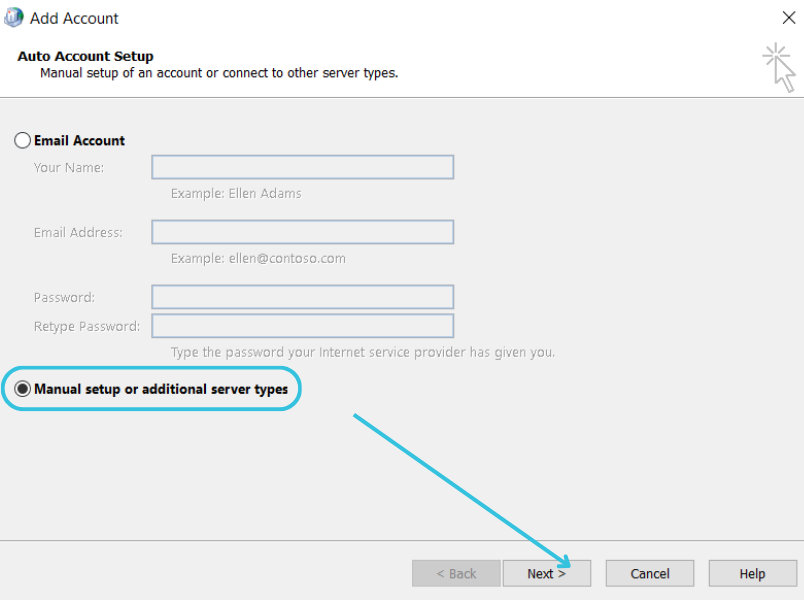
4. Select Manual setup or additional server types, then click Next.
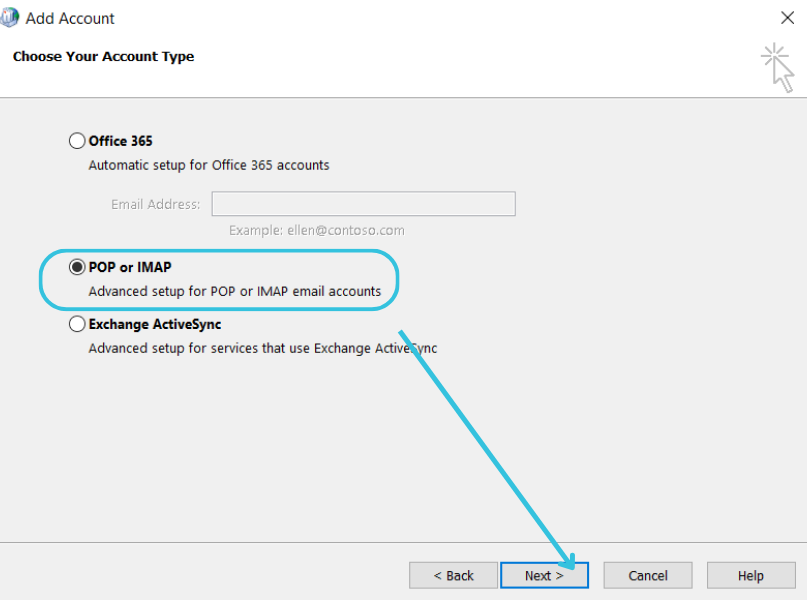
5. Choose POP or IMAP, then click Next.
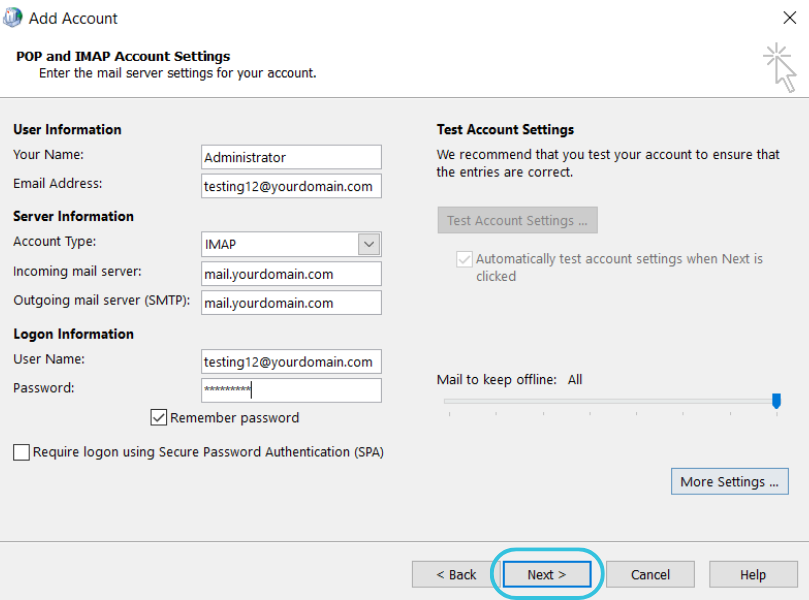
6. Fill in your User Information with the following:
- Your Name is the display name you want
- Email Address is your full email address
7. Under Server Information, select IMAP or POP, then fill in the incoming and outgoing server settings from the table above.
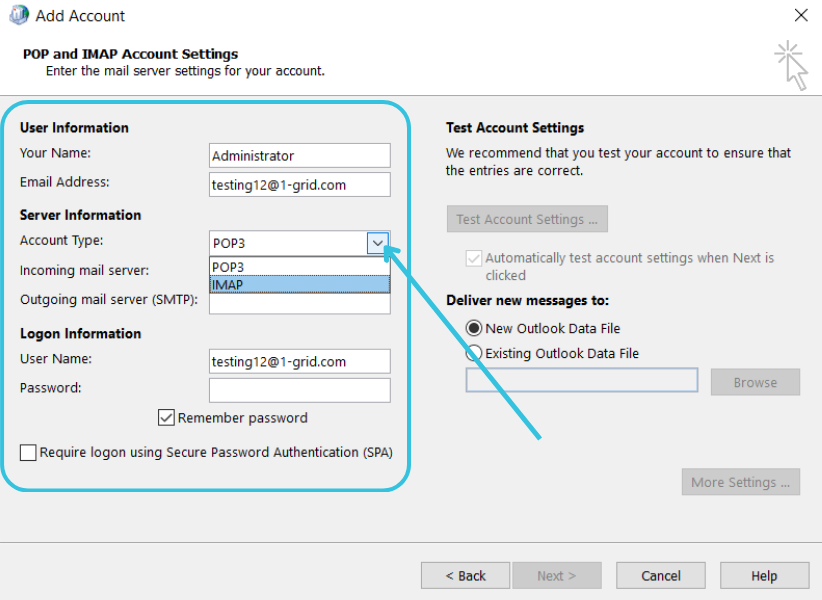
8. Under Logon Information, enter your username (full email) and then your password.
9. Then, click More Settings.
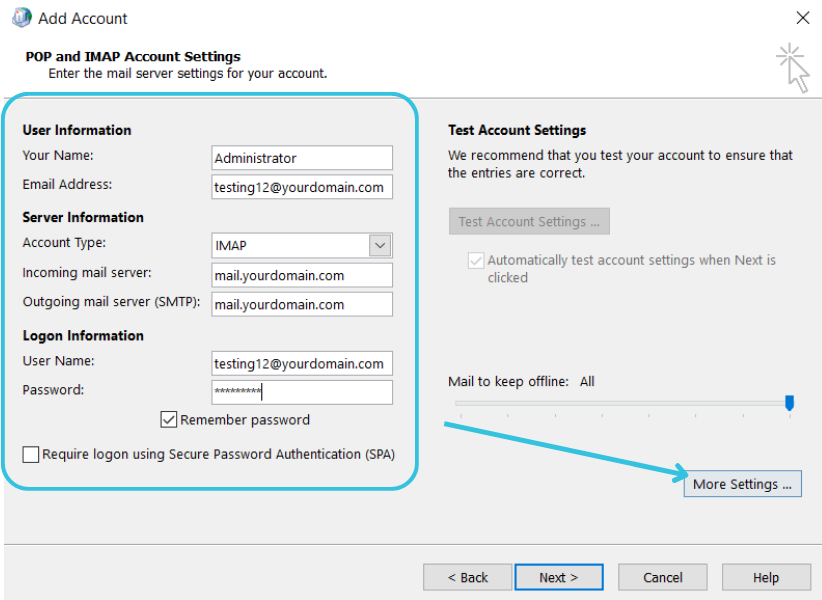
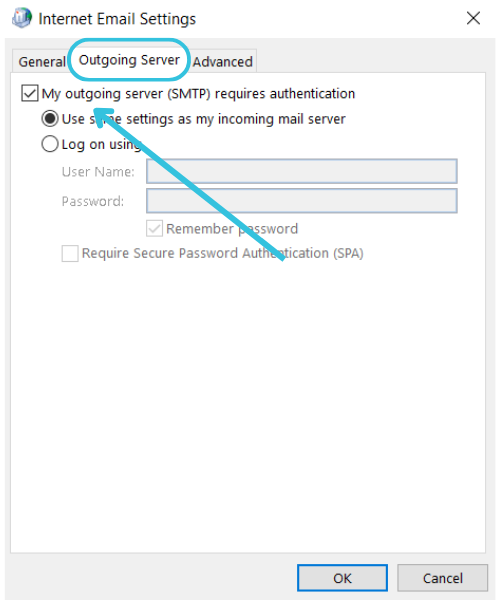
10. Then, click the Outgoing Server tab.
- Check My outgoing server (SMTP) requires authentication
- Select Use same settings as my incoming server
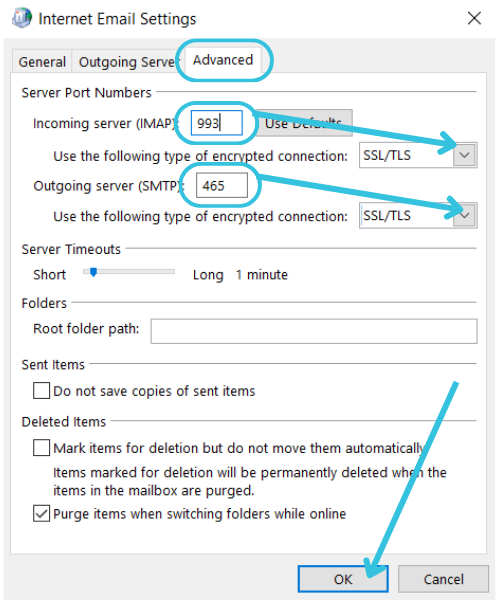
11. Then, under the Advanced tab:
- Incoming (IMAP) port: 993 SSL / (POP) 995 SSL
- Outgoing (SMTP) port: 465 SSL or 587 TLS
12. Use an encrypted connection (SSL/TLS).
13. Then, click OK.
14. Click Next, then click Finish.
15. Open Outlook, then send a test email to verify everything works.
TIP: It is important to always send a test email to ensure your email is functioning properly once you have finished setting up. It is recommended that you also test for incoming emails to ensure that both your incoming and outgoing settings are working properly.
Common Issues and Troubleshooting
Authentication Failed or Login Error
- Check that your full email address and password are correct.
- Ensure that there are no typos or incorrect username formatting.
SSL or Certificate Warning
- Make sure that SSL/TLS is selected.
- Confirm that the server matches mail.yourdomain.com.
Cannot Connect to Server or Timeout Error
- Verify the port numbers you have entered are correct.
- Try switching between 465 and 587 for SMTP.
Email Not Downloading or Syncing
- Confirm that you have selected the IMAP (for sync) or correct POP settings.
- Check your internet connection stability.
SMTP Authentication Error
- Ensure “My outgoing server requires authentication” is checked in More Settings.
Outlook Still Not Functioning Properly?
Sometimes, issues can be caused by a corrupt Outlook profile. This means that repairing or rebuilding the profile can resolve issues like Outlook not opening or responding, slow performance, repeated errors, and failed attempts to send or receive emails by restoring proper functioning and resolving corrupted configurations or data files.
Best Practices
- Use IMAP with SSL/TLS for most modern email setups.
- Keep your Outlook up to date.
- Create a backup of your Outlook data file (PST/OST) occasionally.
- Use a strong, unique password for your email.
- Remove old profiles or accounts you no longer use.
FAQs
Is it possible to have multiple Outlook profiles for multiple email accounts?
- Yes, you can create separate profiles and switch between them via the Control Panel, then Mail.
If I prefer it, can I use POP instead of IMAP in Outlook?
- POP downloads emails to that machine only and doesn’t sync across devices; however, you can use this if it is preferred for you specifically.
Why do I get SSL warnings?
- This usually means the wrong server name or encryption method was selected, so double-check the settings above.
What is the difference between ports 465 and 587 for SMTP?
- Port 465 is mainly for SSL over SMTP, while 587 is for TLS encryption, often preferred in modern setups.
Outlook shows “unable to verify server identity”. What do I do?
- You can verify that the hostname in your settings matches the certificate, and you may need to accept the certificate if it is valid. You can also troubleshoot this error.
Can I change from POP to IMAP later?
- Yes, but you will need to remove the POP account and re-add it as IMAP. It is important to note that moving from POP to IMAP does not guarantee that all previous emails will sync or be available once you have moved over to IMAP.
Additional Resources
Settings to Configure Your 1-grid Email Accounts Across Devices
Outlook FAQs
Email Setup How-Tos
Troubleshooting Steps for Email
Top 10 Common Email Issues!
SpamTitan FAQs
MailChannels FAQs
Need Additional Support?
We’re Here to Help:
Setting up your emails in Outlook doesn’t have to be tricky with this easy-to-use guide. Stuck? Contact our Support Team for guidance (https://1grid.co.za/contact-us/). We’re ready to see how we can help!