This article provides you with information regarding the built in SSL feature on Windows Plesk
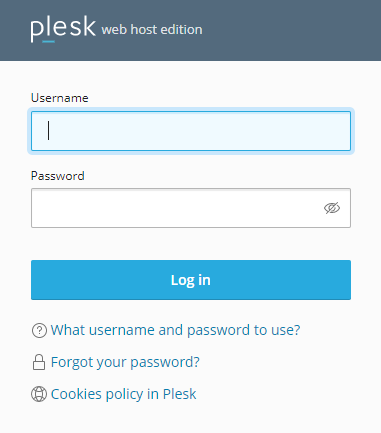
Step 1– Login to Plesk.
- Login with username and password received when you completed your subscription.
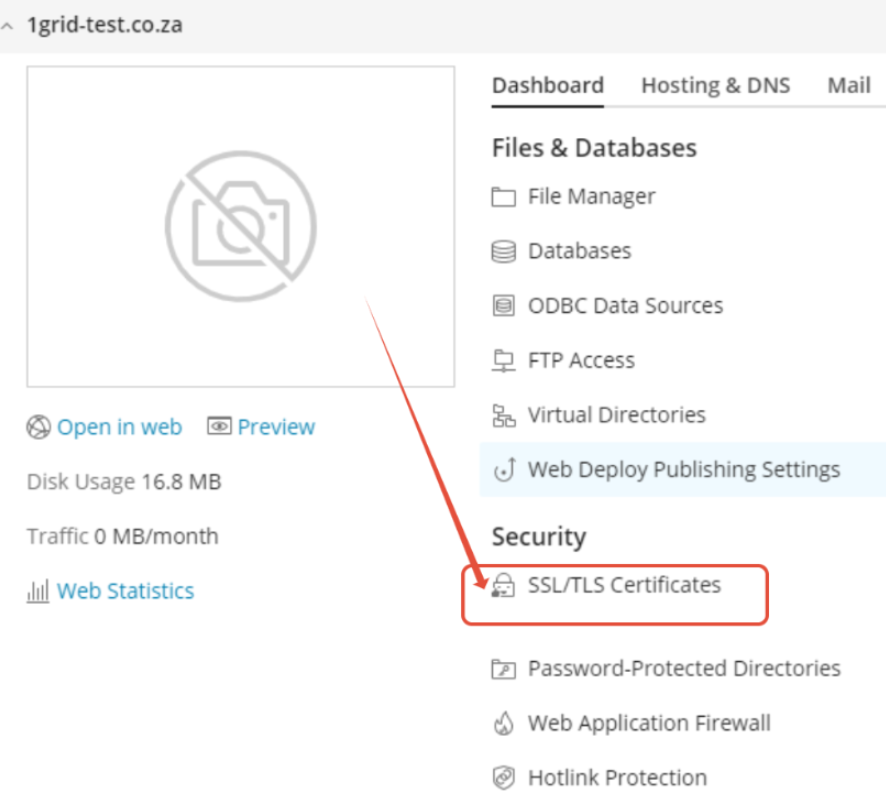
Step 2– Click on SSL Certificates
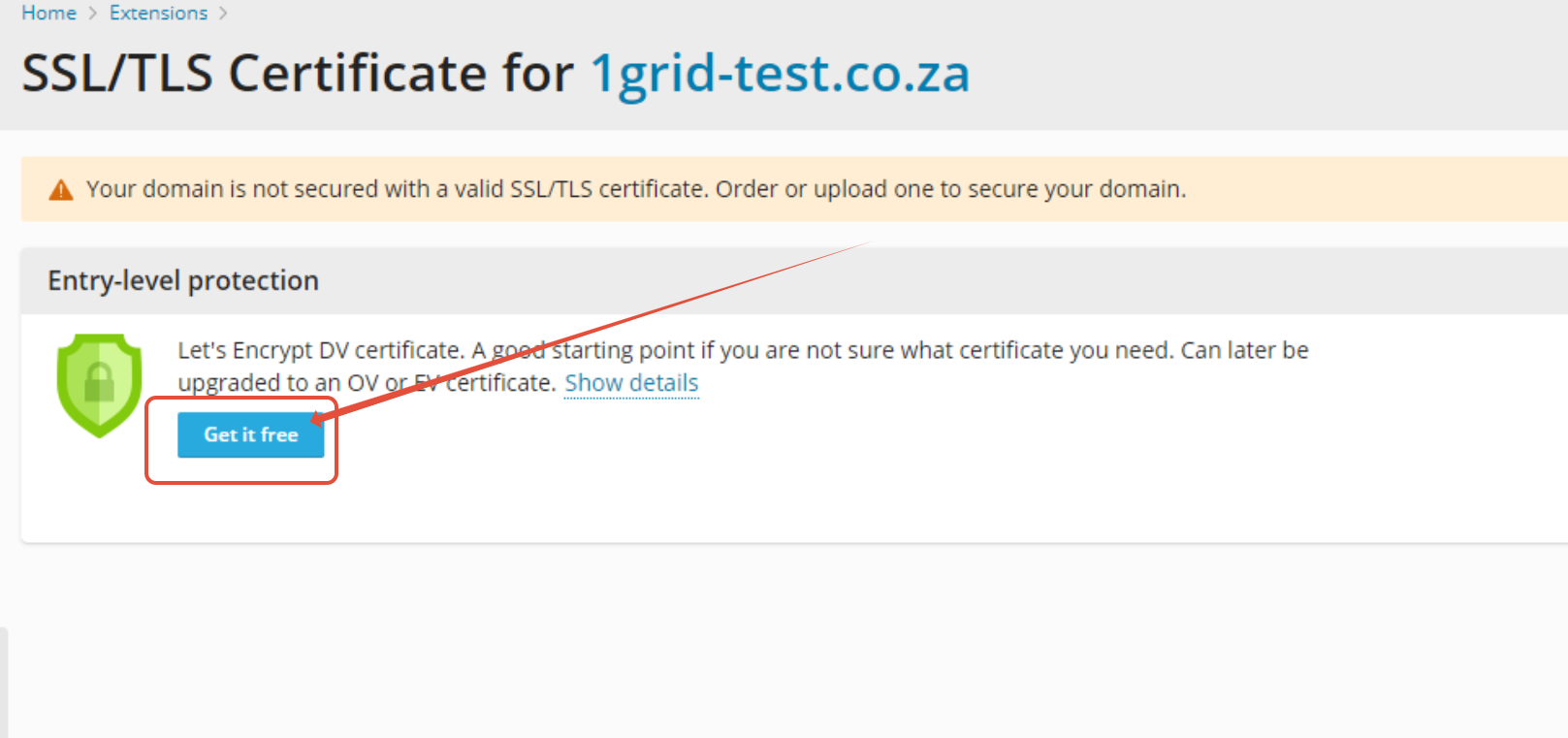
Step 3– Click Get it free under “Entry-level protection
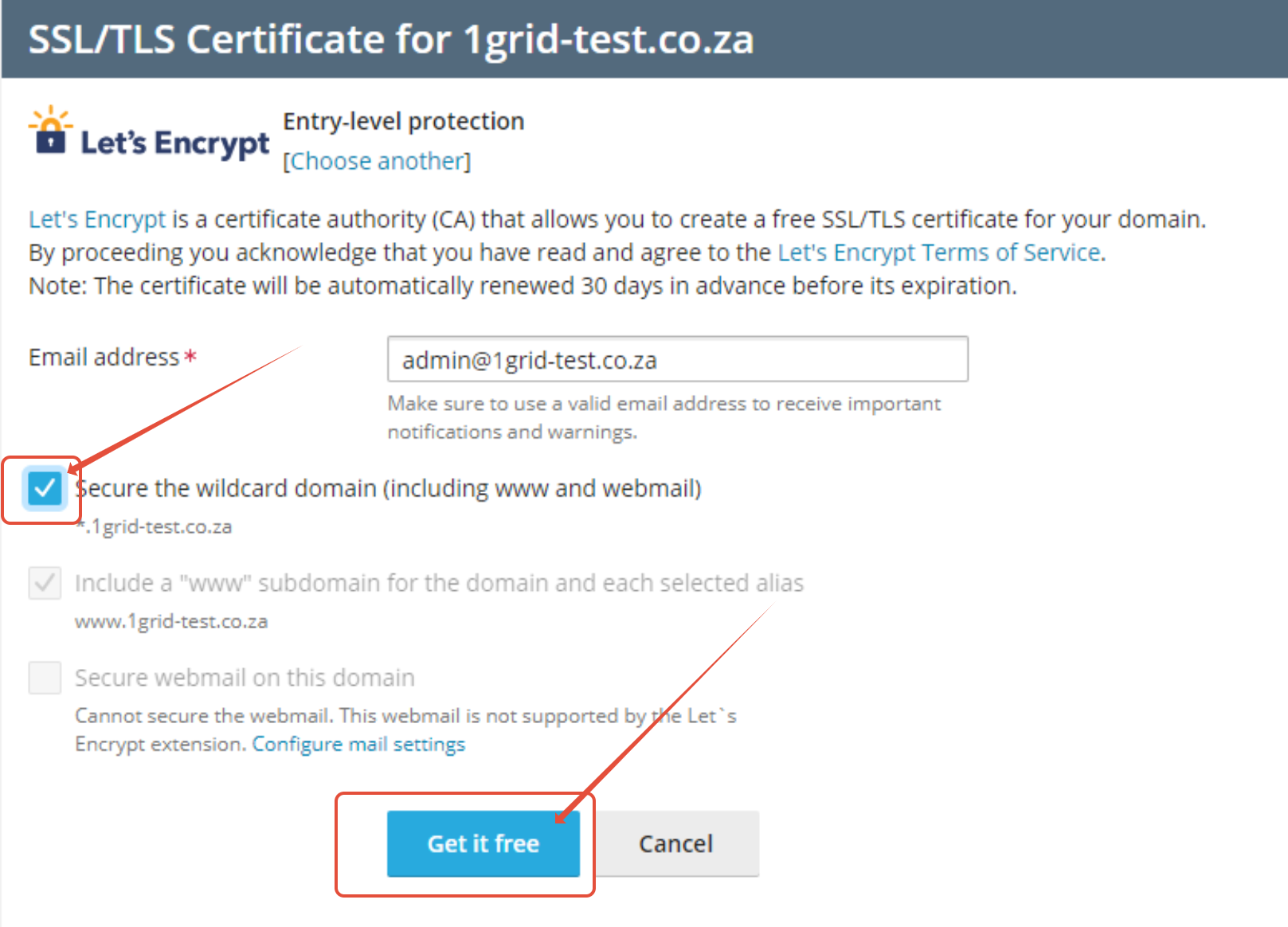
Step 4 – Click Secure Wildcard Domain
- Click Get it free
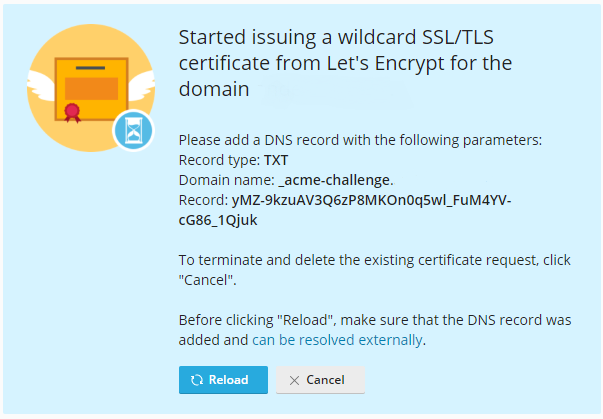
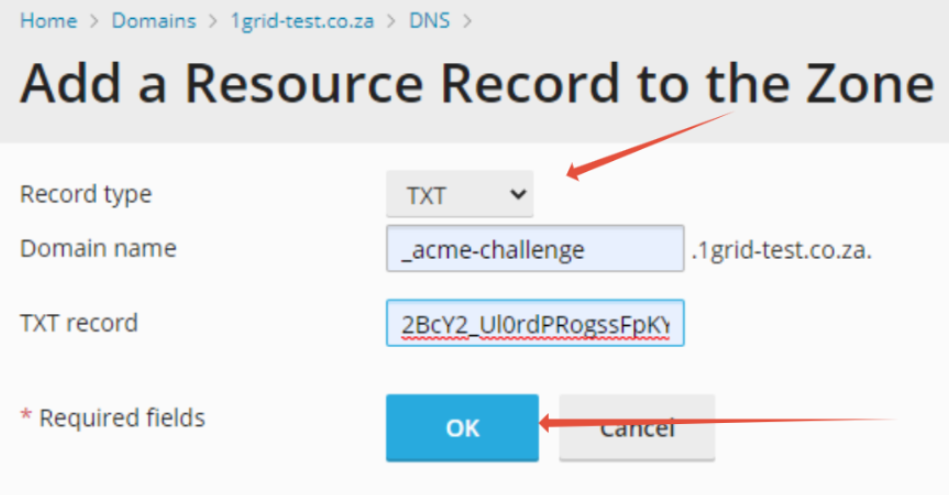
Step 5 – Add DNS record to the domain’s Zone File.
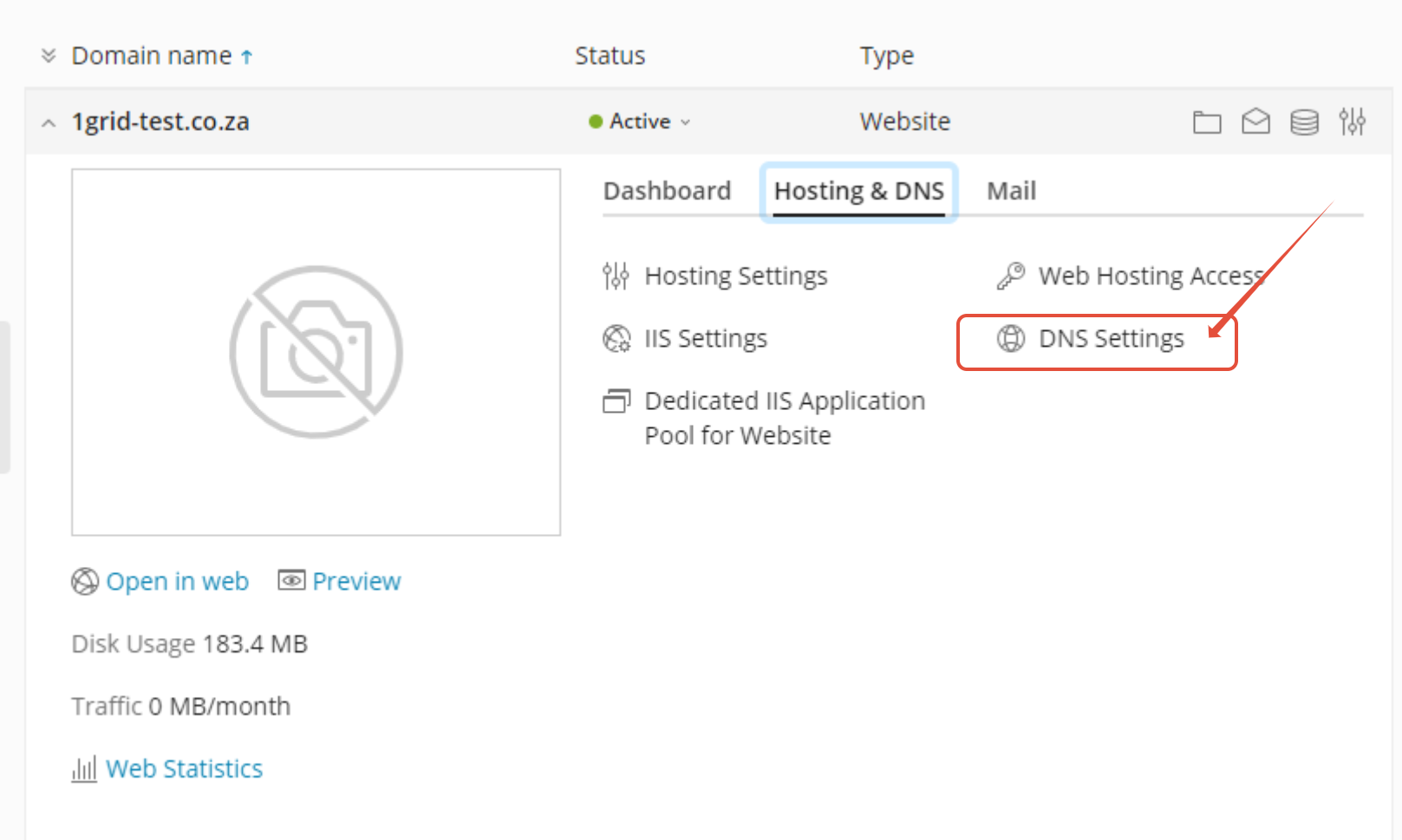
- Click on Hosting & DNS > Hosting Settings > DNS Settings
- Add new TXT record and add data provided and click OK
- Go back to Lets Encrypt and click Reload
Step 6 – Click on Hosting & DNS > Hosting Settings
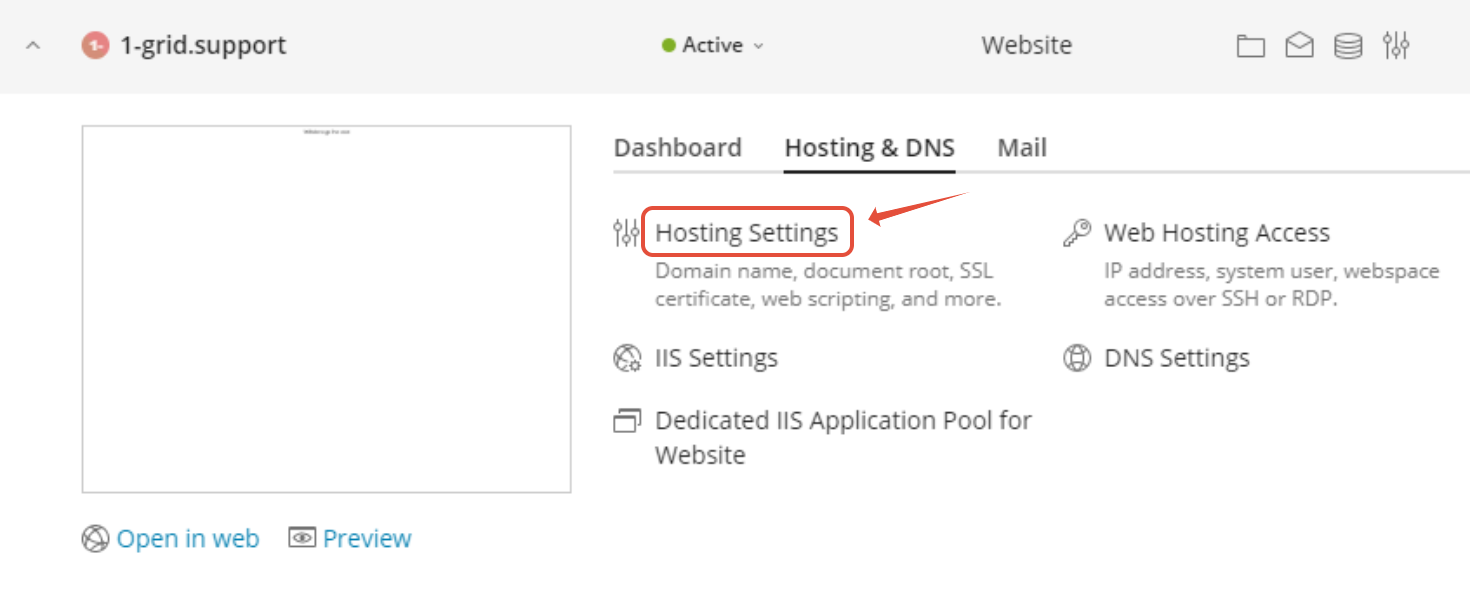
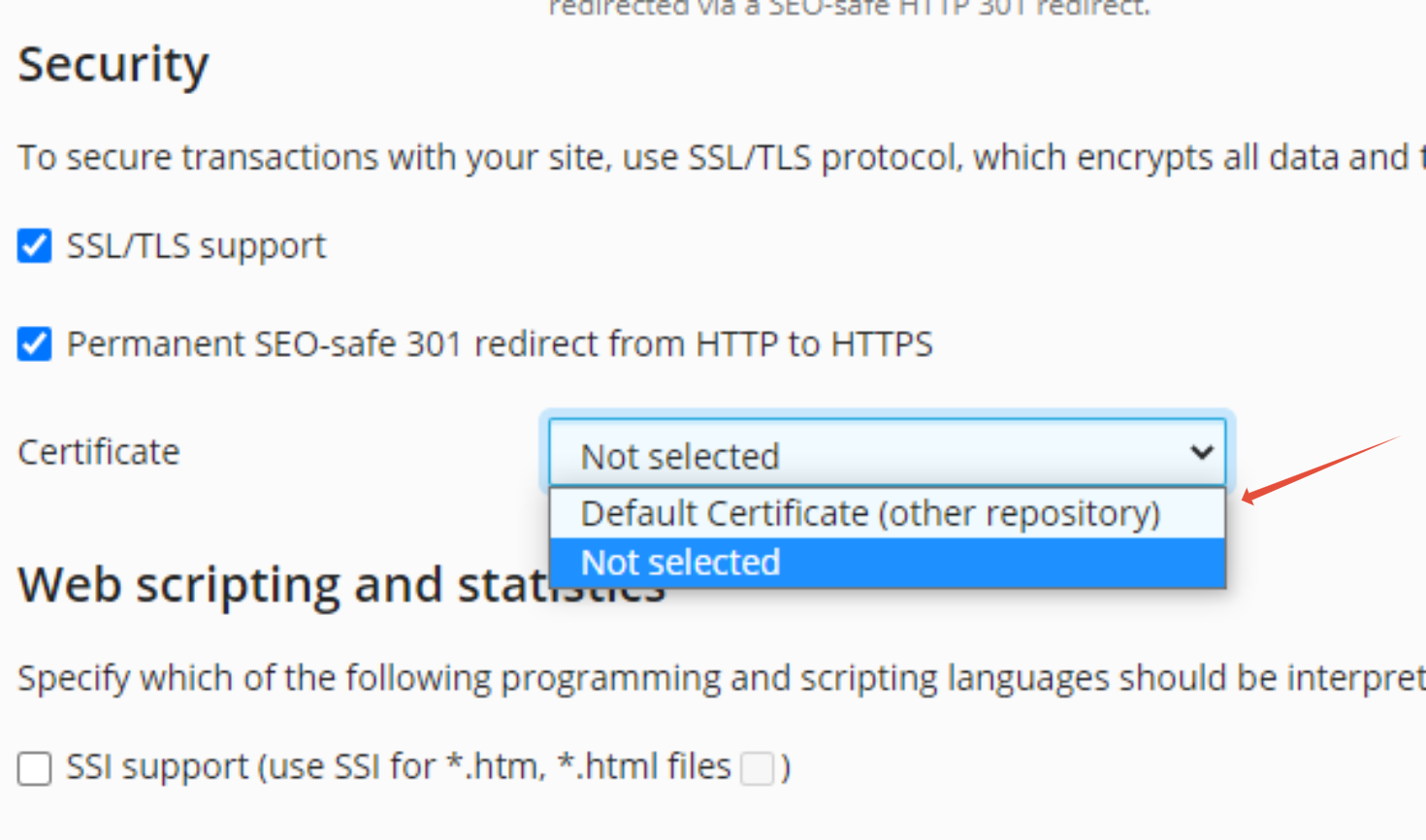
Step 7 – Enable SSL on your Domain.
- Select SSL /TLS Support.
- Enable permanent 301 redirect to https and select your certificate installed
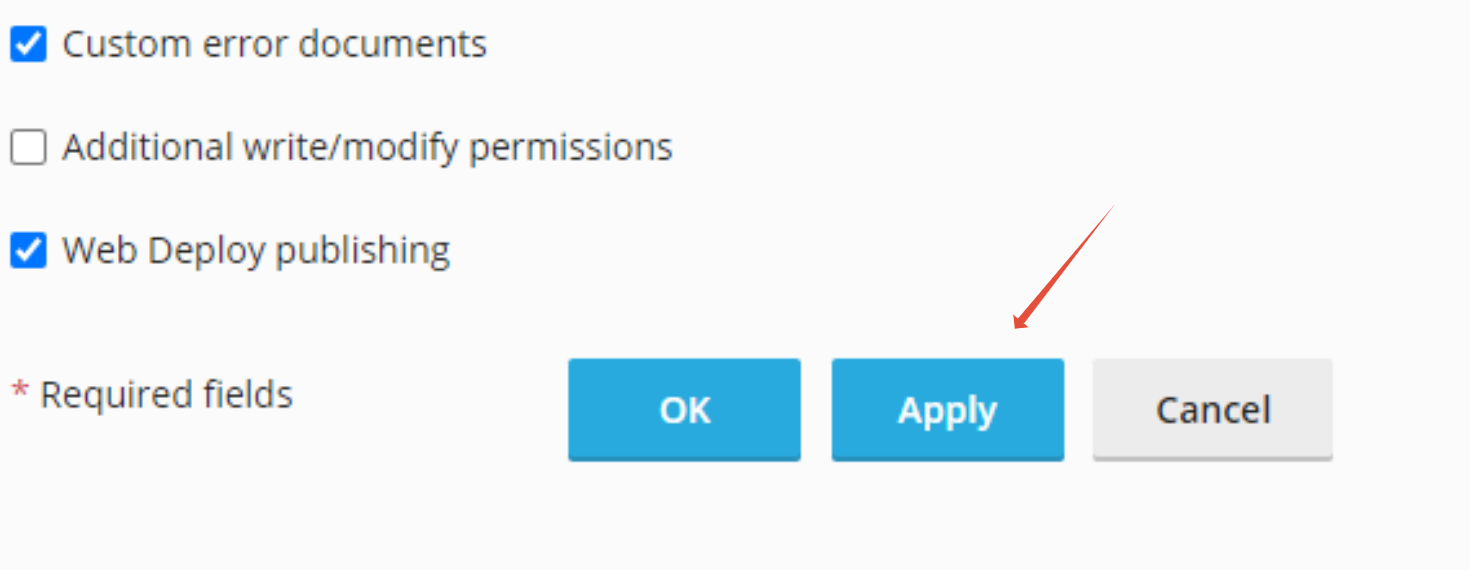
- Click Apply at the bottom of the page