
This article provides you with steps to setting up an email signature on your WSP webmail.
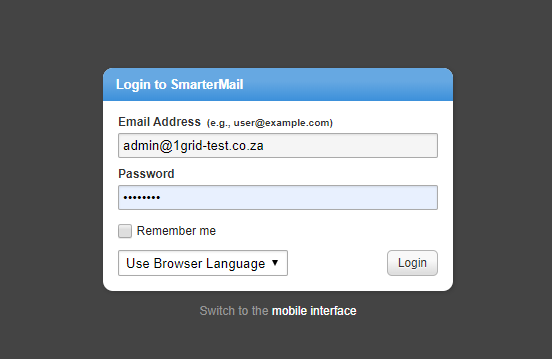
Step 1– Login to your WSP Email.
- Login to your SmarterMail interface (webmail.[domain].com)
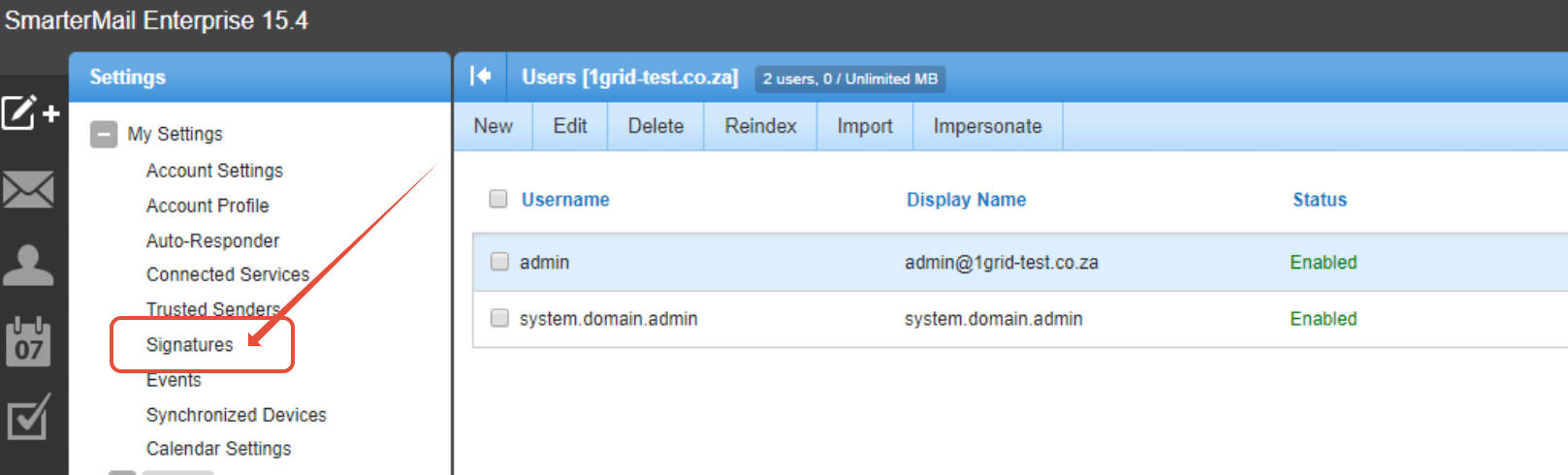
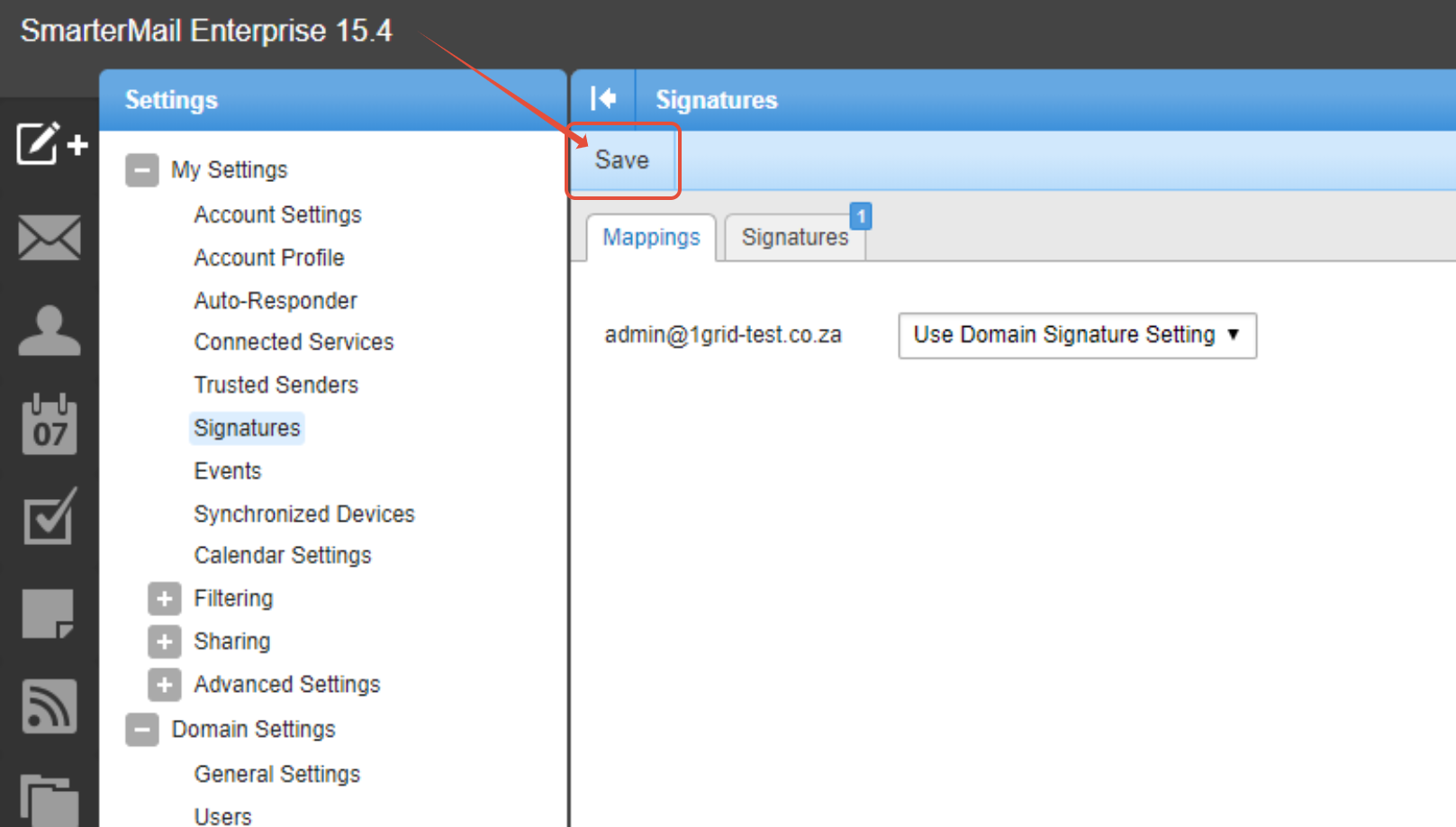
Step 2– Click on Signatures under My settings
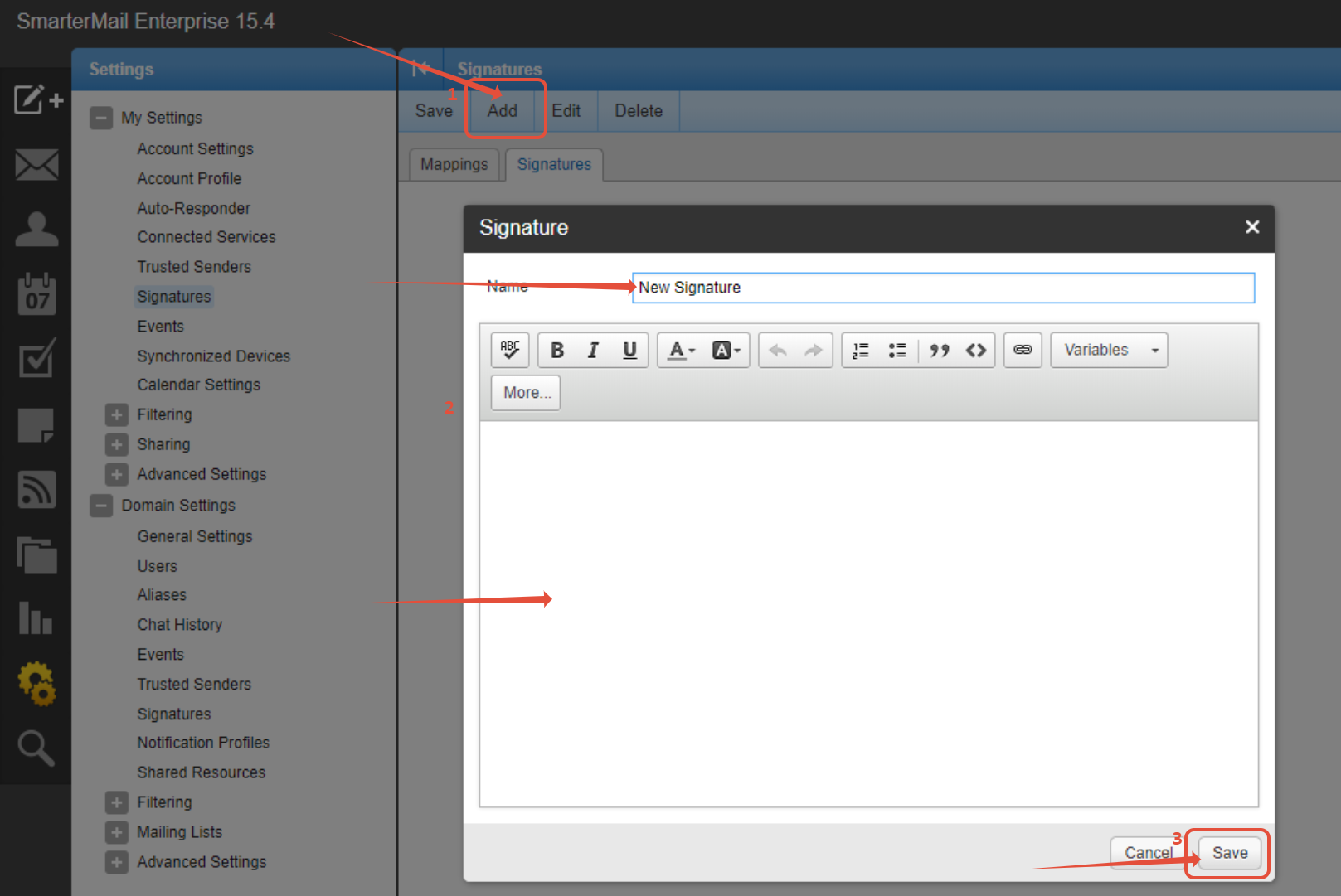
Step 3 – Create New Signature
- Add a name and body of your signature
-
Click Save
Step 4 – Map recently created signature to your mailbox.
- Click on Mappings
- Select new signature created
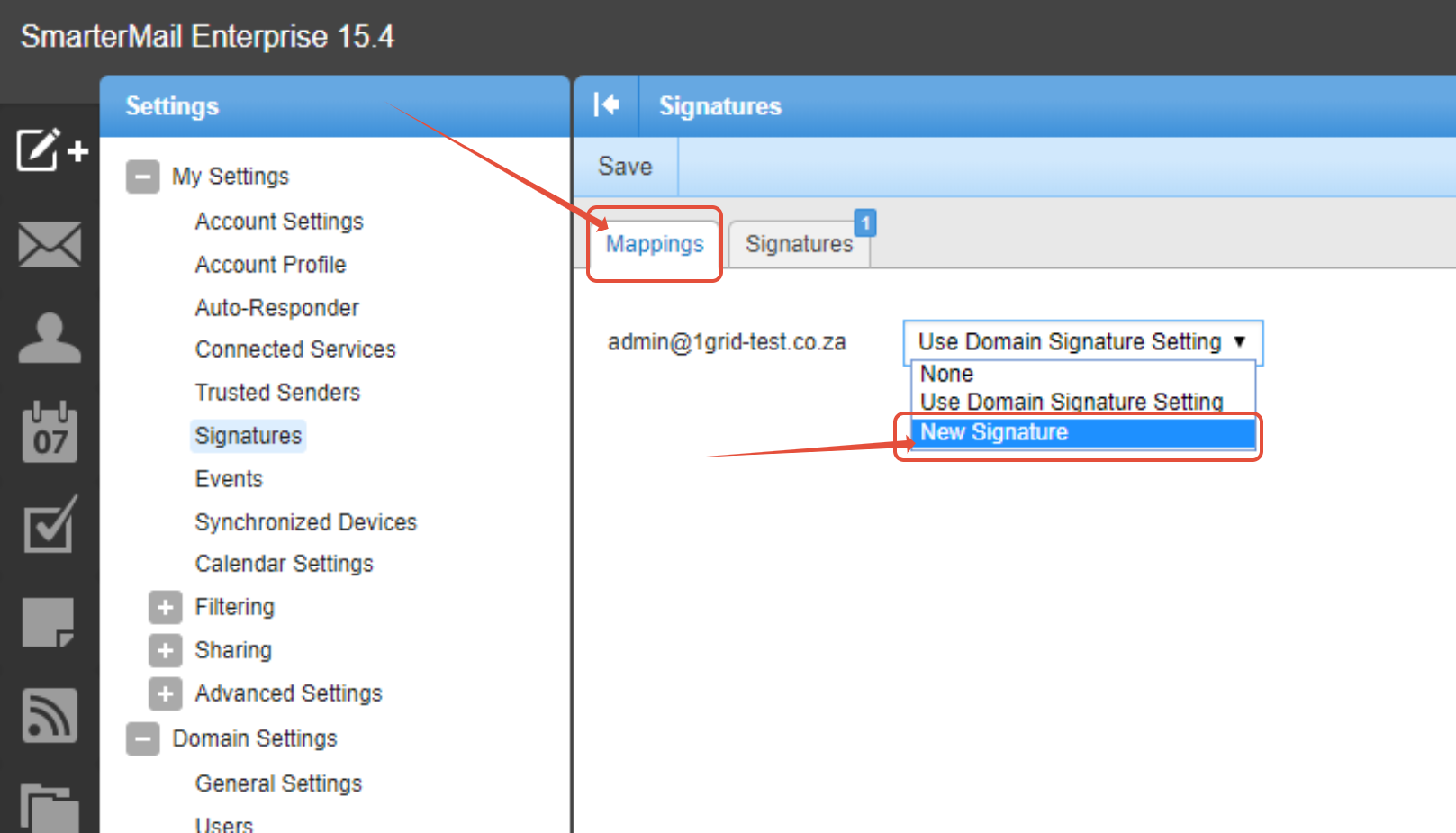
Step 5 – Click Save to update changes
TIP: Should you need further support you may contact our Support Center by clicking here.