
When Outlook issues a security certificate warning as an “Internet Security Warning” pop-up, it’s usually because the server name you’ve used in your account settings doesn’t match what the SSL certificate is issued for.
It is one of the most common issues experienced when using Outlook with SSL enabled, and happens when you do not have your own SSL certificate installed on your domain for your ‘mail.yourdomain.com’.
No need to worry! You can fix a Security Certificate Warning in Outlook in a few simple steps, or you can secure your mail domain with your own SSL by purchasing one here.
- Why Does This Warning Appear?
- How to Inspect the Certificate
- Methods to Resolve the Mismatch
- Steps on How to Resolve This
- Updating Your 1-grid Email Settings Using the Server Name
- Cautions and Security Notes
- Best Practices for SSL and Mail Domains
- Prefer to Purchase Your Own SSL?
- FAQs
- Additional Resources
Why Does This Warning Appear?
- SSL certificates validate that a server is who it claims to be.
- If Outlook connects to mail.yourdomain.com, but the SSL certificate is for srv.hostserv.co.za, Outlook sees that as a mismatch and issues this warning.
- This protects you against “man-in-the-middle” (MitM) attacks but requires the correct configurations on your side.
How to Inspect the Certificate
1. In the warning pop-up, click View Certificate.
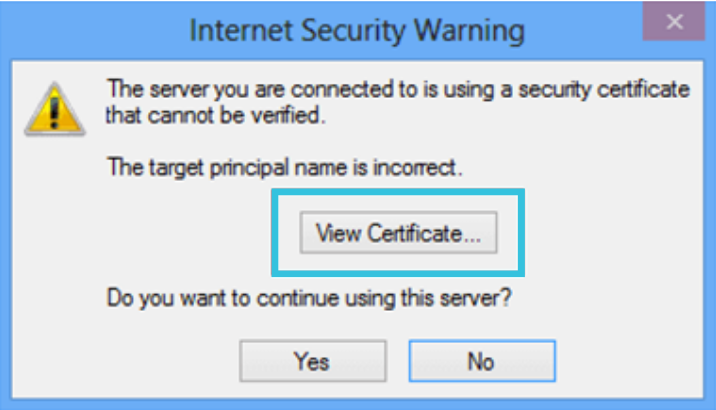
2. Look at the “Issued to” field, as this is where the domain or server name for which the certificate is valid for.
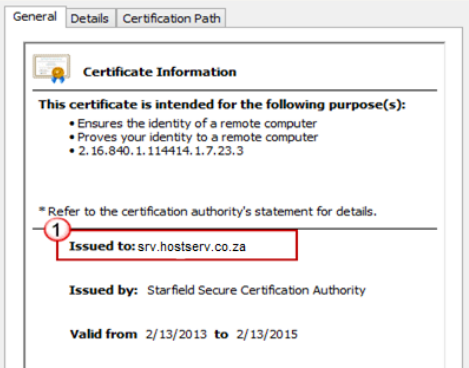
3. Note any mismatch between that name and what you used in your Outlook settings.
Methods to Resolve the Mismatch
Here’s three options you can use to resolve it:
| The Methods | What to Do | When to Use |
| Install a proper SSL for your mail domain | Acquire and install an SSL for mail.yourdomain.com | If you own the domain and can install SSL |
| Use the server/hostname shown in the certificate | Update your Outlook server name to match the certificate (e.g. srv.hostserv.co.za) | Works when you trust the certificate’s hostname |
| Use the corresponding IP address | Ping the hostname in the certificate, and use that IP in the Outlook settings | Ping the hostname in the certificate, use that IP in the Outlook settings |
IMPORTANT: After making the change, restart your Outlook and test sending/receiving.
Steps on How to Resolve This
1. Click on View Certificate.
2. Take note of the “Issued to” field, and then click Install Certificate.
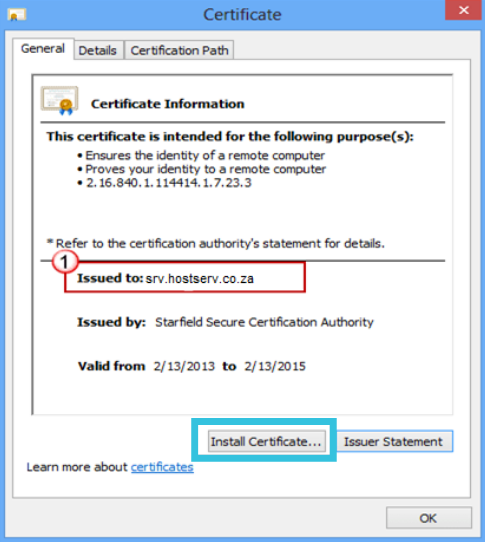
TIP: You need to choose to install the certificate or use the server’s IP address or server name instead of using mail.yourdomain.com in your Outlook settings.
3. Get the mail server’s IP address and the server that the mail is hosted on.
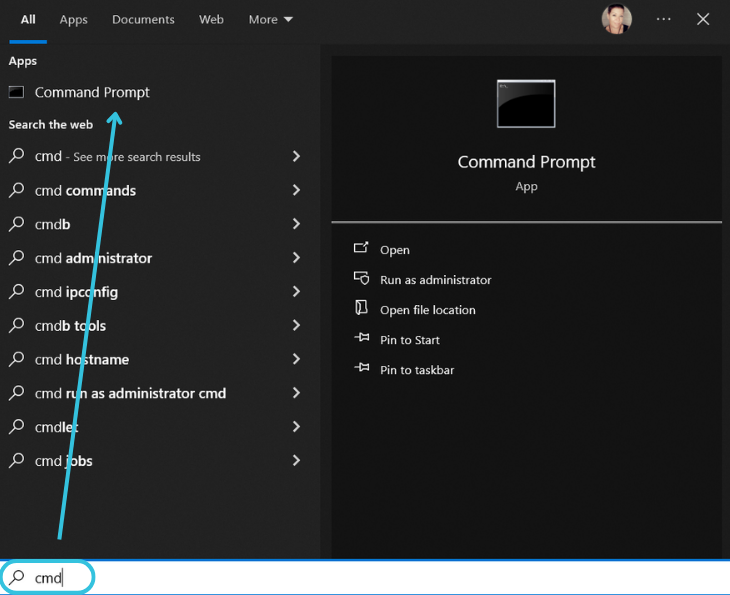
- Type ping, then a space, then type in your mail.yourdomain.com, and press Enter. This will find your IP address for your mail.
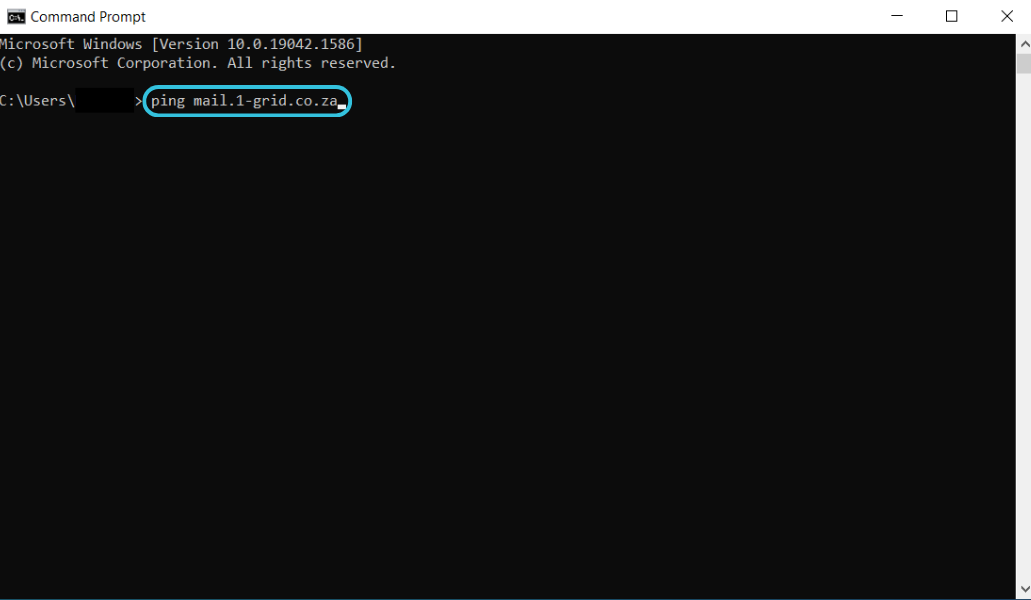
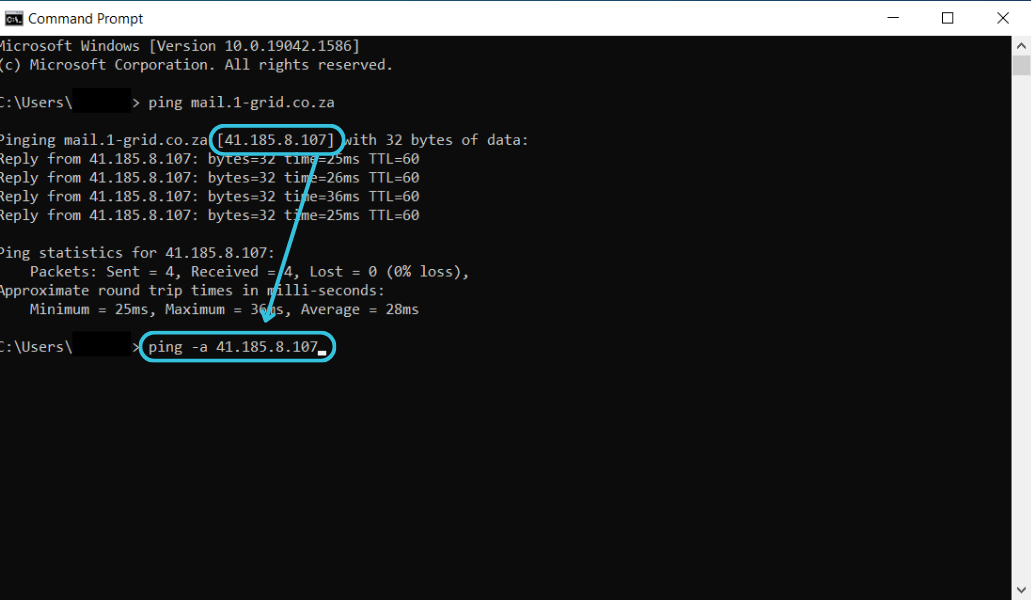
- Then, do a reverse ping using the IP address to find the server name that your mail is hosted on.
- Type ping, a space, and then type -a with another space. Then, copy your IP address and paste it, then press Enter.
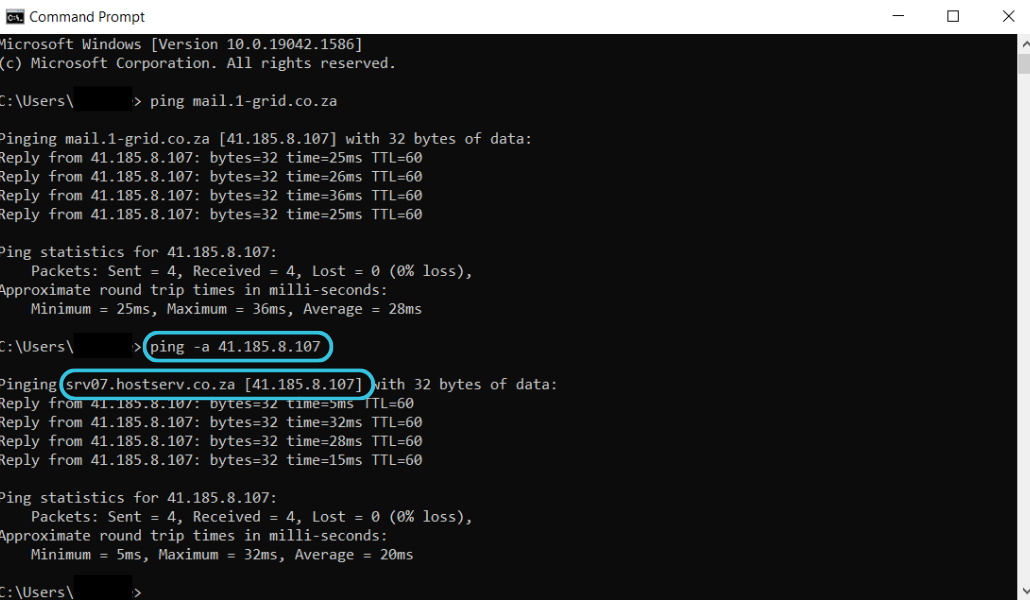
- If the server name in the ping results matches the name on the certificate, use it as the mail server name in Outlook.
- If the name is different, ping the server name used in the certificate. If the IP address matches your mail server’s IP address, use it as the mail server name in Outlook.
Updating Your 1-grid Email Settings Using the Server Name
Once you have identified the server’s name or IP address, you can quickly and easily re-configure your 1-grid email accounts through your Email Client.
Cautions and Security Notes
- Only accept certificates that you trust (validate the “Issued to” and certificate chain).
- Avoid using insecure or non-SSL connections.
- Don’t ignore warnings, where possible, as that compromises the security of your account.
- If you switch to IP-based settings, certificate renewals or changes may require you to update your settings again.
Best Practices for SSL and Mail Domains
- Use SSL (Secure Sockets Layer) and TLS (Transport Layer Security) protocols for all email traffic (incoming & outgoing).
- Get a valid SSL that matches your mail domain (mail.yourdomain.com) rather than relying on generic server names.
- Regularly renew and keep SSL certificates updated.
- After installing an SSL, clear any cached certificates in Outlook (or Windows Certificate store) before retrying.
Prefer to Purchase Your Own SSL?
We partner with leading SSL providers, Sectigo and Thawte, to keep your website secure. Choosing the right certificate is about matching protection to your business needs, and we’ll help you find the option that fits best.
Once you have purchased your SSL, you can install it. If you get stuck, you can reach out to our Support Team for some assistance in completing the process so that you can continue with re-configuring your settings.
FAQs
Is it safe to click “Install Certificate” when prompted?
Only if the certificate matches your server or domain. Always inspect the “Issued to” section before trusting.
The certificate “Issued to” is a server hostname I don’t recognise. What should I use?
If you trust your provider, use that hostname in Outlook. If not, consider installing a matching SSL for your domain.
After switching to an IP instead of a hostname, do I need to change anything later?
Possibly. If your server IP changes or the SSL certificate updates, you may need to update the settings again.
Why doesn’t this affect Webmail?
Webmail usually uses the correct hostname/SSL by default, unlike manual Outlook settings, which rely on what you entered.
Outlook shows “unable to verify server identity”. What do I do?
Verify that the hostname in your settings matches the certificate. You may need to accept the certificate if valid. You can also troubleshoot this error.
Additional Resources
Settings to Configure Your 1-grid Email Accounts Across Devices
Setting Up Email in Outlook via Windows Control Panel
Outlook FAQs
Email Setup How-Tos
Troubleshooting Steps for Email
Top 10 Common Email Issues!
What is an SSL Certificate and Why Do I Need It?
What Type of SSL Certificate Do I Need?
SSL FAQs
SpamTitan FAQs
MailChannels FAQs
Need Additional Support?
We’re Here to Help:
Resolving a Security Certificate Warning in Outlook doesn’t have to feel tricky with this easy-to-use guide. Stuck? Contact our Support Team for guidance (https://1grid.co.za/contact-us/). We’re ready to see how we can help!