

Transmit web content, background code scripts, and file packages from your desktop layout to your live server.
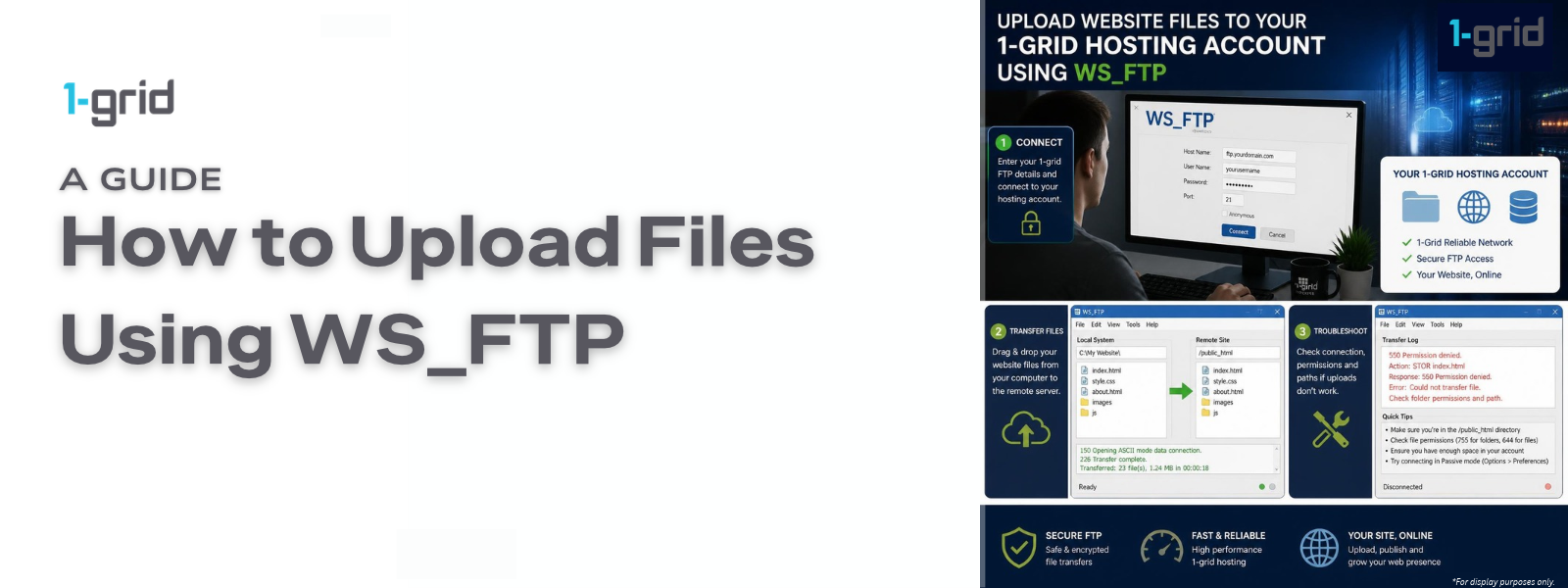
This guide will help you upload website files to your 1-grid hosting account using the WS_FTP desktop client. Whether you’re publishing a new website, updating existing code structures, or deploying media logs, WS_FTP provides a simple way to securely transfer files between your computer and your hosting server. By the end of this guide, you’ll know how to manage file transmissions natively on your 1-grid Customer Zone account.
Before You Begin
Before initiating your data sync queue, make sure you have:
- The WS_FTP desktop application installed on your computer
- An active connection configuration built inside your application via How to Configure WS_FTP for Your 1-grid Hosting Account
- Your verified parameters ready (FTP Hostname, FTP Username, and FTP Password)
- An active, stable internet connection stream
💡 Context: WS_FTP is an FTP (File Transfer Protocol) client that allows you to securely transfer data blocks between your machine and your website hosting space. Managing assets via desktop tools allows you to push large files or expansive folder structures more reliably than using browser upload forms.
Follow These Steps
1. Open WS_FTP
Launch the WS_FTP desktop application software package on your computer terminal.
2. Connect to Your Hosting Account
Click the Connect action key in the toolbar menu layout. If you previously configured your profile variables, highlight your saved site card from your directory tab list. If prompted, confirm your FTP Username and FTP Password entries, and select Connect. Once authenticated, the application splits:
- Local View Side: Displays directories and files sitting locally on your machine’s hard drive.
- Remote View Side: Displays folders and system structures sitting on your live server disk space.
3. Locate the Files You Want to Upload
Browse through your local system directories inside the application layout pane until you find the explicit web assets you want to push. You can select single documents or group together complex directory trees containing HTML, PHP, CSS, or JavaScript assets.
4. Open the Correct Website Folder
Switch your focus to the remote server view pane, and double-click to open your website’s target root directory (for almost all standard websites, this is your public_html folder).
⚠️ Critical: Dropping files or landing scripts outside of the intended root web directory container will block web browsers from mapping or displaying your site content to users.
5. Upload Your Files
Highlight the target files inside your local computer window block, and drag them smoothly across the screen into the open public_html container list on the remote server window pane. WS_FTP will open its connection pipeline and begin processing data transmissions. Keep the application running until the active data log indicators clear completely.
6. Verify the Upload
Review your remote file structure grid to confirm that your new code blocks are visible with stable, non-zero file size metrics. Open a separate browser tab, enter your live site domain URL, and hit refresh to confirm that your updated layout features render cleanly.
What Happens Next?
Once saved file queues finish streaming to the host, your updates take effect across the infrastructure.
- Real-Time Code Updates: Transmitted assets overwrite old scripts instantly, modifying your public web presence on the fly.
- The Cache Delay: If your site graphics fail to change right away despite a successful upload notification log, your browser is likely pulling a local snapshot. Clear your browser history to verify changes.
Important Things to Know
- The System Overwrite Trap: If you push a file containing an identical text layout name to an asset already present in the target remote folder directory, the server will replace the old data block permanently. Always extract a local text backup before pushing updates.
- DNS Propagation Window: If your domain name configuration was registered within the last 24 hours, visual changes may remain masked globally until your internet service provider completes standard network DNS propagation loops.
- Transmission Queue Safety: Interrupting active sync actions by closing the software layout window mid-stream can cause broken data loops or split your application script codes, causing critical site loading errors.
- Secure Protocol Layering: Standard FTP sends credential information across paths without encryption. We highly recommend utilising encrypted standard variants like FTPS or SFTP inside your connection properties to protect your master password strings.
Common Mistakes to Avoid
- Uploading your home directory files or media folders outside of the mandatory
public_htmlroot folder box container. - Terminating your active internet network stream or shutting down WS_FTP while file queues are moving data blocks.
- Overwriting central system layout scripts or theme files without storing a local copy file backup first.
- Entering your Customer Zone password instead of your specific server FTP password.
- Running multiple recursive upload adjustments at the same exact time without checking site performance between instances.
If This Didn’t Work
If your transmission queues loop continuously or output file execution block warning strings inside the system message pane, log in to your dashboard to confirm your hosting storage quotas aren’t completely full. Verify your FTP profile permissions to ensure your user ID is granted complete write accessibility.
You’re Ready!
Your data deployment routine via WS_FTP is completely mastered. Running clean item drops and utilising structured folder directories allows you to update your applications, deploy design layouts, and secure your files with maximum precision.
Related Articles
- How to Configure WS_FTP for Your 1-grid Hosting Account
- How to Find Your FTP Login Details in cPanel
- Troubleshooting FTP Connection Problems
Need Help?
If your file transmissions fail with permission drops, or if unexpected network socket timeouts abort your upload scripts, contact us. Our Support Team is ready to offer support and guidance.
To ensure our tech desk can diagnose your data sync line quickly, please provide:
- Your primary domain name and hosting service plan metrics
- The exact FTP hostname string configured inside your client
- A screenshot of your WS_FTP workspace view showing the failure notice console logs
- The complete error text output displayed inside your transfer summary boxes
- A brief description of the explicit file or folder path you are attempting to upload