

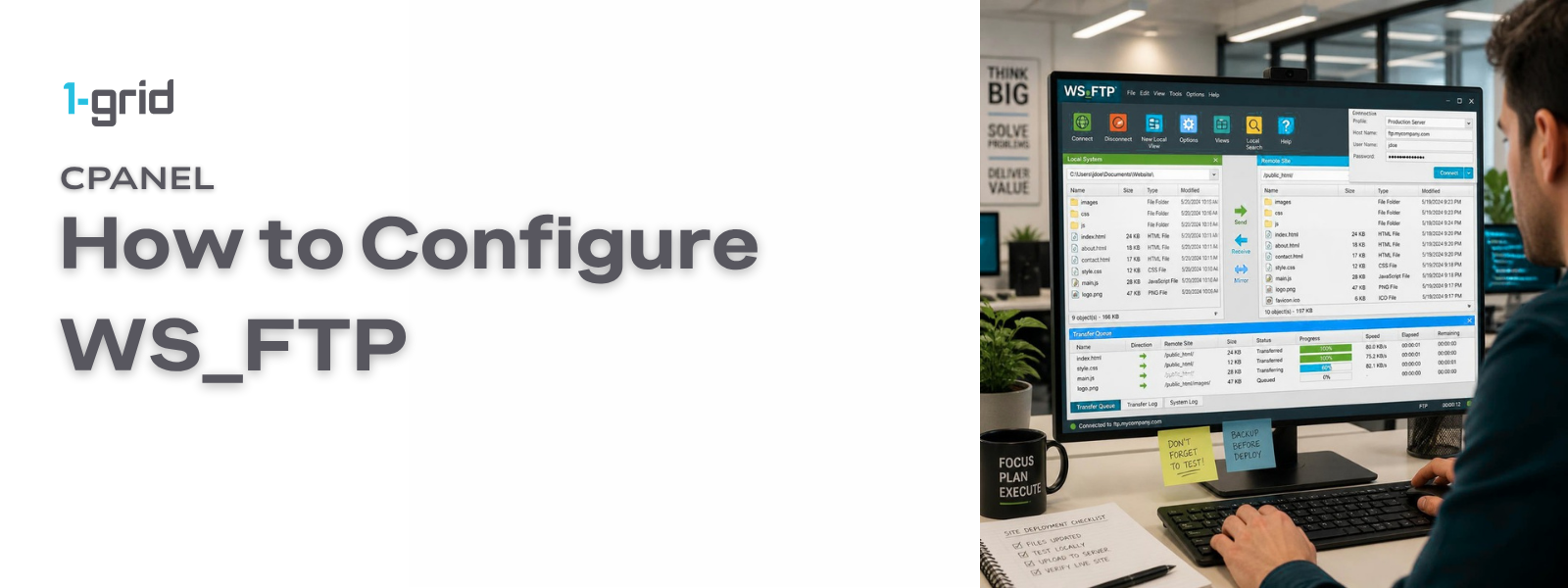
Set up your WS_FTP desktop client securely to upload, download, and manage your website files seamlessly.
This guide will help you configure WS_FTP so you can securely transfer files between your computer and your 1-grid hosting account. Whether you’re uploading a new website, updating existing files, or managing backups, WS_FTP allows you to connect directly to your hosting server. Once configured, you can reuse your saved connection whenever you need to manage your website on your 1-grid Customer Zone account.
Before You Begin
Before linking your local machine to your server via WS_FTP, make sure you have:
- An active 1-grid web hosting account
- The WS_FTP desktop application installed on your computer
- Your explicit FTP connection parameters ready (FTP Hostname, FTP Username, and FTP Password)
💡 Tip: If you don’t know your specific credentials, follow our initial guide on How to Find Your FTP Login Details (if you are using cPanel) within your hosting control panel before proceeding.
Follow These Steps
1. Open Site Manager
Launch the WS_FTP application on your desktop. Move your cursor to the top application navigation menu and select Connections → Site Manager.
2. Create a Folder (Optional)
If you operate multiple web properties or server locations:
- Enter an organisational folder name and save it to keep your dashboard clean.
3. Create a New Site
Highlight your preferred target directory folder, click Create Site, and input a memorable, distinct label name for your asset (e.g., My Business Website). Click Next.
4. Choose the Connection Type
Select your preferred data routing protocol from the dropdown options.
- Highly Recommended: Select FTPS or SFTP to ensure your data stream remains encrypted over network pathways.
- Standard Alternative: Select FTP if your package baseline parameters do not enable encryption logic. Click Next.
5. Enter the Server Address
Input your hosting server destination address into the Host Name/Server Address field row layout (e.g., ftp.yourdomain.co.za or your designated server IP string). Click Next.
6. Enter Your Login Details
Input your explicit server credentials into the matching text fields:
- User ID: Your full FTP account username string.
- Password: Your unique hosting account FTP password string. Click Next.
7. Complete the Setup
Review your configuration summaries and click Finish. WS_FTP will securely cache this profile map internally, allowing you to establish immediate server connections moving forward.
8. Verify the Connection
Double-click your newly generated connection link profile card. Once connected, confirm that your remote directory folder structure renders on the right side of the screen, and upload a tiny test file to verify stable read/write functionality.
9. Disconnect Safely
When you have finished uploading or downloading data profiles, click the active Disconnect socket icon button on the control bar to cleanly terminate your network session.
What Happens Next?
Once saved, your server mapping handles data transmissions in real-time.
- Synchronised Files: Content items dragged from your left-hand local browser window area into the right-hand remote server list update your public site files immediately.
- Persistent Indexing: Your unique credential configurations remain locked down inside your site vault panel so you never have to re-type variables.
Important Things to Know
- The Root Cause Matrix: Most unexpected server connection drops are triggered by basic typographical errors inside credential fields or picking an incompatible protocol string.
- Firewall Interruptions: Aggressive localised security configurations, anti-virus apps, or router profiles can occasionally intercept connection handshakes on ports
21or22.
Common Mistakes to Avoid
- Typing a generic server address string instead of your specific custom server IP or
ftp.prefix. - Forgetting your full alphanumeric case structure when mapping the user field rows.
- Utilising standard, unencrypted protocols over open public Wi-Fi access paths.
- Selecting an incorrect port variable configuration inside the client preferences screen.
- Forgetting to hit disconnect, leaving an idle, unmonitored line slot running to the backend server.
If This Didn’t Work
Should the connection initialisation loop or return an immediate socket termination error message, log in to your portal layout to confirm that your primary server instance status reads active. If the error text points specifically to authorisation faults, navigate back to your cPanel dashboard to run a quick FTP password reset block.
You’re Ready!
Your desktop WS_FTP application environment is completely configured to communicate with your server cloud. You can now securely manage your website data, deploy file sets, and backup your folders directly from your desktop.
Related Articles
- How to Find Your FTP Login Details in cPanel
- How to Use File Manager in cPanel
- How to Reset Your FTP Password in cPanel
- Common FTP Errors
- FTP vs SFTP: Which Should You Use?
- FTP in Plesk Guides
Need Help?
If your client terminal loops continuously during authentication steps, or if network firewalls drop your asset uploads, contact our server support engineers.
To help us investigate your FTP routing quickly, please provide:
- Your primary domain name and hosting package tier
- The exact FTP hostname and username you are utilising
- A screenshot of the error notice showing inside WS_FTP
- The exact version distribution of WS_FTP running on your machine