

Stay connected and informed by keeping your contact and account information accurate and up to date.
Keeping your account details up to date with 1-grid helps ensure that important notifications, billing reminders, service updates, and support communications reach you when you need them. Whether your email address, phone number, or other account information has changed, you can review and update your details directly through the 1-grid Customer Zone. This guide explains how to update your account information and why maintaining accurate details is important for managing your services and staying informed.

Before You Begin
Before you update account details, make sure you have the correct details available so your 1-grid profile remains accurate and your important communications reach you:
- Contact Information: Have your current email address, phone number and physical address ready.
- Company & Billing Details: Check that your company name, VAT number (if applicable), ID/Passport number and default billing contact are correct.
- Payment Information: Have your preferred payment method available if you need to update your billing details.
- Account Preferences: You can also review your preferred language and update it where necessary.
Important: Make sure the email address and phone number linked to your account are current, as these details help us keep you informed about important account, billing and support matters.
Why It Is Important, and How It Benefits You
Maintaining accurate information helps us secure your account and provide faster, more reliable assistance when you need it, giving you confidence that we are handling your account properly.
This allows our Support Team to accurately verify that it is you when you need our help, and prevents any unauthorised customers from logging queries, giving you peace of mind.
What Information Can Be Updated under “My Details”?
- Company Name
- Email Address
- Address
- Phone Number
- Payment Method
- Default Billing Contact
- Language
- VAT Number (if applicable)
- ID/Passport Number
TIP: We’d love to know how you found us and heard about us.
- You can update these questions if you’d like to let us know.

Updating Your Email Preferences
General Emails
- All Account-Related Emails.
Invoice Emails
- New Invoices, Reminders, & Overdue Notices.
Support Emails
- Receive a CC of all Support Ticket Communications.
Product Emails
- Welcome Emails, Suspensions & Other Lifecycle Notifications.
Domain Emails
- Registration/Transfer Confirmation & Renewal Notices.
Affiliate Emails
- Receive Affiliate Notifications.
Quick Steps to Update Your Details
1: Log In to Your Customer Zone.
- Go to your Customer Zone.
- Enter your Email Address and Password you created during your application.

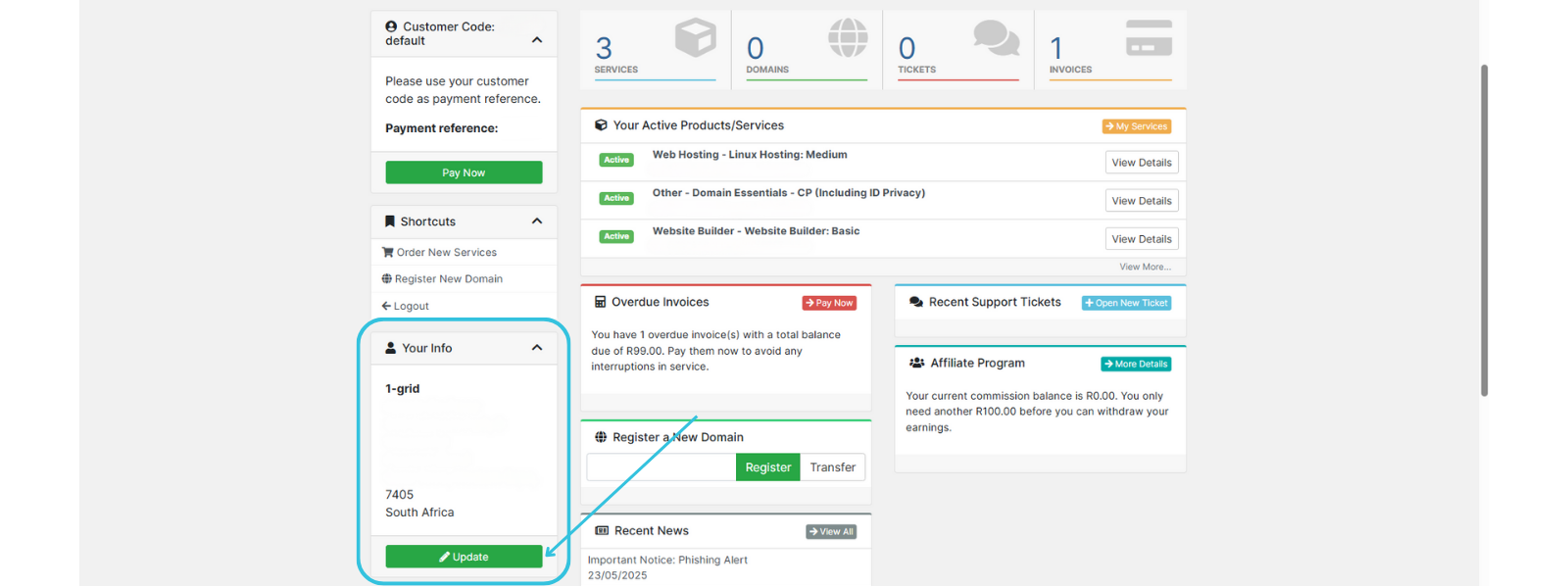
2: Click Update in the Your Info Section.
- Navigate to the section on the left of your “My Dashboard“.
- Select the green Update button.
3: Replace/Enter Your New Information in the Relevant Field/s.
- Click in the relevant field to change/add your information.

4: Navigate to Update Your Email Preferences.*
- Select or deselect the check boxes based on your preference.

5: Navigate to Join Our Mailing List.*
- Click the “Yes/No” button to toggle and indicate your preference.

6: Click to Save Changes.
- At the bottom of the “My Details” page, you can click on Save Changes button.

FAQs
Q: Why can’t I change the “Name” and “Surname” under “My Details”?
You cannot change your name on an existing 1-grid hosting account because the account is tied to specific legal and financial details, and a name change is considered a change of ownership, requiring a formal process to ensure the legitimacy and security of the account and its services. Instead of a name change, you would need to initiate a transfer of ownership, followed by consideration of setting up a new account with the correct name.
You can reach out to our Billing Support Team at [email protected] for assistance or further guidance on this, and you may find some additional information for a Change of Ownership (COO).
Likewise, if an account is required to be changed due to the account holder passing away, there is a formal process that requires administrative action. This is explained here: How to Gain Access to an Account after Owner’s Death.
Related Articles
- How to Verify Your 1-grid Account for Support
- Adding a Sub-Account or Technical Contact to Your 1-grid Account
- Deleting a Sub-Account or Technical Contact from Your 1-grid
- 1-grid App: How do I update my profile information?
- cPanel: How to Update Your Contact Information
- How Do I Update My Payment Method?
- Customer Zone: Update Your 1-grid Password While Logged In
- Updating or Adding Your Debit Order Details
- Adding or Updating Your Credit Card Details
- Keeping Your Domain Contact Information Up To Date
- How to Update Your Domain’s Nameservers at 1-grid
Need Help?
Updating your personal information doesn’t have to be tricky because this easy-to-use guide makes it easy. Stuck? Get in touch with our Team.