
A continuous ping is a simple but powerful way to monitor whether your computer can consistently communicate with a website, server, or network device over time.
Instead of sending just one test, a continuous ping sends repeated requests so you can:
- See if your connection is stable
- Identify dropouts or timeouts
- Measure response times
- Provide clear evidence when reporting an issue
This guide shows you how to run a continuous ping on Windows, Linux, and macOS, how to stop it, how to save results to a file, and how to interpret what you see.

What is a Ping (in Simple Terms)?
A ping sends a small data packet from your device to a destination (like a website or server) and waits for a response.
Each response tells you:
- Whether the destination is reachable
- How long it took to respond (latency in milliseconds)
- Whether any packets were lost
If packets are consistently lost or responses are slow, this usually points to:
- Local network issues (Wi-Fi, router, ISP)
- Server-side problems
- DNS misconfiguration
- Firewall or security filtering
When Should You Use a Continuous Ping?
Use a continuous ping when you want to:
- Monitor connectivity over time.
- Gives you a clear, real-time picture of how stable your connection truly is.
- Troubleshoot intermittent dropouts.
- Helps you pinpoint whether disruptions are random or part of a pattern.
- Check stability during video calls or remote work.
- Let’s you proactively spot issues before they impact important meetings or deadlines.
- Gather evidence for your ISP or hosting provider.
- Provides clear, objective data to support your case and speed up resolution.
- Test VPN reliability.
- Shows whether your VPN is maintaining a steady, secure connection.
- Investigate “website keeps disconnecting” issues.
- Helps you determine whether the problem is your network, your device, or the website itself.
How to Run a Continuous Ping
The steps below show you how to run a continuous ping on Windows, Linux, and macOS. By following them, you’ll be actively gathering reliable information about your connection, making it easier to pinpoint issues and find the right solution.
Windows (7, 8, 10, 11)
By default, Windows sends only four test packets when you run a standard ping. This is useful for a quick check, but if you want to monitor your connection over time, for example, to troubleshoot dropouts or track stability, you can use the continuous ping option. This allows you to run the test for as long as you need, giving you clearer insight into your network performance.
Steps
1: Open Command Prompt
- Press Windows + R
- Type: cmd
- Press Enter
2: Run a Continuous Ping
- Enter the command line ping with the -t option and any address, for example:
ping -t www.1-grid.com- Press Enter
How to Read the Results

Each line will show:
- Destination IP address
- The unique “digital address” of the server or website you are testing your connection to. It confirms that you are actually reaching the right place.
- Response size (bytes)
- This shows how much data your device received back each time; like the size of a tiny “reply packet” from the server.
- Response time (ms)
- This is how long it took for your message to travel to the server and back; lower numbers mean a faster, healthier connection.
- TTL (Time To Live – indicates routing distance)
- This shows how many network “hops” your data travelled through. A normal TTL usually means your traffic took a standard, expected route.
3: Stop the Ping
- Press:
Ctrl + C Windows will then display a summary including:

- Packets sent
- The number of test messages your computer sent to check your connection.
- Packets received
- How many replies your computer successfully received back from the server.
- Packet loss percentage
- The percentage of messages that never made it back to you. Even small amounts of packet loss can cause slow speeds, dropouts, or disconnects.
- Minimum, maximum, and average response time
- This shows how consistent (or unstable) your connection really is.
- Minimum: The fastest your connection responded
- Maximum: The slowest it responded
- Average: Your overall connection stability over time
4: Save Results to a File (Optional but Recommended)
To capture output for troubleshooting, run (example):
ping -t www.1-grid.com > C:\pingtest.txt This will create a log file, which is a saved record of your test results, so that instead of trying to explain everything from memory, the file keeps a written history of every ping result your computer recorded.
You can then share this with our Support Team so we can review exactly what happened, spot patterns, and help you faster.
Linux
In Linux, the ping tool is designed to run continuously by default. This means it will keep sending test packets until you stop it manually, making it ideal for ongoing connectivity checks.
Steps
1: Open Terminal
- Press:
Ctrl + Alt + T 2: Run Continuous Ping
- Enter the ping command and the target computer’s IP address in the command line and press [Enter].
ping 93.184.216.34 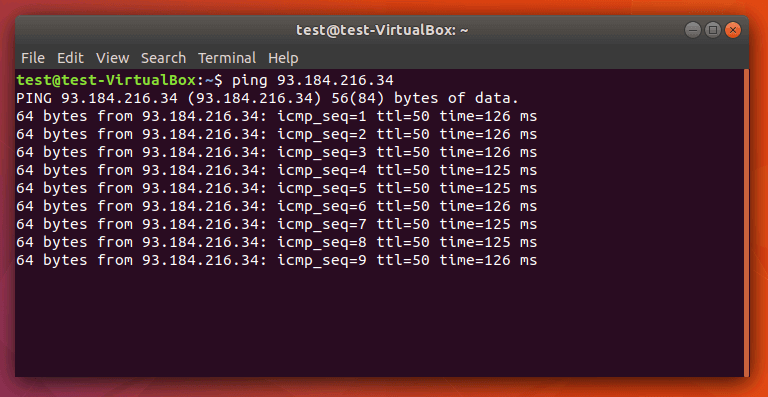
How to Add a Timestamp to Each Ping (Helpful for Diagnostics)
If you’d like to have the continuous ping issue a timestamp, use ping with the -D option. In this case, the output for each incoming response packet is preceded by a UNIX timestamp.
ping -D 93.184.216.34 > logfile.txt 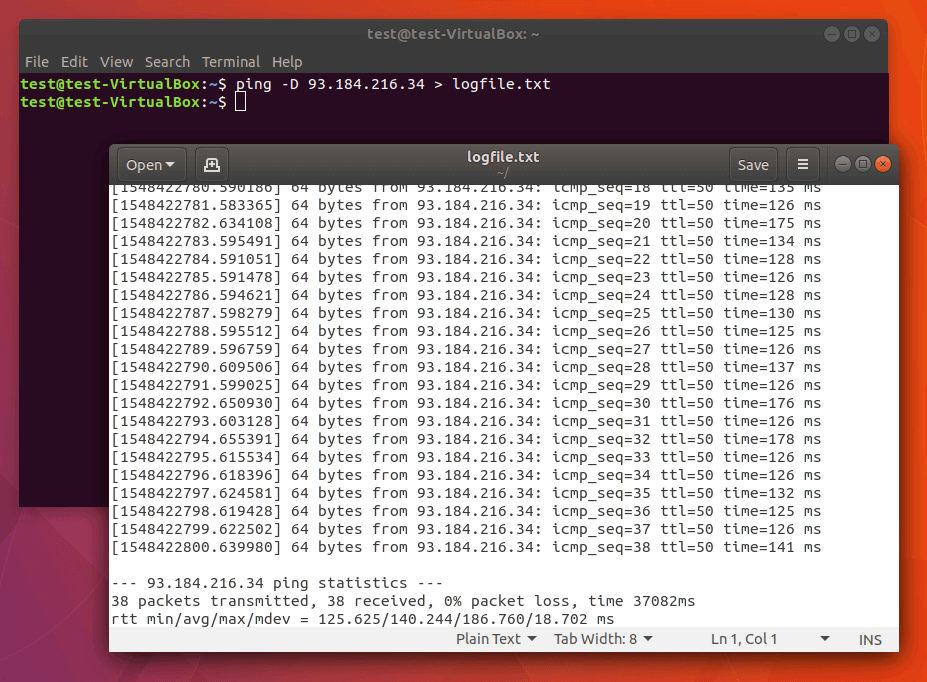
How to Limit the Number of Pings (Instead of Continuous)
If you don’t want to run ping in an endless loop in Linux, define the ping quantity with the -c option according to the following example.
ping -c 4 93.184.216.34
MacOS
As with Linux, the ping command also runs continuously by default on macOS. This allows you to monitor your connection in real time without needing extra settings by simply running the command and letting it track your network performance until you stop it.
Steps
1: Open Terminal
- Go to Applications → Utilities → Terminal
2: Run Continuous Ping
- Run the ping command with the IP address of the target computer and press [Enter].
ping 93.184.216.34 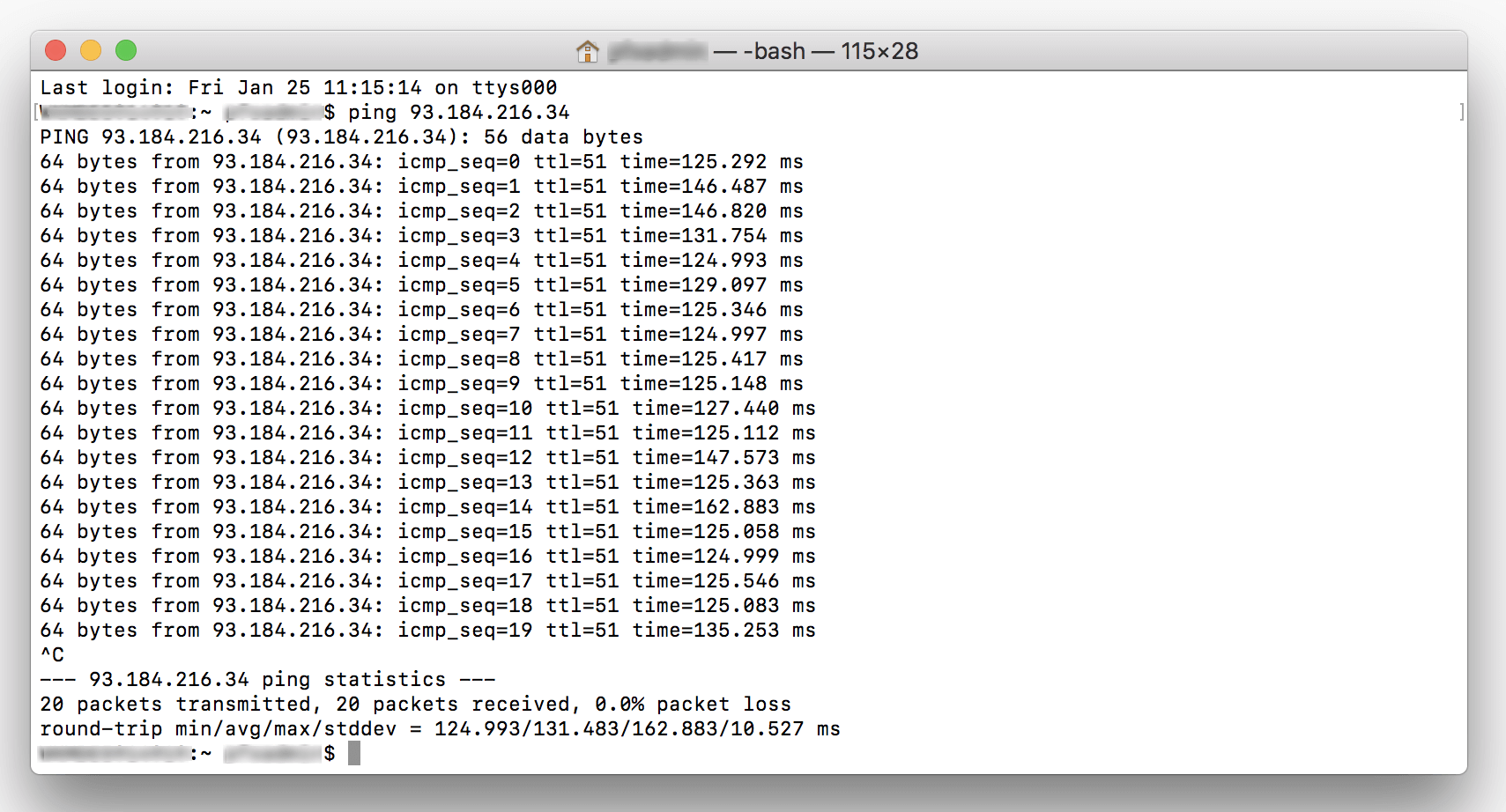
3: Stop the Ping
- Press:
Ctrl + C 4: Save Results to a File
In MacOS, you redirect the standard output according to the same procedure you would use in Linux and Windows.
ping 93.184.216.34 > logfile.txt How to Limit the Number of Pings (Instead of Continuous)
Run a ping test as you would in Linux with a user-defined quantity of echo request queries by choosing option -c.
Ping -c 4 93.184.216.34How to Interpret Your Results
| Result | What it Likely Means |
| Consistent replies under 50ms | Excellent connection |
| Replies 50–150ms | Normal but could improve |
| Replies over 200ms | Possible network delay |
| Intermittent timeouts | Unstable connection |
| 100% packet loss | Normal, but could improve |
Common Issues & What They Indicate
1) “Request Timed Out”
Possible causes:
- Firewall blocking ICMP (ping)
- Quick Fix:
Temporarily allow ping in your firewall settings, or test from a different network to confirm.
- Quick Fix:
- Network congestion
- Quick Fix:
Pause large downloads, then run the test again.
- Quick Fix:
- Server down
- Quick Fix:
Check our Network Status Page or try pinging a different website to compare.
- Quick Fix:
- DNS issues
- Quick Fix:
Restart your router, then flush your DNS cache and try again.
- Quick Fix:
2) High Latency (Slow Replies)
Possible causes:
- Wi-Fi interference
- Quick Fix:
Move closer to your router or switch to a wired (Ethernet) connection.
- Quick Fix:
- ISP routing issues
- Quick Fix:
Restart your modem and router, then rerun the test.
- Quick Fix:
- VPN in use
- Quick Fix:
Disconnect your VPN and test your connection again.
- Quick Fix:
- Server under heavy load
- Quick Fix:
Wait a few minutes and test again, or try a different website.
- Quick Fix:
3) Mixed Results (Some Replies, Some Timeouts)
Often indicates:
- Unstable internet connection
- Quick Fix:
Restart your modem and router, then run a longer continuous ping (2–5 minutes).
- Quick Fix:
- Router issues
- Quick Fix:
Power-cycle your router (off for 30 seconds, then back on).
- Quick Fix:
- Poor Wi-Fi signal
- Quick Fix:
Switch to Ethernet or move to a location with stronger Wi-Fi.
- Quick Fix:
Our Scope of Support
If you’re stuck and need any additional guidance or support, here’s an outline of what we can do and what is not within our Scope of Support.
We can assist with:
- Interpreting your ping results
- Checking server reachability from our network
- Testing DNS resolution
- Advising on the next troubleshooting steps
- Identifying whether an issue is likely local or server-side
Advanced Support (Paid Services)
We may assist with some services that require advanced support.
We do not directly control or fix:
- Your home Wi-Fi network
- Your ISP routing
- Local firewall software on your device
- Corporate or school network restrictions
NOTE: If your issue appears to be local, we will guide you toward the most effective next steps.
FAQs
Q. Is it safe to run a continuous ping?
Yes, it does not harm your computer or the destination server.
Q. Can I ping a website name instead of an IP?
Yes, please see the example below:
ping www.1grid.co.za
Q. Why does my ping sometimes fail, but my internet works?
Some networks block ping requests while still allowing normal web traffic.
Q. How long should I run a continuous ping?
For intermittent issues, it is recommended that you run it for 5–10 minutes.
Q. What is a good ping time?
- Under 50ms: Great
- 50–150ms: Acceptable
- Over 200ms: Potential issue
Additional Resources
How to Troubleshoot a Slow Internet Connection
Understanding DNS
Everything You Need to Know About IP Addresses
Troubleshooting a “Website Not Loading” Issue
Need Additional Support?
We’re Here to Help:
Running a continuous ping doesn’t have to feel technical with this easy-to-reference guide. Stuck? Check out our Scope of Support, and then contact our Support Team for further clarity and guidance (https://1grid.co.za/contact-us/). We’re ready to see how we can help!