
Safely transfer data packs, scripts, and media assets between your desktop and server environment.
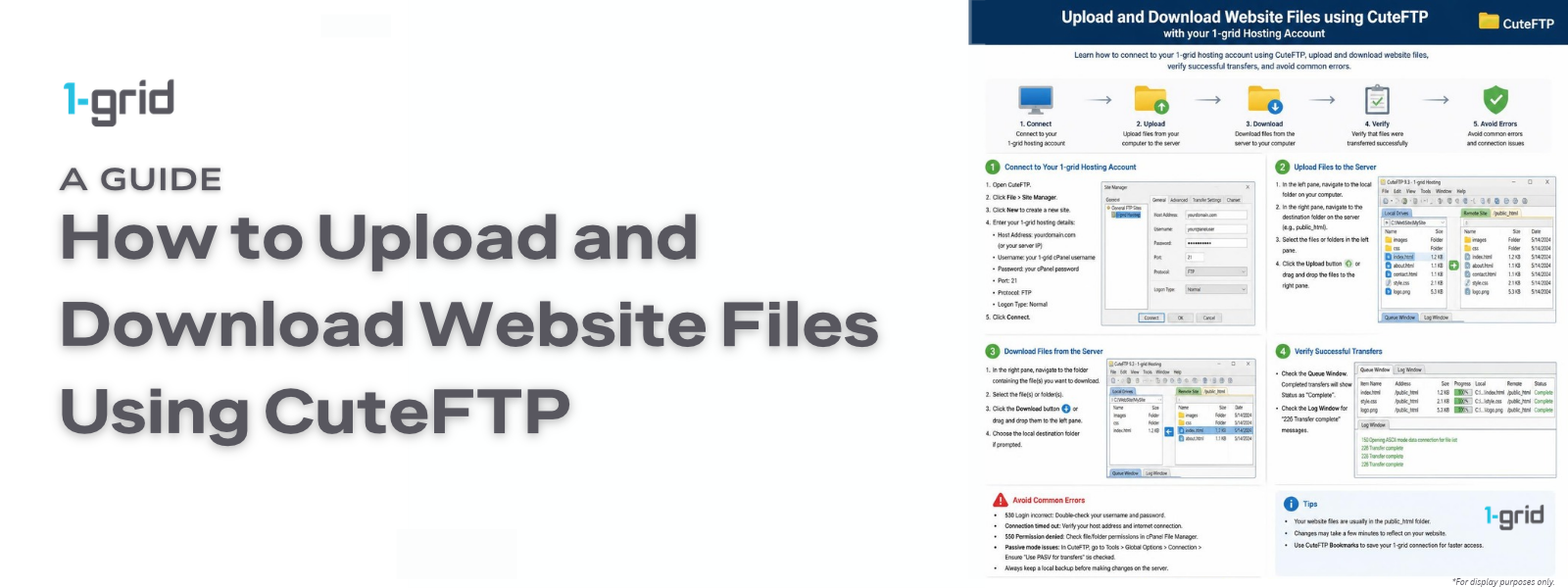
This guide will help you upload and download website files using CuteFTP with your 1-grid hosting account. Whether you’re publishing a new website, updating existing content, or downloading files for backup or editing, CuteFTP provides a simple way to securely transfer files between your computer and your hosting server. By the end of this guide, you’ll know how to manage data synchronisation seamlessly.
Before You Begin
Before initiating your first asset sync, make sure you meet the following baseline requirements:
- The CuteFTP client software is running on your machine
- You have already mapped your profile details within the app via How to Configure CuteFTP with Your 1-grid Hosting Account
- You are successfully connected to your live 1-grid hosting account server space
💡 Context: Unlike uploading files individually through a standard web browser interface, desktop FTP clients stream data bundles synchronously. This ensures massive folders or raw website design archives transmit efficiently without dropping packet connections midway.
Follow These Steps
1. Connect to Your Website
Open CuteFTP and click your saved site connection layout profile card to link up with your account. Once authorised, verify that the twin-pane view is active:
- Local Pane (Left): Displays files and system directories stored on your physical computer.
- Remote Pane (Right): Displays directories and active structures hosted on your remote server space.
2. Locate the Files You Want to Upload
Inside your Local Pane, browse to the local project folder holding your fresh web files. You can highlight a single file code block, a group of multiple files (hold down the Ctrl key on your keyboard while selecting), or an entire root folder asset.
3. Upload Files to Your Hosting Server
Once your local items are highlighted, move to the workspace toolbar and click the Upload action item button (the green arrow icon pointing to the right). CuteFTP will immediately initialise its upload data stream pipeline. Keep the client interface open until the transmission logs show complete.
4. Verify the Upload
Review your Remote Pane view list to verify your items display accurately with reasonable file sizes. Open an external incognito browser window, type in your domain name URL, and click refresh to confirm that your new design modifications render accurately on your public layout.
5. Locate the File on the Remote Server
If you are pulling down a data pack or backup script from the web host to your machine, move your cursor over to the Remote Pane. Navigate through the folder hierarchy to locate your target file or archive container.
6. Download the File
Highlight your target server assets, and click the Download icon button on the interface bar (the green arrow pointing to the left). CuteFTP will replicate the data blocks directly into the destination folder running in your active local window panel. Verify the asset arrives safely.
7. Disconnect Safely
When your file movement queues read completely clear, click the Disconnect broken socket link icon button on the top status strip to gracefully exit your network session loop.
What Happens Next?
Once file sync queues execute, data parameters take effect instantly.
- Direct Server Deployment: Uploaded code modifications, fresh index updates, or image uploads overwrite previous variables immediately, modifying your public site appearance.
- The public_html Rule: Ensure your core public landing assets are delivered inside your public_html directory root panel folder. Dropping files outside of this specific structural container will block web browsers from looking up your content.
Important Things to Know
- The Overwrite Rule: Transmitting an asset file containing an identical layout name to an item already present in the target remote folder directory will trigger an automatic system overwrite, permanently replacing the previous version.
- DNS Propagation Latency: If you upload website data onto a brand new domain name, visual updates will remain masked until regional internet service providers complete their background DNS propagation updates.
- Local Browser Caching: Browsers frequently store persistent image snapshots locally. If your updates fail to manifest after a successful upload log, clear your browser history or perform a hard refresh.
- The Bandwidth Variable: Upload speed limits are tied directly to your local ISP connection framework. Pushing multi-gigabyte zip archives will scale transfer timelines based on your network pipeline.
Common Mistakes to Avoid
- Uploading your main home page index code lines outside of the mandatory
public_htmldirectory container root. - Shutting down the client software package or disconnecting your computer while background item queues are actively processing data transfers.
- Confirming server overwrites on critical configuration scripts without saving a backup copy file first.
- Mistakenly typing your website admin control account credentials into your FTP endpoint panels.
- Assuming an upload failure occurred when your browser is simply loading an unchanged, cached copy of the site.
If This Didn’t Work
If asset movements stall or trigger systemic transmission error notifications inside the data console box, check your user directory permissions to ensure your FTP account profile holds full read/write privileges. Verify your internet stability and check that your local storage array hasn’t reached its space boundary limit.
You’re Ready!
Your data synchronisation process via CuteFTP is completely mastered. Checking your directories and running tidy file placements allows you to scale your web architecture, distribute updates, and manage backups with maximum efficiency.
Related Articles
- How to Configure CuteFTP with Your 1-grid Hosting Account
- Finding Your FTP Login Details
- Understanding FTP, FTPS and SFTP
- Troubleshooting FTP Connection Problems
Need Help?
If your asset queues terminate prematurely with socket timeout alerts, or if server directories block folder creations with permission exceptions, contact us. Our Support Team is ready to provide guidance and support.
Before opening a validation request, please prepare:
- Your primary domain name and active server plan metrics
- The exact path layout of the target file or folder directory you are modifying
- A screenshot of your full CuteFTP app window showing the connection status console
- The complete text string configuration of any error messages displayed on screen