

Take control of your website’s PHP settings directly from cPanel.
Your website relies on PHP to run many of its features and applications. Knowing how to change your PHP version in cPanel helps you or your web developer make these changes quickly, especially when your website requires a different PHP version.
This guide walks you through where to find the PHP settings in cPanel, how to select an available version, and what to check once the change has been applied, whether you’re managing your own website or maintaining a site for a client.

Before You Begin
Before changing your PHP version, make sure you have the following ready:
- cPanel access: You can log in to your 1-grid Customer Zone and access cPanel or use direct cPanel login access.
- A recent backup: Back up your website before making changes so you can restore it if something goes wrong.
- Compatibility confirmation: Check that your website, CMS, themes and plugins support the PHP version you want to use. If you use WordPress, consult your theme and plugin providers or web developer if you’re unsure.
- A suitable PHP version: Where compatible, we recommend PHP 8.3 or higher for a longer period of support. Make sure the version is available for your hosting package and has the relevant security updates applied.
Follow These Steps
Step 1: Log in to cPanel
Log in to your 1-grid Customer Zone and open cPanel.

If you need help, see our guide: How to Log in to cPanel via Your 1-grid Customer Zone.
Step 2: Open Select PHP Version
In cPanel, find the Software section and click Select PHP Version.

Step 3: Choose Your PHP Version
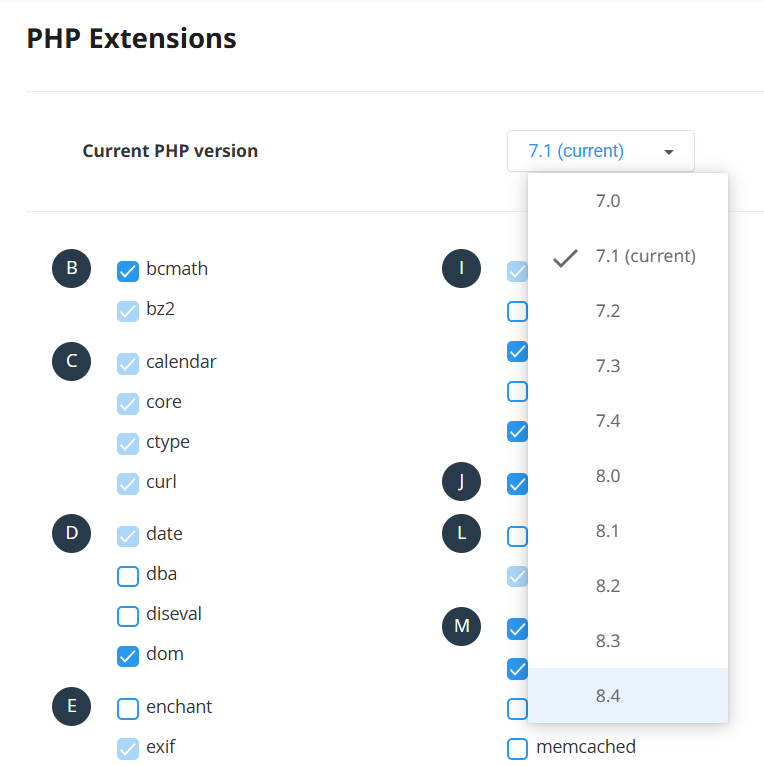
Click the dropdown arrow next to PHP Version and select the version you want to use.
Before continuing, confirm that your website and its applications are compatible with your selection.
Step 4: Apply Your Changes
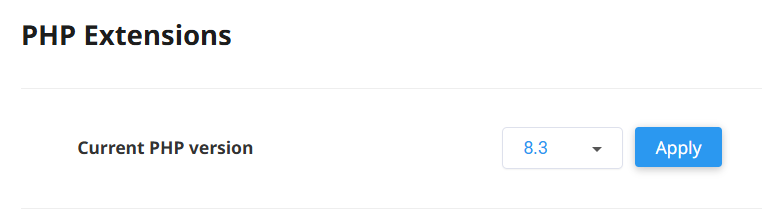
Click Apply to save your selection.
Depending on your hosting configuration, the change may take effect immediately and may affect multiple websites hosted under the same cPanel account.
Step 5: Test Your Website
Once the change has been applied, open your website and check that it works as expected.
If you use WordPress or another CMS, test important functions such as logging in, submitting forms, using plugins, and completing purchases where applicable.
What Happens Next?
Your hosting account will use the selected PHP version according to your hosting configuration.
After changing PHP, we recommend that you:
- Check that your website loads correctly.
- Test important website features and functionality.
- Look for errors or compatibility issues.
- Keep your CMS, themes, and plugins updated with their latest compatible releases.
If something stops working, contact your web developer or our Support Team for assistance.
Important Things to Know
- Compatibility matters: A newer PHP version is not automatically compatible with every website. Check your website’s requirements before upgrading.
- Security updates still matter: Choosing a PHP version alone does not guarantee security. Ensure that the relevant security patches are applied.
- Changes may affect multiple websites: Depending on your hosting configuration, changing PHP may affect more than one website under the same cPanel account. Confirm the scope before applying the change.
- PHP and WordPress updates are different: Changing PHP does not update WordPress itself, its themes or its plugins.
- Backups help you recover: Always keep a recent backup before making changes.
Common Mistakes to Avoid
- Changing PHP without checking compatibility: This may cause errors or prevent parts of your website from working.
- Skipping a backup: Make sure you have a recent backup before applying changes.
- Forgetting to test your website: Always check your website and its key functions after the update.
- Assuming a version change fixes every security issue: Keep your website software updated and confirm that the relevant PHP security patches are in place.
If This Didn’t Work
If you cannot change your PHP version or your website experiences problems afterwards, try the following:
- Check the selected version: Confirm that the version you selected is available and supported by your hosting package.
- Review website compatibility: Check for outdated themes, plugins or applications that may not support the selected version.
- Restore or seek help: If your website stops working, contact your web developer to investigate compatibility. If necessary, contact 1-grid Support for help with your hosting configuration.
You’re Ready!
You’ve learned how to change your PHP version in cPanel. Remember to check compatibility, keep your website backed up and test everything after making changes.
Related Articles
- How to Log in to cPanel via Your 1-grid Customer Zone
- How to Update PHP Resource Limits in cPanel
- How to Check and Update Your PHP Version with 1-grid for Better Website Security
- WordPress Tips to Secure Your Website
Need Help?
Still unsure which PHP version is right for your website or need further guidance on changing it in cPanel?