
Track live server performance updates, active platform outages, and upcoming maintenance schedules directly from your smartphone.
The 1-grid Mobile App allows you to quickly check the status of our network, including any current service issues or scheduled maintenance. You can view Network Status whether you’re logged in or not, making it a useful, frictionless first step if you are experiencing a technical fault with your hosting or email. This guide shows you how to find live network updates on your smartphone using the 1-grid mobile platform application.
Before You Begin
Before checking your system uptime logs inside the application, ensure you understand what updates are provided:
- Open Issues: Current active incidents affecting specific infrastructure clusters or core 1-grid systems.
- Scheduled Work: Planned network maintenance, software upgrades, or infrastructure optimisations scheduled to run during off-peak windows.
💡 Context: Reviewing the active status board helps you determine whether an intermittent loading drop or email connectivity issue is already a known incident that our engineering teams are actively resolving.
Follow These Steps
Method A: If You’re Logged In
- Step 1: Launch the 1-grid App on your smartphone.

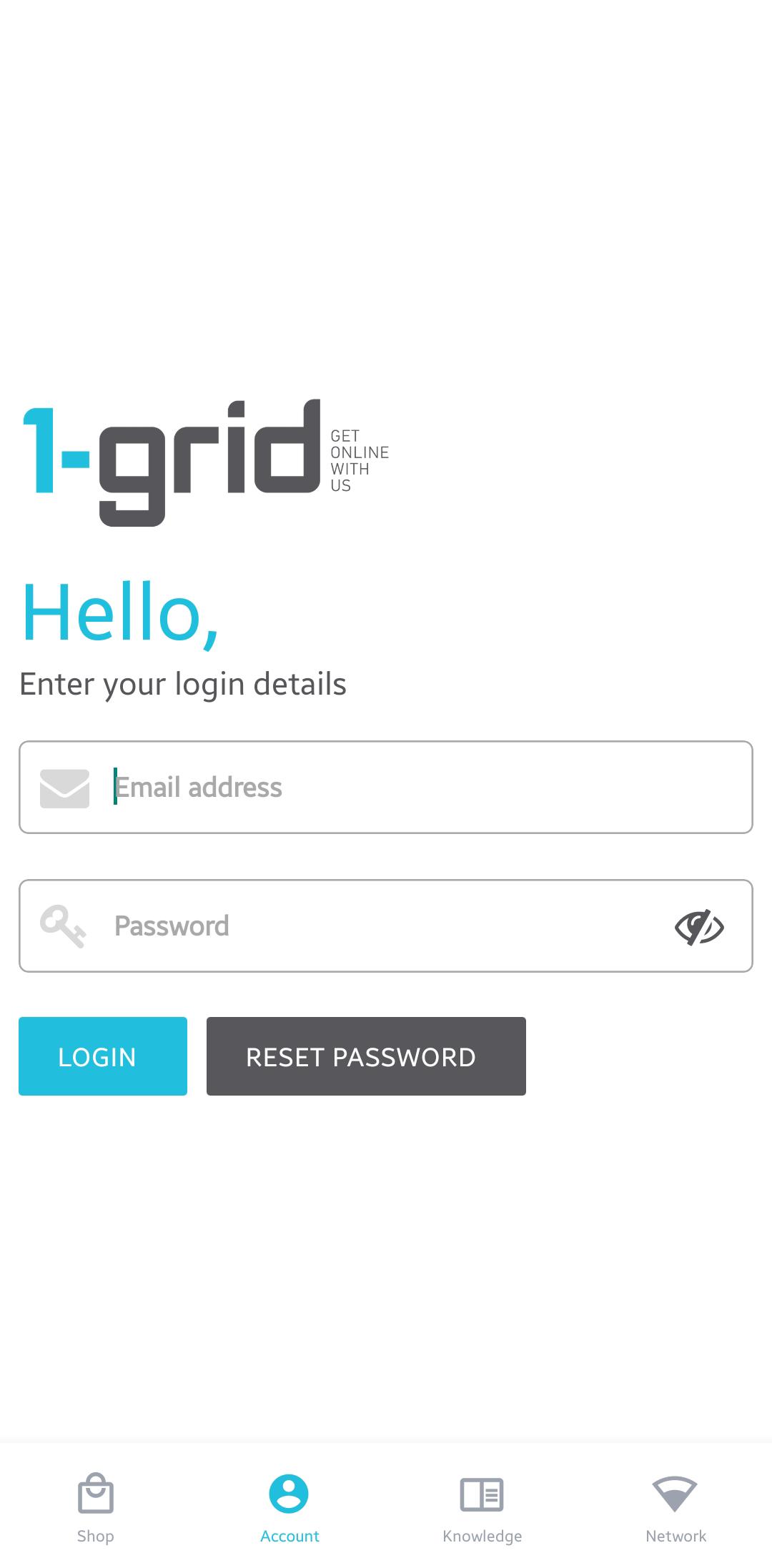
- Step 3: Enter your account email address as your username and password, then tap LOGIN.

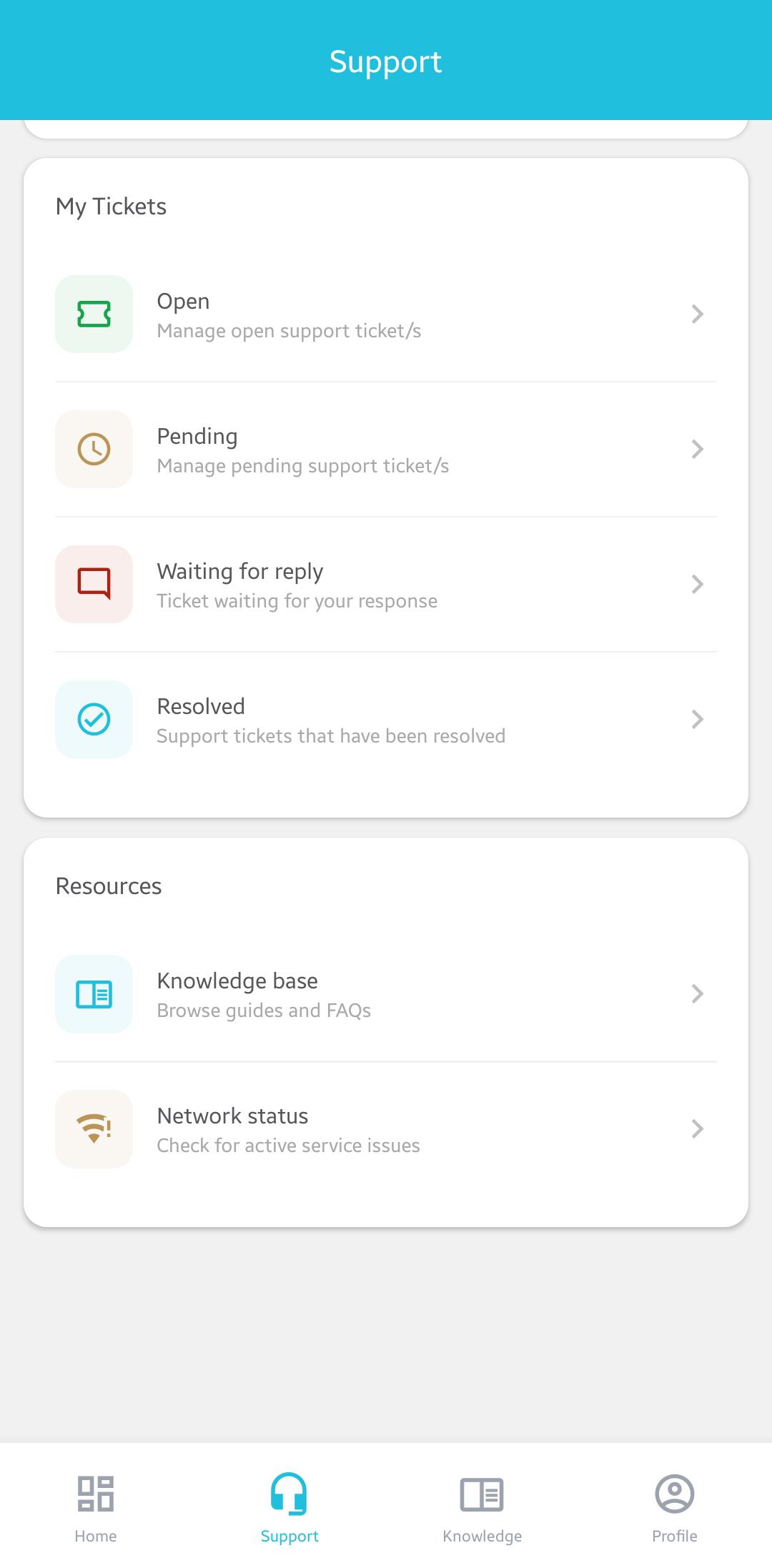
- Step 5: Scroll down to the Resources section block cluster and tap Network Status.
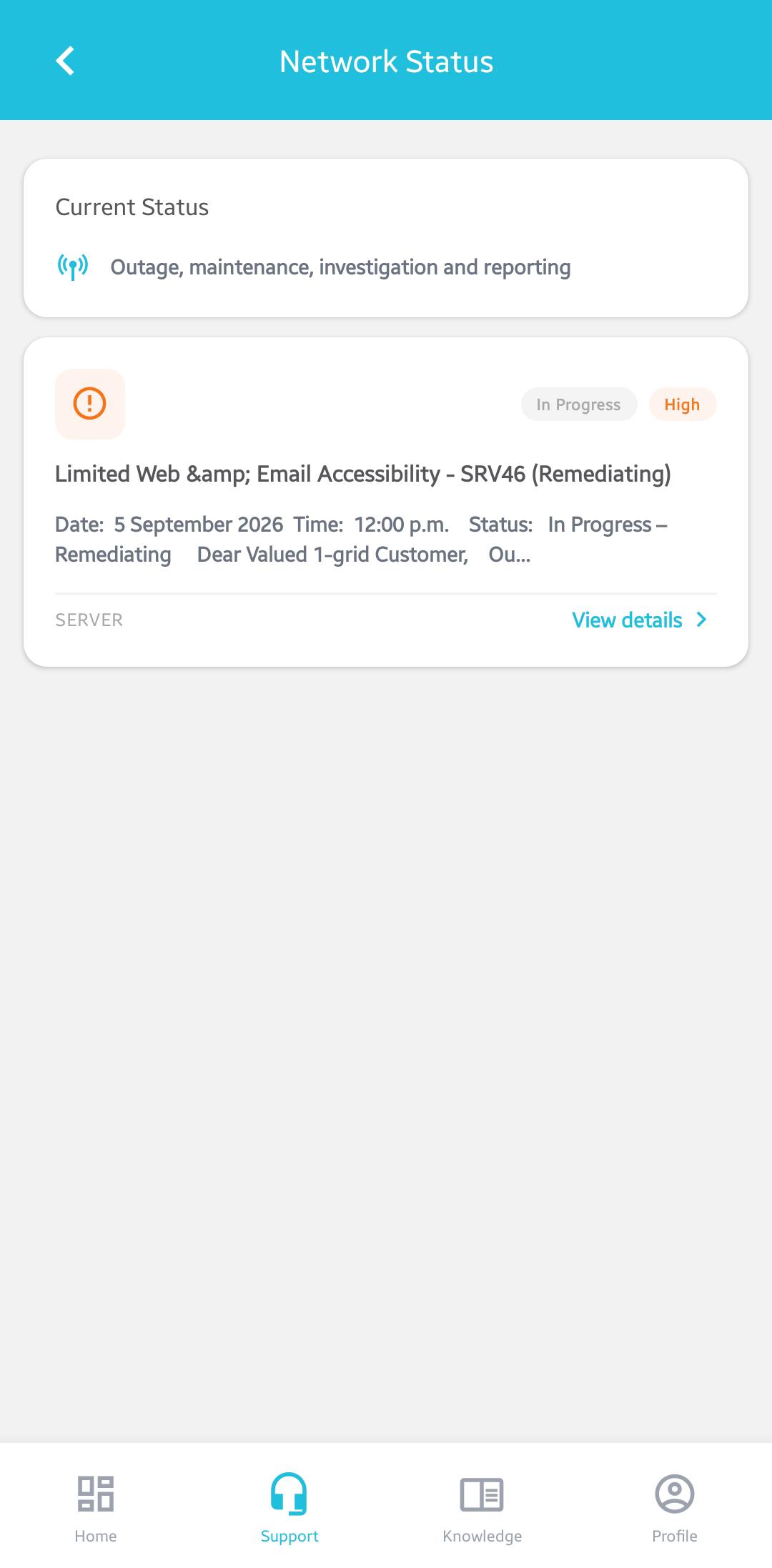
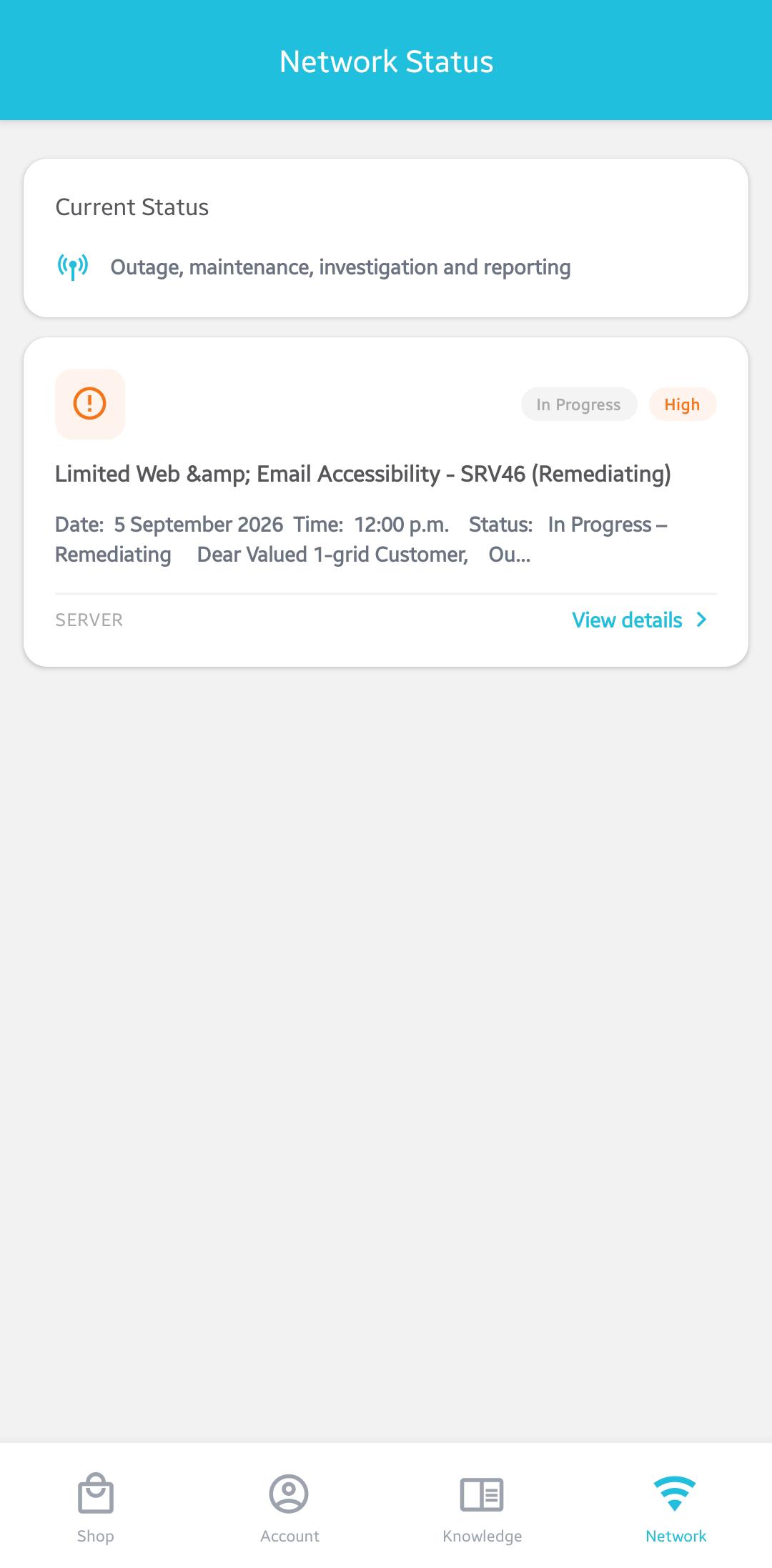
- Step 6: Review the active status cards to check for operational updates matching your service zone.
Method B: If You’re Not Logged In
- Step 1: Launch the 1-grid App on your device.

- Step 3: The app will instantly fetch and render the live server network monitoring status board feeds directly, without requiring an account sign-in step.
What Happens Next?
Once you look up the status boards, you can align your next steps with Network Status reports or find answers to common queries in our Knowledge Base.
- Incident Alignment: If an Open Issue profile maps to your domain’s server location, you can track real-time resolution logs directly inside the app interface without calling in.
- Maintenance Planning: Checking upcoming maintenance metrics allows you to coordinate website update deployments outside of our announced infrastructure window cycles.
Important Things to Know
- Zero Credentials Barrier: Accessing the live network diagnostic feed does not require an active login session, ensuring you can verify network uptime even if you don’t have your login password on hand.
- Localised Fault Possibilities: If your specific web pages or email configurations drop connections but the master Network Status Page reads green, your issue is likely an isolated script error, data block configuration issue, or billing boundary flag.
- Dynamic Update Feeds: Status message descriptions, estimated resolution times, and system impact updates refresh automatically as our core Network Operations Centre logs progress updates.
Common Mistakes to Avoid
- Instantly assuming that every isolated email connection freeze or website loading timeout is caused by a global server outage.
- Assuming everything is operating perfectly simply because a localised infrastructure issue has not been officially published to the board yet.
- Launching a high-priority support ticket before checking if a known maintenance issue has already been reported and is being actively worked on.
If This Didn’t Work
If the mobile app screen fails to populate any network update rows or drops out with a server connection timed-out notice, check your smartphone’s cellular data or local Wi-Fi router connectivity rules. You can alternatively verify active infrastructure performance profiles by logging directly into the web-based Customer Zone on a desktop machine.
You’re Ready!
Your mobile network health monitoring options are completely mapped. Checking your network status cards natively inside the 1-grid mobile application gives you the ultimate control to verify system state data and resolve connection anomalies with absolute confidence.
Related Articles
- Introduction to the 1-grid App
- 1-grid Scope of Support
- Troubleshooting Website Issues
- Troubleshooting Email Issues
- 1-grid App Guides
Need Help?
If you are facing a severe website loading failure or email communication drop and no relevant update card displays on the app network board, contact us. Our Support Team is ready to provide guidance and support.
Before logging a technical support ticket, please prepare:
- A concise log description detailing exactly when the connection drop started.
- The complete text configuration of any active error codes visible inside your web browser.
- A summary list detailing any basic local troubleshooting steps you have already attempted.