

Manage your website’s PHP settings directly from Plesk.
Your website relies on PHP to run many of its features and applications. Knowing how to change your PHP version in Plesk if your website requires a different PHP version means you can make the change quickly. Plesk provides a way to change the version assigned to your hosting environment with ease.
This guide walks you through locating the PHP settings in Plesk, selecting an available version, and checking that your website continues to work as expected after the change.

Before You Begin
Before changing your PHP version, make sure you have:
- Access to Plesk: You’ll need to log in to your hosting control panel.
- A Recent Website Backup: This gives you a recovery option if something goes wrong.
- Checked Compatibility: Confirm that your website, content management system (CMS), themes and plugins support the PHP version you intend to use.
- Confirmed the Available Versions: The PHP versions available to you depend on your hosting environment.
Follow These Steps
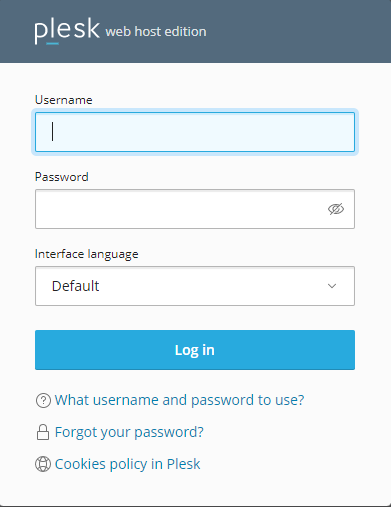
Step 1: Log In to Plesk
Access your Plesk control panel using your hosting credentials.
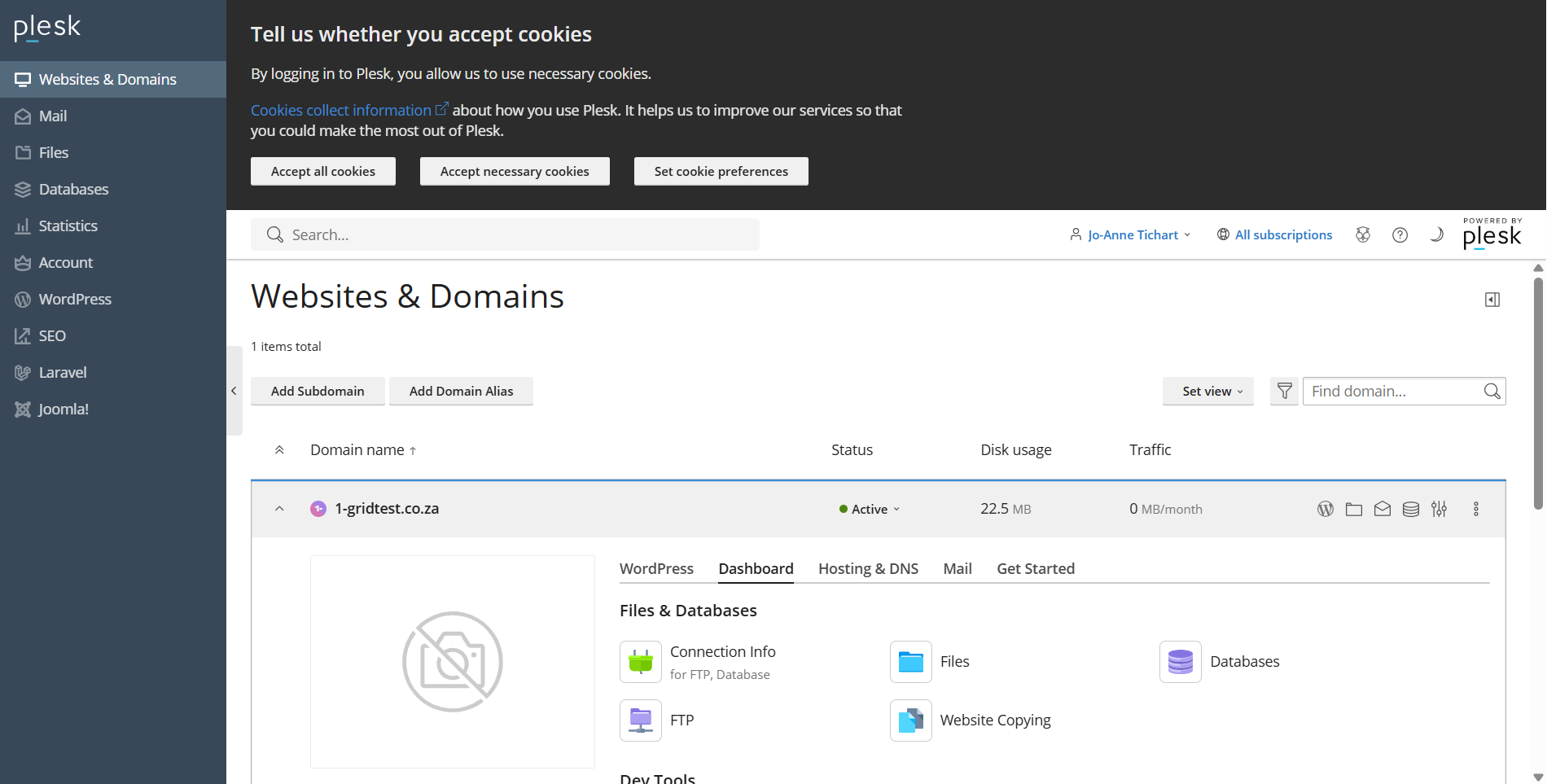
Step 2: Select Websites & Domains and Click the Dashboard Tab
Click the Dashboard tab to expand the menu section and display the available options.
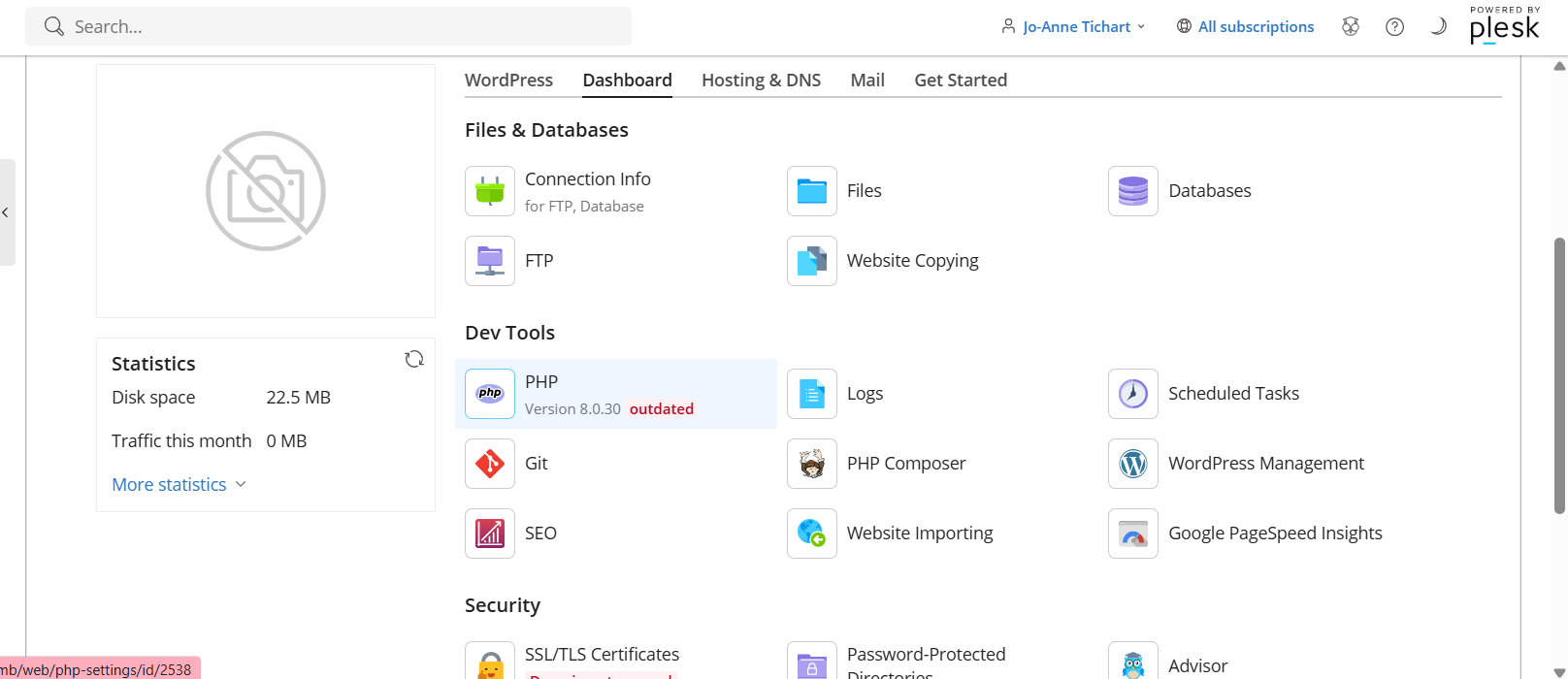
Step 3: Scroll Down to Dev Tools and Select PHP
Click PHP to open the PHP version settings.
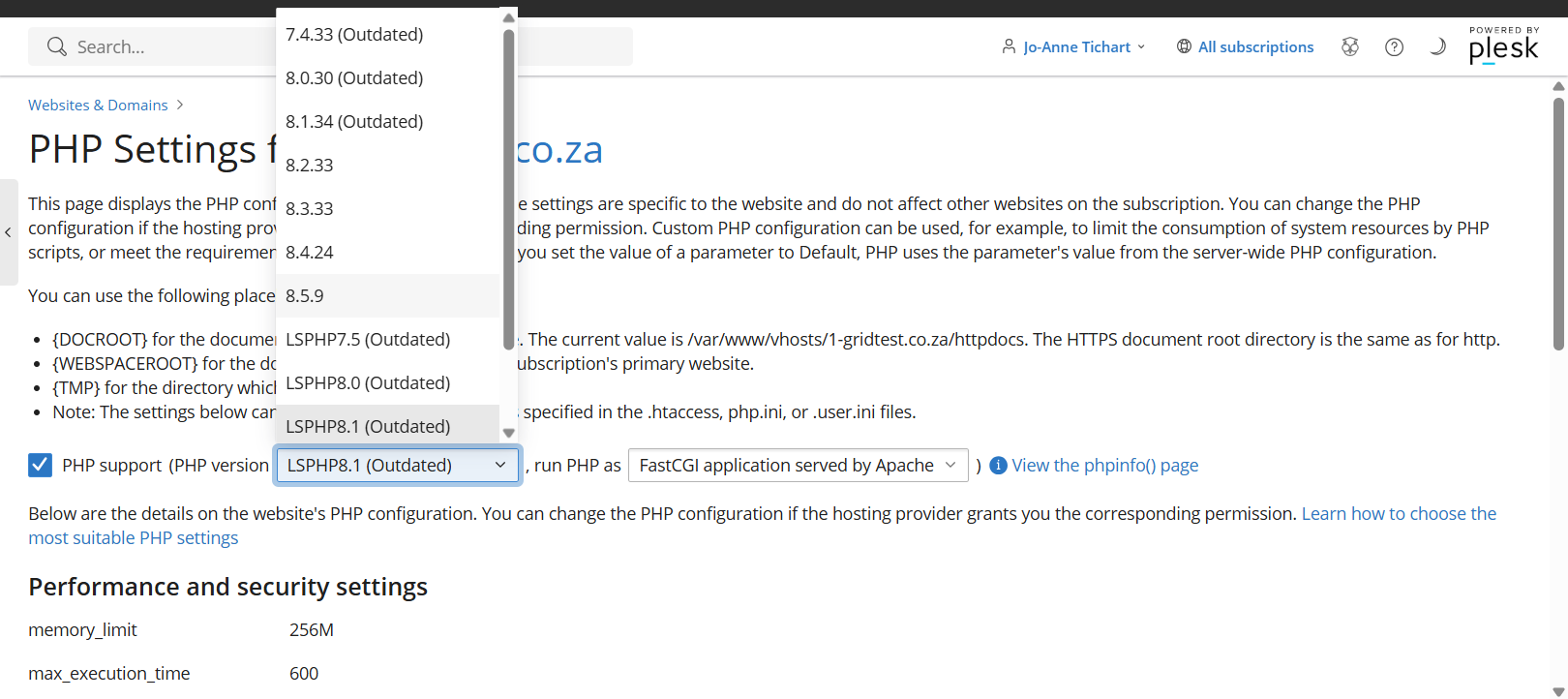
Step 4: Choose Your PHP Version
Click the arrow next to the PHP version field to display the available versions. Select the version that is compatible with your website and applications.
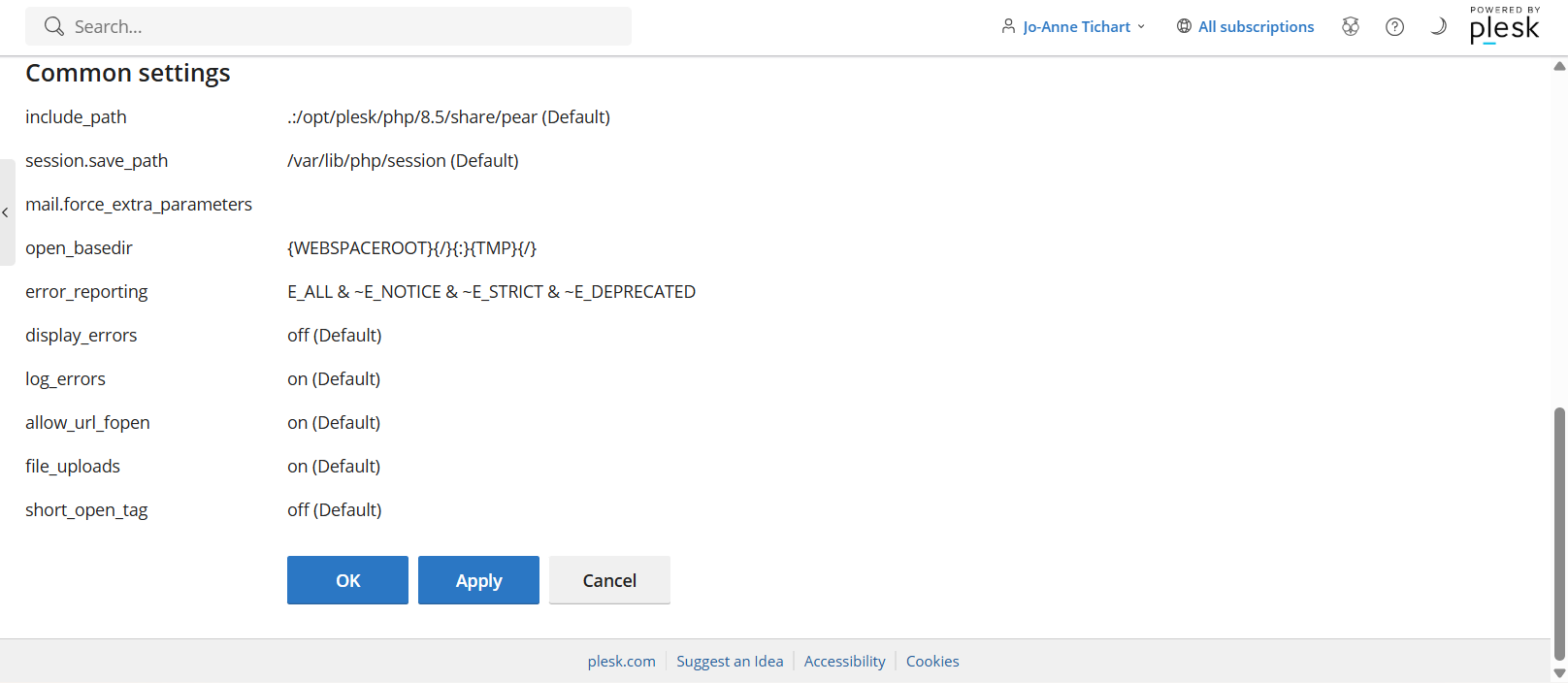
Step 5: Apply Your Changes
Click Apply to save your selected PHP version.
What Happens Next?
Your hosting environment will use the selected PHP version according to your Plesk configuration.
After changing your PHP version, we recommend that you:
- Check that your website loads correctly.
- Test important website features, such as contact forms, shopping carts and login functions.
- Look for errors or unexpected behaviour.
- Keep your CMS, themes and plugins updated to compatible versions.
If something stops working as expected, your website may require further compatibility checks. Contact your web developer or our Support Team for assistance.
Important Things to Know
- Compatibility Matters: A newer PHP version may not support every website application, theme or plugin. Check your website’s requirements before making a change.
- Security Updates Still Matter: Changing your PHP version alone does not guarantee security. Ensure that the relevant security patches are applied.
- Check Which Website Is Affected: Depending on your Plesk configuration, PHP settings may apply to a specific website or subscription. Confirm the scope before applying changes.
- PHP and CMS Updates Are Different: Changing your PHP version does not automatically update your CMS, themes or plugins.
- Keep a Recent Backup: A backup gives you a recovery option if compatibility issues arise after the change.
Common Mistakes to Avoid
- Changing PHP Without Checking Compatibility: This may cause errors or prevent parts of your website from working correctly.
- Skipping a Backup: Keep a recent backup before making changes to your hosting environment.
- Forgetting to Test Your Website: Check your website and its key functions after applying the new version.
- Assuming a Version Change Resolves Every Security Issue: Keep your website software updated and ensure the relevant PHP security patches are in place.
- Overlooking the Selected Website or Subscription: Confirm that you are changing the PHP settings for the intended website before applying the change.
If This Didn’t Work
If you cannot change your PHP version or your website experiences problems afterwards, try the following:
- Check the Selected Version: Confirm that the PHP version is available and supported by your hosting environment.
- Review Website Compatibility: Check whether your CMS, themes, plugins or other applications support the selected version.
- Investigate Website Errors: If your website stops working correctly, contact your web developer to investigate potential compatibility issues.
You’re Ready!
You’ve completed the steps to change your PHP version in Plesk. Remember to test your website after applying the change to confirm that everything continues to work as expected.
Related Articles
- How to Check and Update Your PHP Version with 1-grid for Better Website Security
- How to Change Your PHP Version in cPanel
- WordPress Tips to Secure Your Website
Need Help?
Still unsure which PHP version is right for your website or need further guidance on changing it in Plesk Linux?