
Managing email accounts in Webuzo (your Control Panel) allows you to add or remove mailboxes without needing a support ticket. This guide will show you how you can do it safely and effectively.

What Is an Email Account in Webuzo?
An email account (like [email protected]) stores messages for your domain under your hosting package. Webuzo offers built-in tools to create, manage, and delete these accounts, including quotas, passwords, and mailbox controls.
When to Create vs When to Delete
- Create when you need a new user email, alias, departmental address, or temporary mailbox.
- Delete when an email account is no longer needed, compromised, or unused.
IMPORTANT: Be cautious when deleting, because this will remove all email data for that mailbox so be sure that you have backed up any files you need to, before doing so, if this is required.
What Deletion Means and the Risks
- Deleting removes all existing email content for that account; backup first if needed.
- Forwarders or aliases tied to that address may break.
- If someone still has that address configured in their client, they may get bounce errors or errors sending.
How to Create an Email Account in Webuzo
1. Log in to your Webuzo dashboard via your 1-grid Customer Zone.
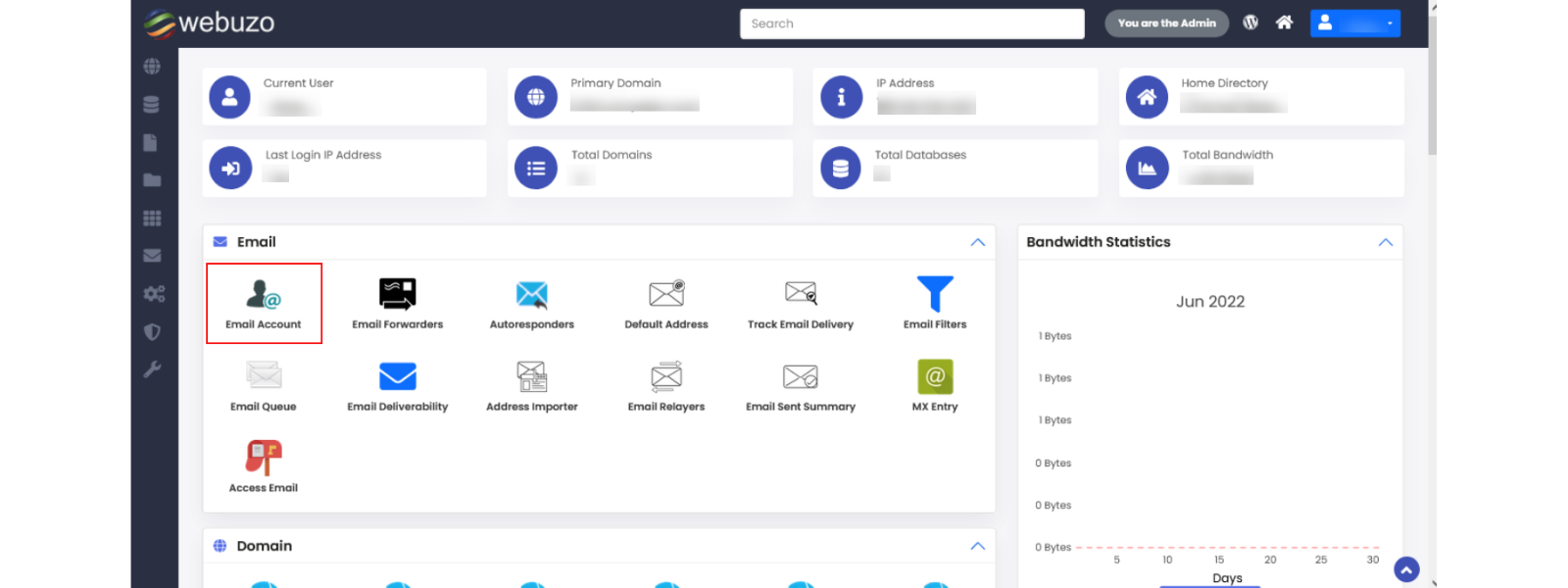
2. Find the Email section and click Email Account.
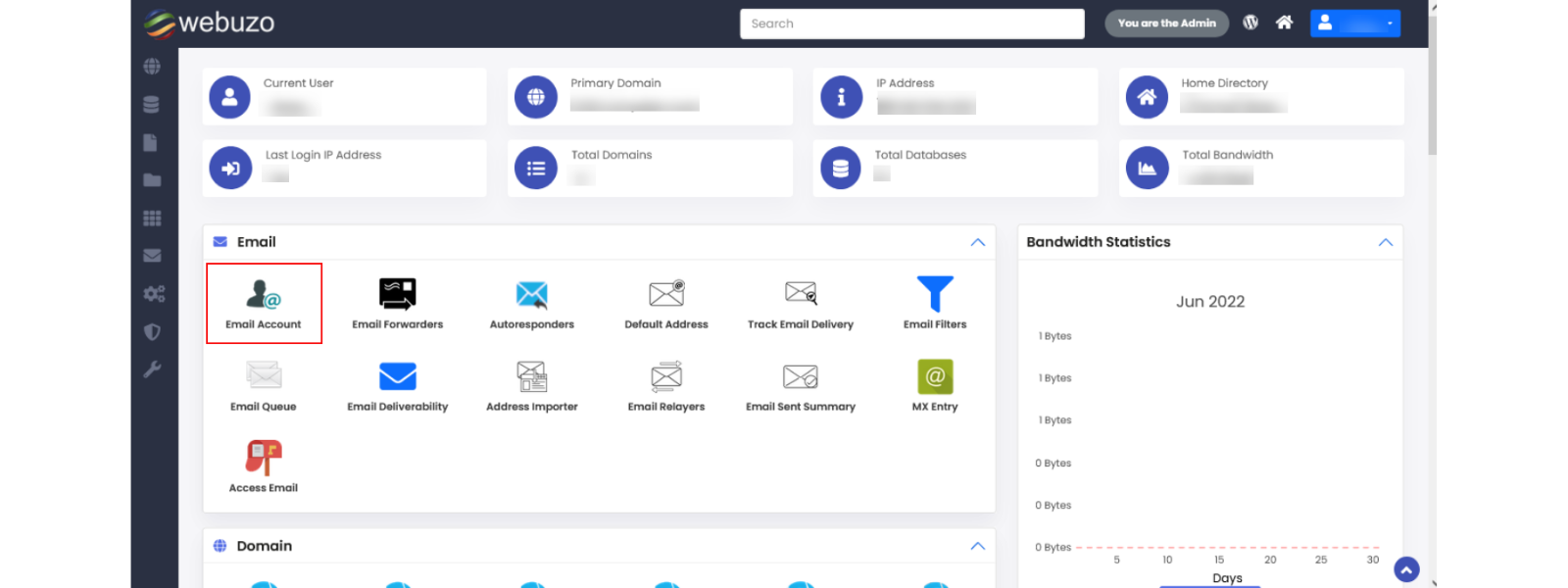
3. Click Create.
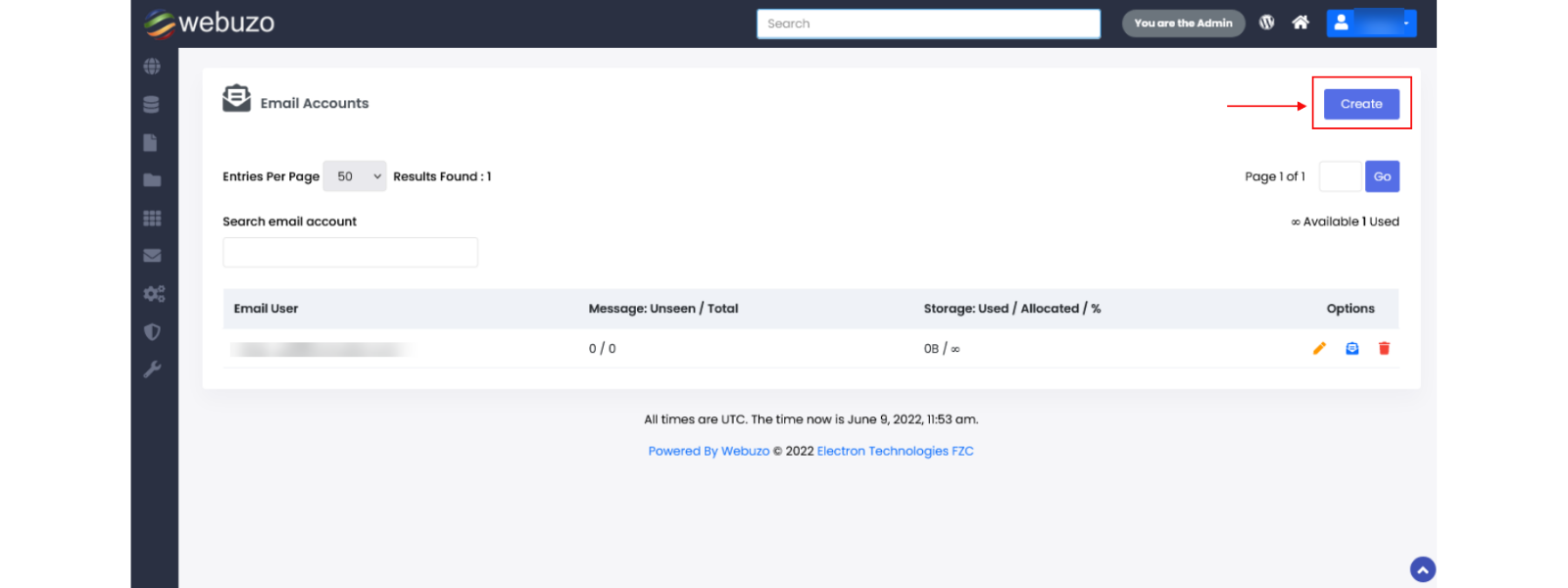
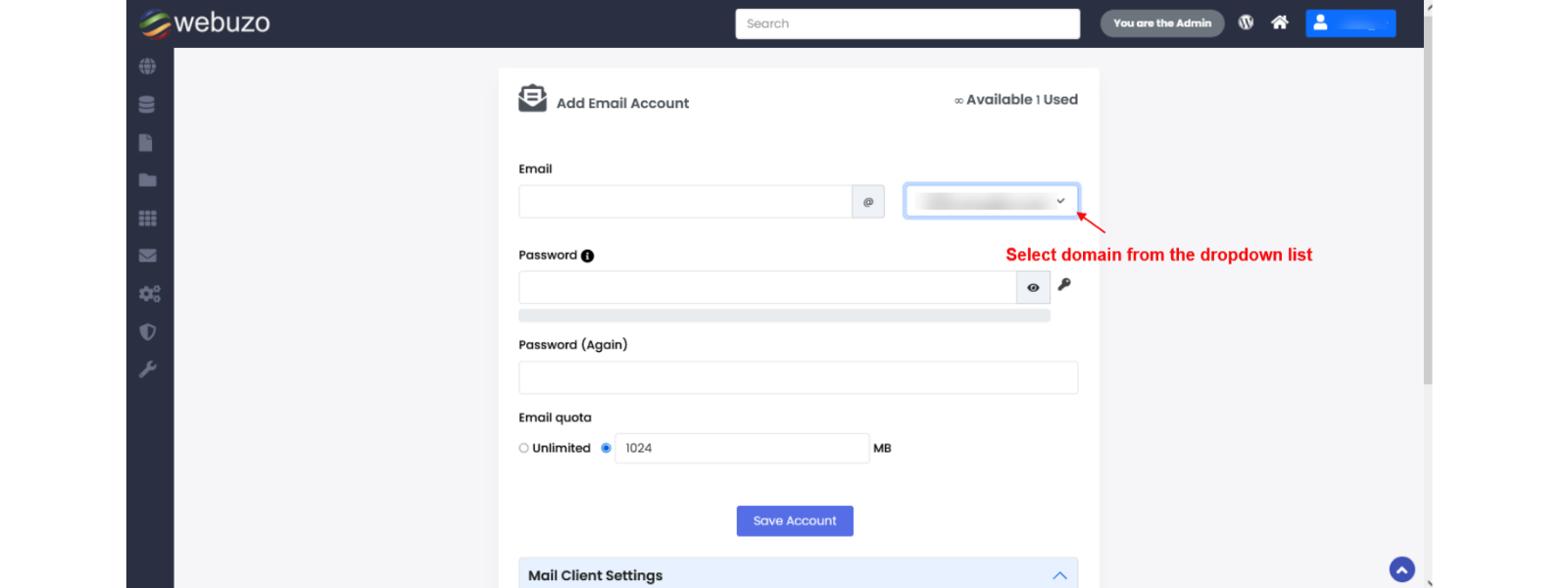
4. Fill in:
- Email (the part before the @)
- Domain (if you host multiple domains)
- Password (strong, unique)
- Mailbox Quota (set a size limit or unlimited)
5. Click Save Account.
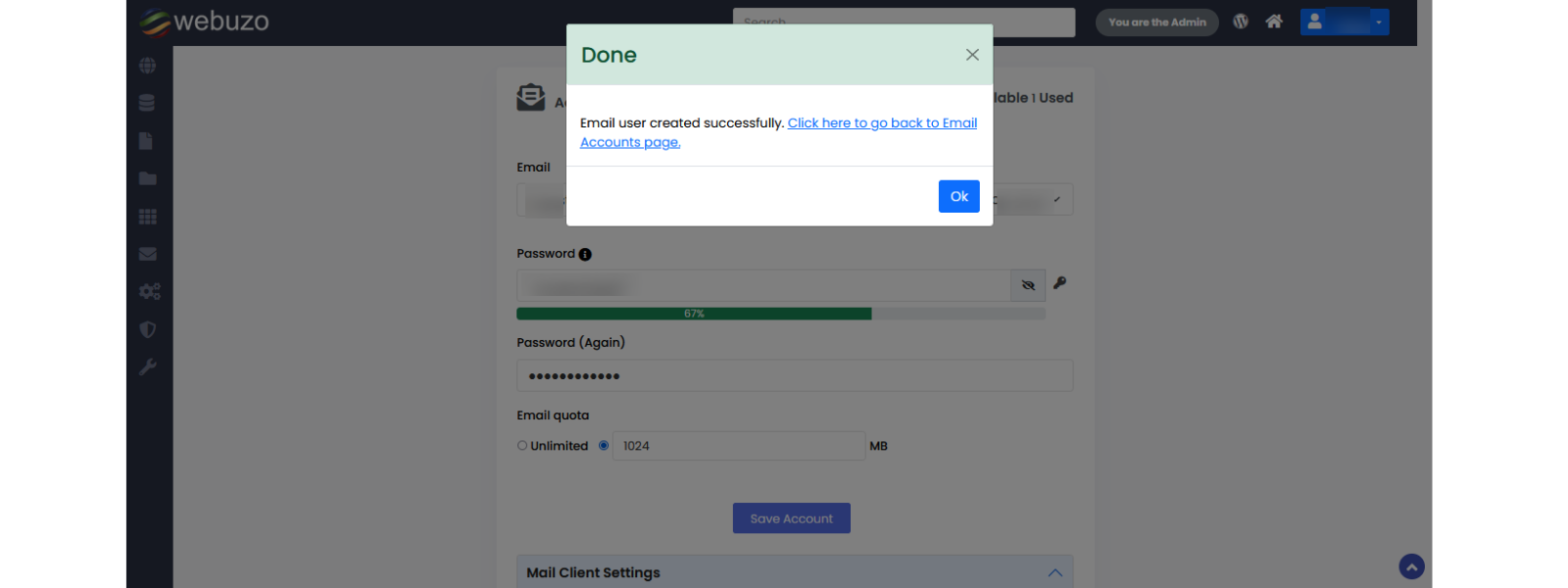
6. You will see a “Email user created successfully” pop-up on success.
IMPORTANT: Note the mailbox settings like the server, ports, and encryption so that you can configure any email clients.
How to Delete an Email Account in Webuzo
1. In Webuzo, under Email → Email Account, locate the mailbox you want to remove.
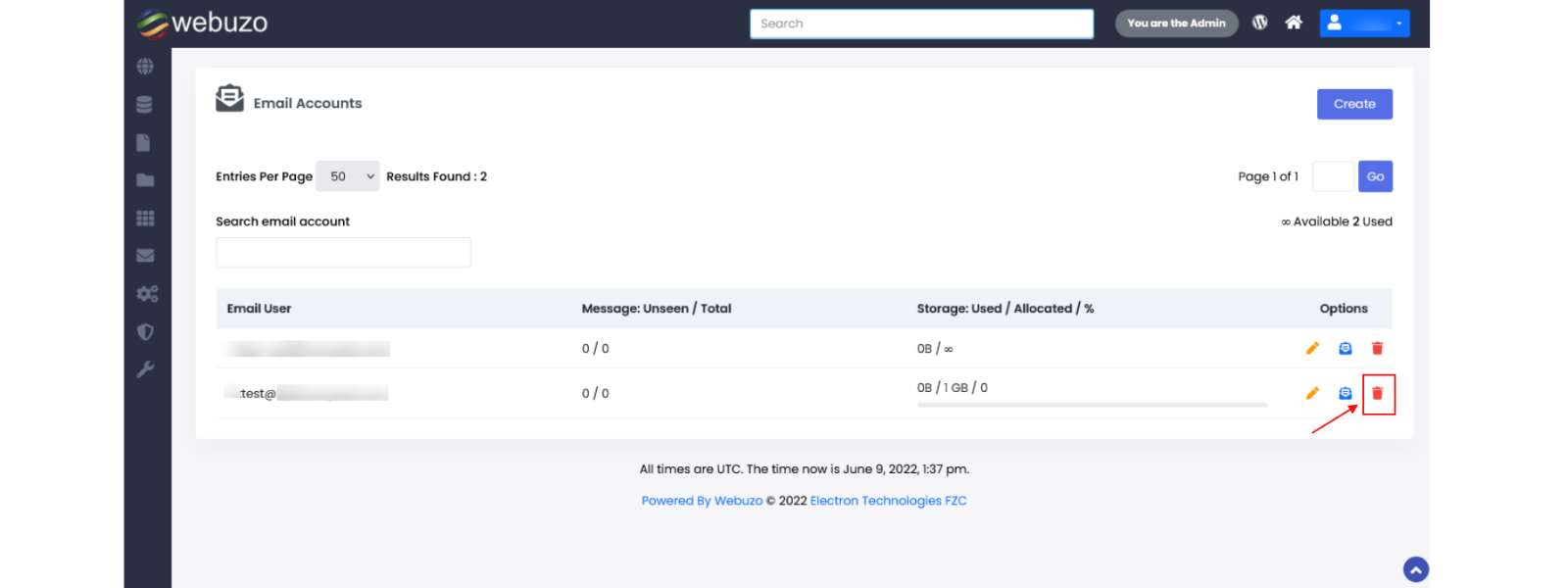
2. Click the “Bin” icon next to that account.
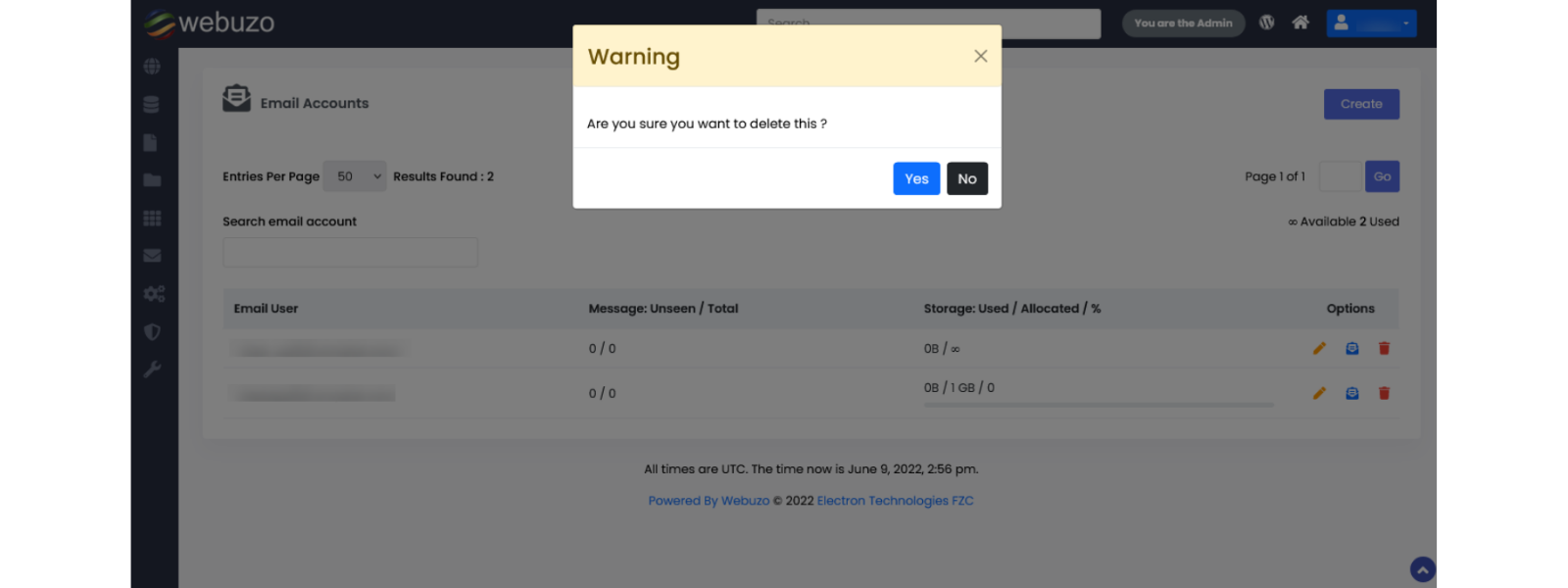
3. Confirm deletion (remember, this will erase all stored mail for that account).
4. (Optional) If the mailbox was used for forwarding or catch-all, adjust those settings.
IMPORTANT: Inform any user using that mailbox of the deletion to avoid confusion.
Configure Your Email Client After Creation
Once created, you often need to configure Outlook or different devices to use the account outside of Webmail. Use the correct server settings, ports, and security details.
You can get set up right away by following our guide: Settings to Configure Your 1-grid Email Accounts Across Devices.
Quotas, Passwords and Permissions
- Mailboxes can have storage quotas. It is important to note that when exceeded, you won’t receive new mail.
- Use strong, unique passwords and change them periodically.
- Optionally, restrict mailbox features (Webmail only, no external access) via Webuzo settings.
Best Practices and Maintaining Email Hygiene
- Clean up unused mailboxes regularly.
- Use aliases or group addresses rather than multiple full mailboxes.
- Monitor quotas to prevent interruption.
- Enforce strong passwords and periodically audit accounts.
- Document who manages which mailbox to avoid orphaned accounts.
Troubleshooting Common Webuzo Email Account Issues
Error “username already exists”
This means that you might have created a mailbox earlier; delete it or reuse it.
Login Failed After Creation
Wait a few minutes for synchronisation, re-enter password.
Mailbox Exceeds Quota
Increase the quota or archive older mail. This may also require you to purchase a larger Hosting package.
Client Can’t Connect
Check the server’s name, ports, and SSL/TLS configuration.
Missing Domain in the Drop-Down
Ensure that your domain is correctly added for hosting before creating the mailbox.
FAQs
Q: Will creating a mailbox automatically configure it for Outlook or other devices?
No, once you have created the email address, you’ll need to set it up in your email client using the correct server settings for this.
Q: What happens to emails already stored when I delete the mailbox?
All data stored in that mailbox is deleted permanently. This is why it is recommended to back up messages before deleting them if needed.
Q: Can I change the email password at any time?
Yes, in Webuzo, under Email Account, use the “Pencil” icon to set a new password without needing to delete the mailbox. Keep in mind that once you change the password in your Control Panel, it is important to update this on your mail clients and devices as well.
Q: Can I set the email quota to “unlimited”?
Yes, but monitoring the storage usage remains important as very large mailboxes can slow down performance or exceed your hosting plan limits.
Q: Can I create catch-all or alias addresses instead of full mailboxes?
Yes, Webuzo supports Email Forwarders, and an email router without a full mailbox.
Q: If I delete an account, can I recreate it and still get old emails?
Only if you have a backup of the mailbox data (PST/backup) because the server won’t retain deleted content after deletion.
Additional Resources
Settings to Configure Your 1-grid Email Accounts Across Devices
How to Set Up Email on Android for Your 1-grid Email Accounts
Setting Up Email in Outlook via Windows Control Panel
Troubleshooting Steps for Email
Email Error Messages: What Do They Mean and How to Fix Them
Top 10 Common Email Issues and How to Resolve Them
How to Import PST Contacts to Office 365
How to Import a PST File into Outlook
Restoring Emails in Outlook Using a .pst File
Email FAQs
Need Additional Support?
We’re Here to Help:
Creating or deleting an email account via Webuzo doesn’t have to feel like a challenge with this easy-to-use guide. Stuck? Contact our Support Team for clarity and guidance (https://1grid.co.za/contact-us/). We’re ready to see how we can help!