

Find and open Apple Mail on your Mac so you can access, send and manage your 1-grid emails.
Apple Mail is included with macOS and provides a convenient way to manage your email directly from your Mac. Knowing how to open Apple Mail is easy to learn.
Whether you’re opening it for the first time or simply can’t find the application, this guide walks you through three quick ways to launch Apple Mail.
Once the application is open, you can access your existing mailbox or add your 1-grid email account if you haven’t configured it yet.

Before You Begin
Before getting started, make sure:
- You’re using a Mac running macOS.
- Your Mac is switched on, and the desktop is accessible.
- You know whether your 1-grid email account has already been configured in Apple Mail.
Good to know: Apple Mail comes included with macOS, so you don’t need to download a separate application.
How to Open Apple Mail
There are three simple ways. Choose whichever method is easiest for you.
Option 1: From the Dock
With the Mail application already pinned to your Dock:
- Locate the Mail icon in your Dock.
- Click the icon.
- Wait for Apple Mail to open.
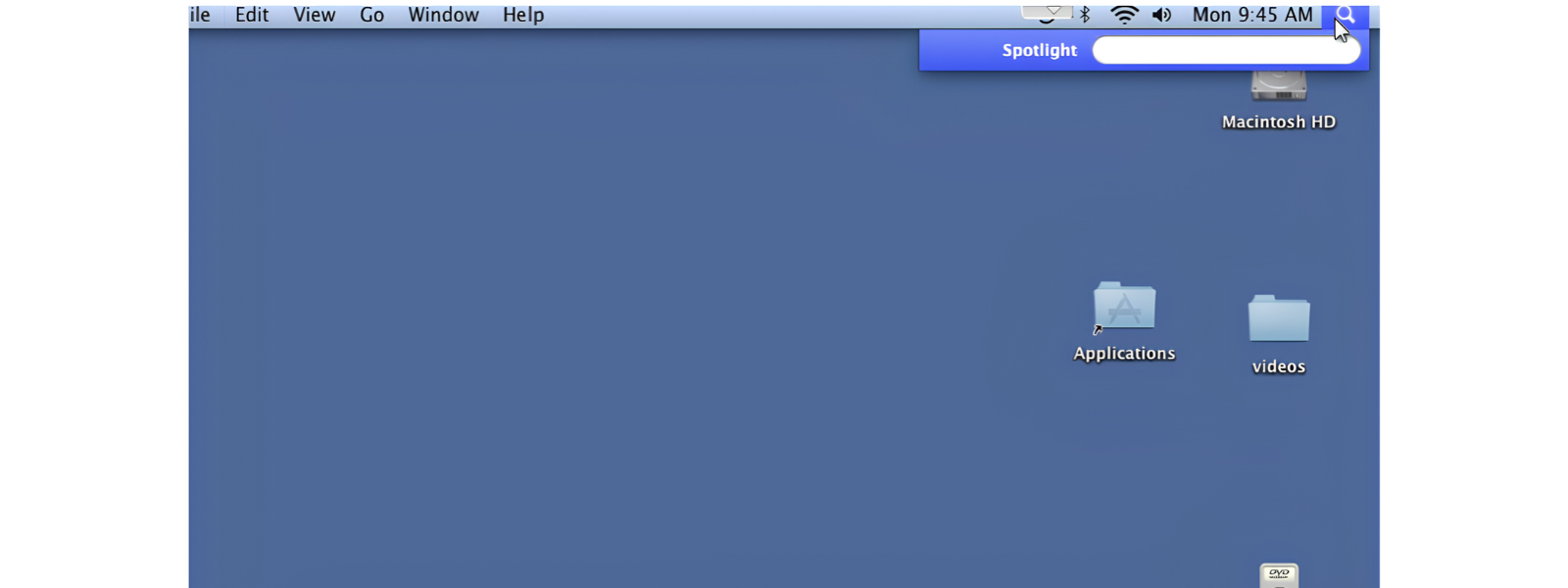
Option 2: Using Spotlight Search
If you can’t find the Mail icon in your Dock, Spotlight Search is a quick alternative.
- Press Command (⌘) + Space on your keyboard.
- Type
Mailinto the search field. - Select Mail from the search results.
- Apple Mail will open.
You can also click the magnifying glass icon to access Spotlight Search, if displayed in your menu bar.
Option 3: The Applications Folder
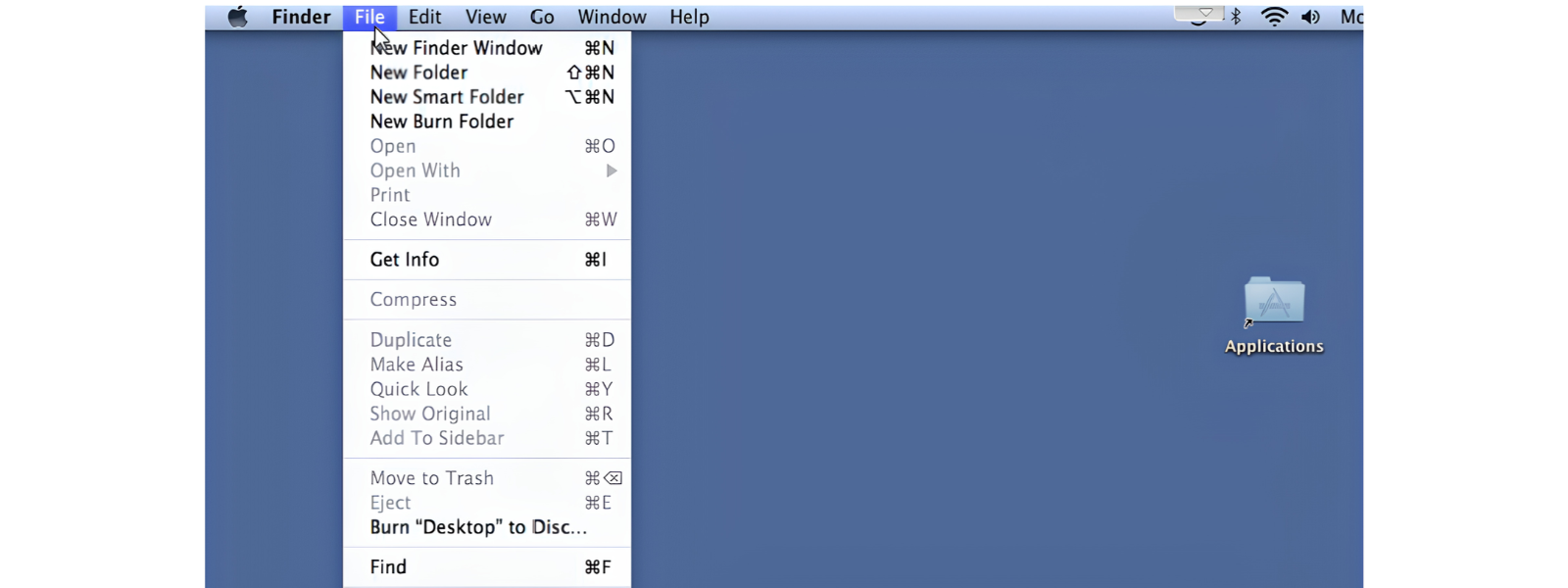
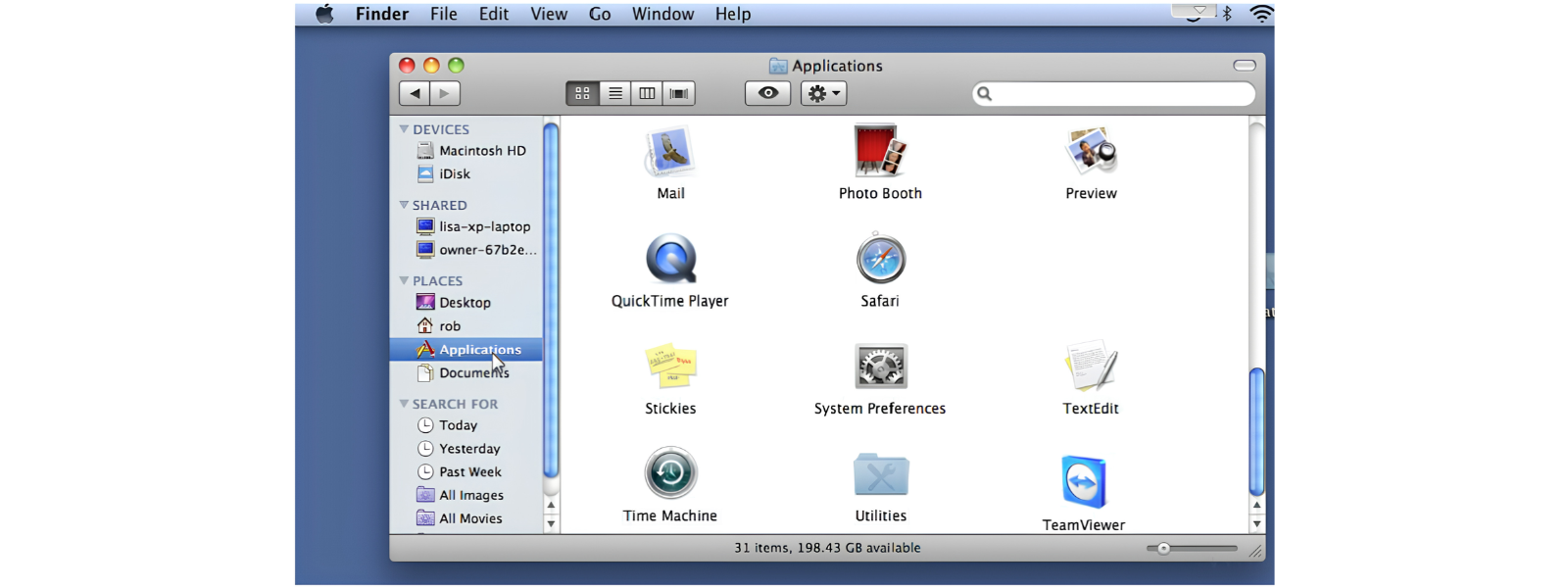
You can also locate the application directly through Finder.
- Open Finder.
- Find Mail in the application list.
- Double-click the Mail application.
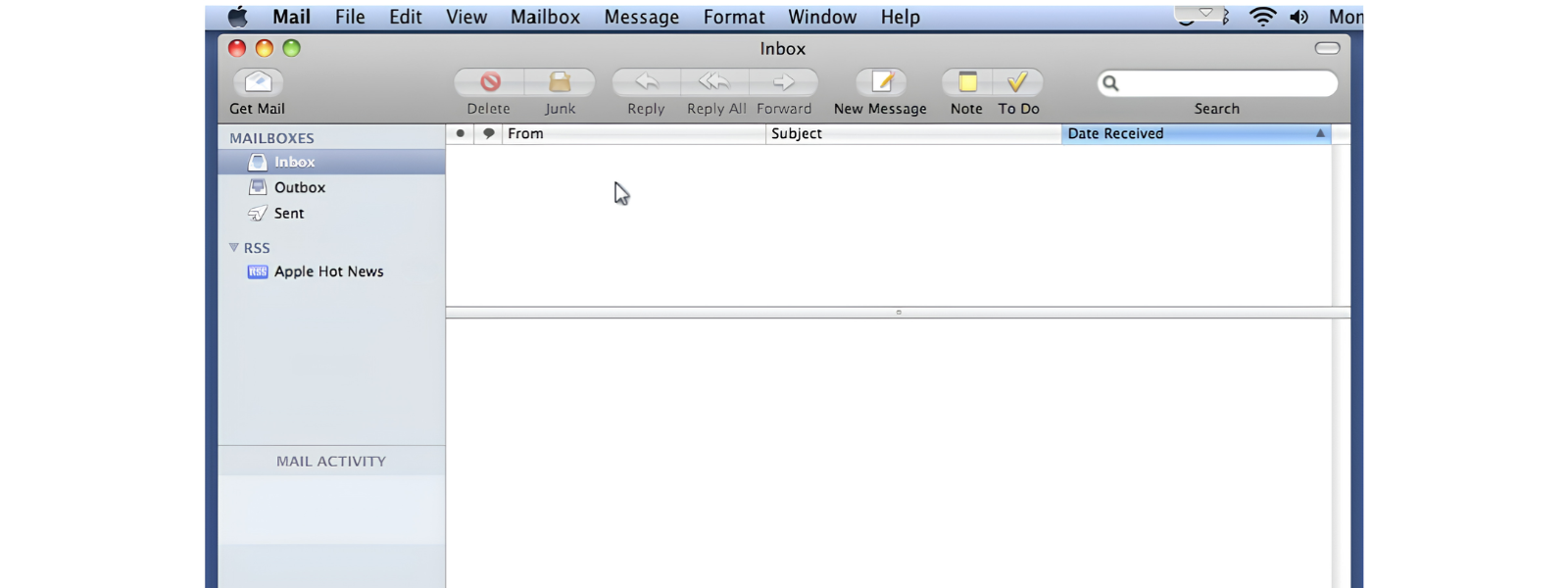
Apple Mail will launch.
What Happens Next?
Once Apple Mail opens, what you see will depend on whether you’ve already added an email account.
Is the email account already configured?
Your mailbox should appear, allowing you to view, send and manage your emails.
If this is your first time using Apple Mail:
You may be prompted to add an email account.
To continue, you’ll need:
- Your full 1-grid email address.
- Your email account password.
- Your incoming and outgoing mail server settings.
You can follow our setup guides to configure your mailbox.
Important: Opening Apple Mail does not automatically configure your 1-grid email account. You’ll need to complete the account setup before you can send and receive emails.
Common Issues and How to Resolve Them
I can’t find Apple Mail in my Dock.
It may simply be that the application is not pinned to your Dock. Use Spotlight Search or locate it through Finder’s Applications folder instead.
Apple Mail doesn’t appear in Spotlight Search.
Open Finder, select Applications and look for Mail directly.
Apple Mail won’t open.
Try restarting your Mac and opening the application again. If the issue continues, note any error messages displayed.
Apple Mail opens, but my inbox is empty.
Check that you have connected your email accounts. You’ll need to add your 1-grid mailbox before you can access your emails.
I can’t find Apple Mail in my Applications folder.
Apple Mail is included with macOS. If the application appears to be missing, you may need assistance from Apple Support to investigate your macOS installation.
You’re Ready!
You’ve now learned three ways to open Apple Mail on your Mac:
- From the Dock.
- Using Spotlight Search.
- Through Finder’s Applications folder.
You’re ready to start managing your emails if your 1-grid email account is already configured.
Related Articles
Need Help?
If you’re unable to open Apple Mail or need help accessing your 1-grid email account, our Support Team can guide you.
When contacting us, please include:
- Your Mac model and macOS version.
- Whether Apple Mail is missing or simply won’t open.
- Any error messages displayed.
- A screenshot of the issue, if available.