
If you need to check email quickly, troubleshoot delivery, or access your mailbox while away from your usual device, Webmail is the fastest and simplest option.
This guide will show you how to access your email using Webmail, a browser-based inbox that works from anywhere, with no mail app setup required.

What is Webmail?
Webmail lets you read and send emails directly in your browser.
Webmail is a built-in email interface included with your hosting or email service.
Unlike Outlook, Gmail, or Apple Mail, it:
- Requires no configuration
- Works on any device with internet access
- Is ideal for quick access or troubleshooting
When Should You Use Webmail?
Common use cases:
- You’re away from your main computer
- Your mail client/app isn’t sending or receiving
- You want to confirm whether the mail is reaching the server
- You need quick access without setup
IMPORTANT: If email works in Webmail but not in your mail client or app, the issue is usually device-specific, and not your mailbox.
How to Access Your Email via Webmail
1: Open Webmail in Your Browser
In any browser, go to one of the following URLs:
https://yourdomain.co.za/webmail
OR
https://webmail.yourdomain.co.za
Replace yourdomain.co.za with your actual domain name.

2: Log In
Enter:
- Your full email address (e.g. [email protected])
- Your email password
TIP: If you’re unsure of your password, reset it in your Customer Zone or ask Support for guidance if you get stuck.
3: Open The Interface to Access Your Inbox
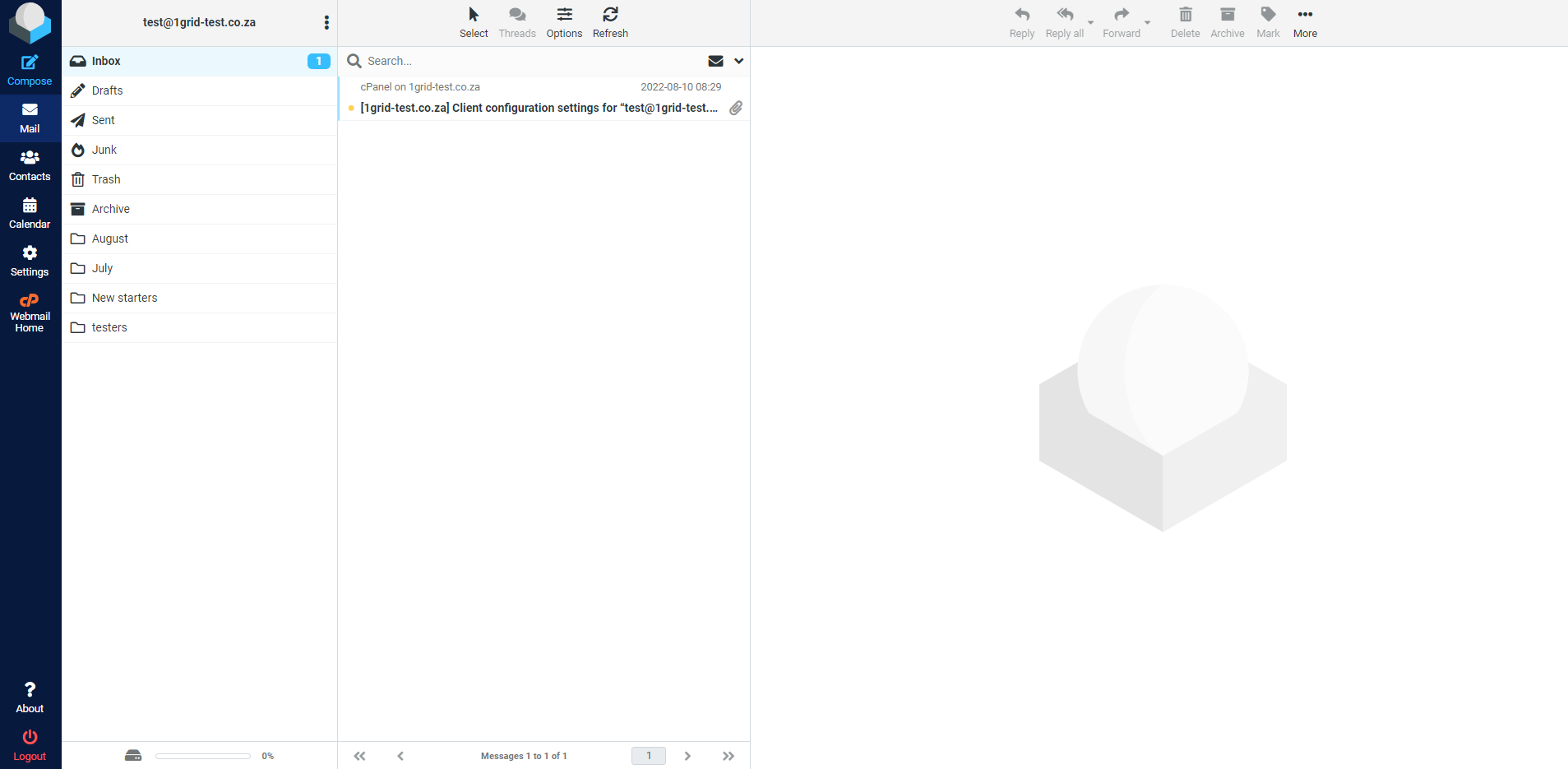
After logging in, select Roundcube to access your inbox.

From here, you can:
- Read and send emails
- Reply or forward messages
- Manage folders
- Check spam and sent mail
Helpful Tips for First-Time Use
- Check your Spam / Junk folder if messages seem missing
- Use Webmail to confirm delivery during troubleshooting
Troubleshooting: Not Seeing Emails?
This doesn’t automatically mean emails are lost.
If emails aren’t appearing in Webmail:
- Confirm you’re logging into the correct email address
- Check Spam / Junk
- Ensure the mailbox isn’t full
- Confirm that the sender sent the email successfully
If you need to troubleshoot any email issues, you can explore our Email Troubleshooting Guide.
Our Scope of Support
If you’re stuck and need any additional guidance or support, here’s an outline of what we can do and what is not within our Scope of Support.
What We Can Help With
- Confirming mailbox activity
- Checking whether emails are reaching our servers
- Guiding you through webmail access
- Identifying whether issues are app- or device-specific
What We Are Unable to Assist With
- Third-party email app configuration issues
- Resetting email passwords
IMPORTANT: We’ll still guide you where possible.
FAQs
Q. Do I need to install anything to use Webmail?
No, Webmail works directly in your browser.
Q. Can I use Webmail on my phone?
Yes, it works on mobile browsers.
Q. Why does email work in Webmail but not in Outlook?
This usually means that the mail client settings need adjustment. Your mailbox is working.
Q. Is Webmail secure?
Yes, access is password-protected and encrypted.
Additional Resources
Settings to Configure Your 1-grid Email Accounts Across Devices
Webmail Guides
IMAP vs POP3: What’s the Difference?
Basic Email Troubleshooting
SPF, DKIM, and DMARC Records for Email
Email Security Best Practices
Need Additional Support?
We’re Here to Help:
Accessing your emails via Webmail doesn’t have to feel technical with this easy-to-reference guide. Stuck? Contact our Support Team for clarity and guidance (https://1grid.co.za/contact-us/). We’re ready to see how we can help!