

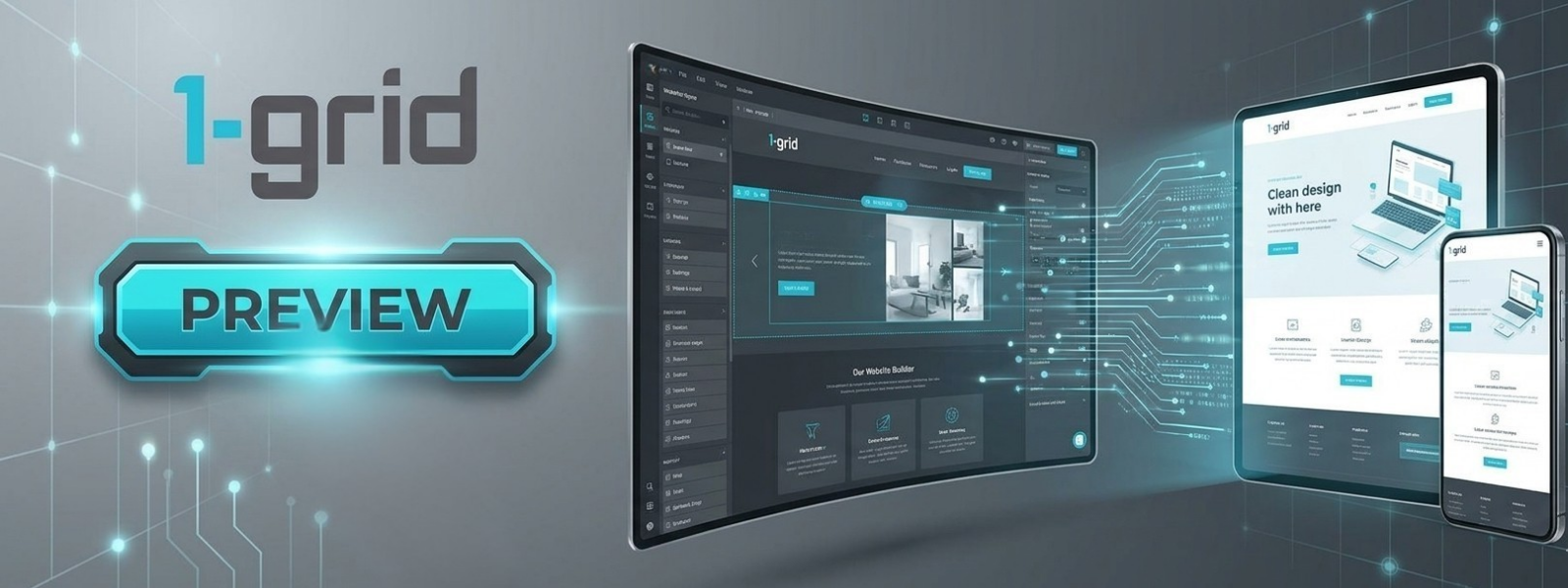
Easily access, navigate, and review your live-style website builder drafts during the ‘Do It For Me’ website design process.
When our design team works on your custom website, we want to ensure you are involved every step of the way. Through your 1-grid Customer Zone, you can securely access the web builder platform to preview your current design drafts in real time. This guide walks you through logging into your design panel, enabling a live-style preview on any device, and understanding what to look for when reviewing early-stage layouts.
Before You Begin
Before logging in to review your digital draft, ensure you have:
- Your primary 1-grid Customer Zone login credentials (email address and account password).
- An active Do It For Me (DIFM) Website Design subscription package.
- A desktop computer or tablet (recommended for the best visual experience when reviewing large design layouts).
💡 Context: Our team builds your website using a high-performance Website Builder platform. By logging in through your customer portal, you can look at the backend layout exactly as our designers see it and toggle a secure preview to experience how it behaves as a live, fully functional website.
Follow These Steps
1. Log In to Your Customer Zone
Open a fresh browser tab, navigate to the 1-grid Customer Zone Login Page, input your primary account email and password, and click “Login” to launch your central user dashboard.
2. Navigate to Your Do It For Me Service
Once your dashboard interface environment initialises, look down your account management shortcuts list. Locate the section labelled ‘Do it For Me – Website Design’ and click the View Details action button right next to your active design project listing.
3. Launch the Design Control Panel
Scroll down to the bottom of your specific service details screen layout pane to find your operational platform access shortcuts. Click the Log In To Control Panel button. The system will securely authenticate your session and launch the website builder panel automatically in a secondary browser window.
4. Locate the Preview Toggle
Look towards the top-right-hand side of the primary builder header navigation bar. Locate the dedicated Preview button tab link.
5. Engage the Live-Style Preview Mode
Click the Preview button. The editing canvas boundaries drop away instantly, opening your website draft in a full-screen, live-style rendering mode. This permits you to interact with menu navigation loops, scroll animations, and buttons exactly as your public visitors would. You can preview this “live” on PC, tablet, and mobile by clicking the relevant icon at the top centre of the preview window.
6. Review the Structural Design Layouts
Early-stage design drafts typically feature your Home Page and About Page. Focus your review path on these central foundational aesthetics:
- The Overall Design Style: Does the aesthetic direction mirror your brand identity and match your industry standard requirements?
- The Colour Theme: Do the primary and accent colours balance cleanly across light and dark background sections?
- The Typography and Feel: Are headings legible, and does the digital environment project professionalism?
What Happens Next?
Once you review the initial structural pages, your feedback sets the trajectory for the rest of the project.
- The Approval Milestone: Once the core design layout style and colour choices are approved, our specialists can swiftly map out your remaining pages (e.g., Services, Contact, Gallery) using the same design direction.
- Structural Consistency: Locking down your core themes early ensures that the entire website maintains a cohesive look, smooth transitions, and uniform colour rules across all future routes.
Important Things to Know
- Early Draft Phase Bounds: Do not panic if specific custom sub-pages or checkout blocks show broken paths at this step; early reviews are intended to anchor your core visual layouts before we scale out content pages.
- Responsive Layout Testing: Inside the top toolbar preview pane area, you can click the desktop, tablet, and smartphone icons to test how gracefully your drafts dynamically scale across alternate screen dimensions.
- The Live URL Disconnect: While in preview mode, your website is only visible to you through your secure session wrapper. Public browsers cannot search or lookup your draft link until the final build is officially launched and published.
Common Mistakes to Avoid
- Getting distracted by missing text copy inside secondary pages before approving the global Home page theme styling.
- Reviewing complex website layouts exclusively on a small mobile device, which makes it harder to spot layout tracking discrepancies.
- Accidentally attempting to edit code files or text variables manually inside the builder screen while the team is actively designing.
- Forgetting to hit refresh on your browser view block if our design team notifies you that an inline correction is applied in real-time.
- Delayed feedback submissions; holding up design theme validations pushes out your final live launch timeline.
If This Didn’t Work
If clicking the “Log In To Control Panel” shortcut returns a blank login error page layout or an authentication timeout warning loop, completely clear your browser’s localised history cache files or launch an isolated incognito browser tab session. Ensure your internet connection remains stable and active throughout your portal session.
You’re Ready!
You have successfully unlocked access to your website’s developmental blueprint. Taking a few moments to review your early Home and About drafts gives you the ultimate control to steer your design direction, ensuring your final web property rolls out perfectly.
Related Articles
- Do It For Me Website Design: What It Is & How It Works
- Everything You Need to Know About Domains at 1-grid
- How to Update Your Account Contact Details in the Customer Zone
- Understanding Domain Renewal Invoices at 1-grid
- How To View Your Domain Status in 1-grid’s Customer Zone
- View Your 1-grid Invoices via Customer Zone
Need Help?
If your customer zone profile card fails to display the Do It For Me management panel link shortcuts, or if the website builder preview screen refuses to execute your page lookups, connect with our dedicated Website Designers at [email protected].
Before submitting an assistance update note, please have the following ready:
- Your primary domain name and client account code number.
- A screenshot of your Customer Zone dashboard view showing where the layout is blocking.
- The complete text details of any specific interface error messages displaying on screen.
- A summary list detailing your explicit text layout feedback points or structural design changes.