This article will show you how to add a domain to your account in Windows Plesk
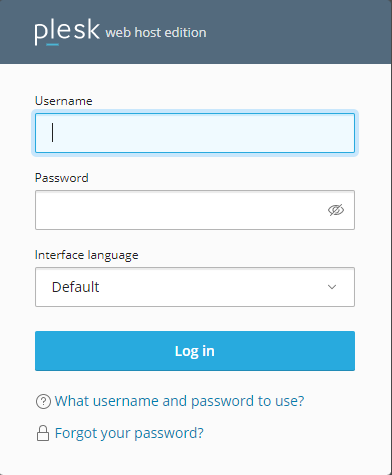
Step 1. Log into Plesk
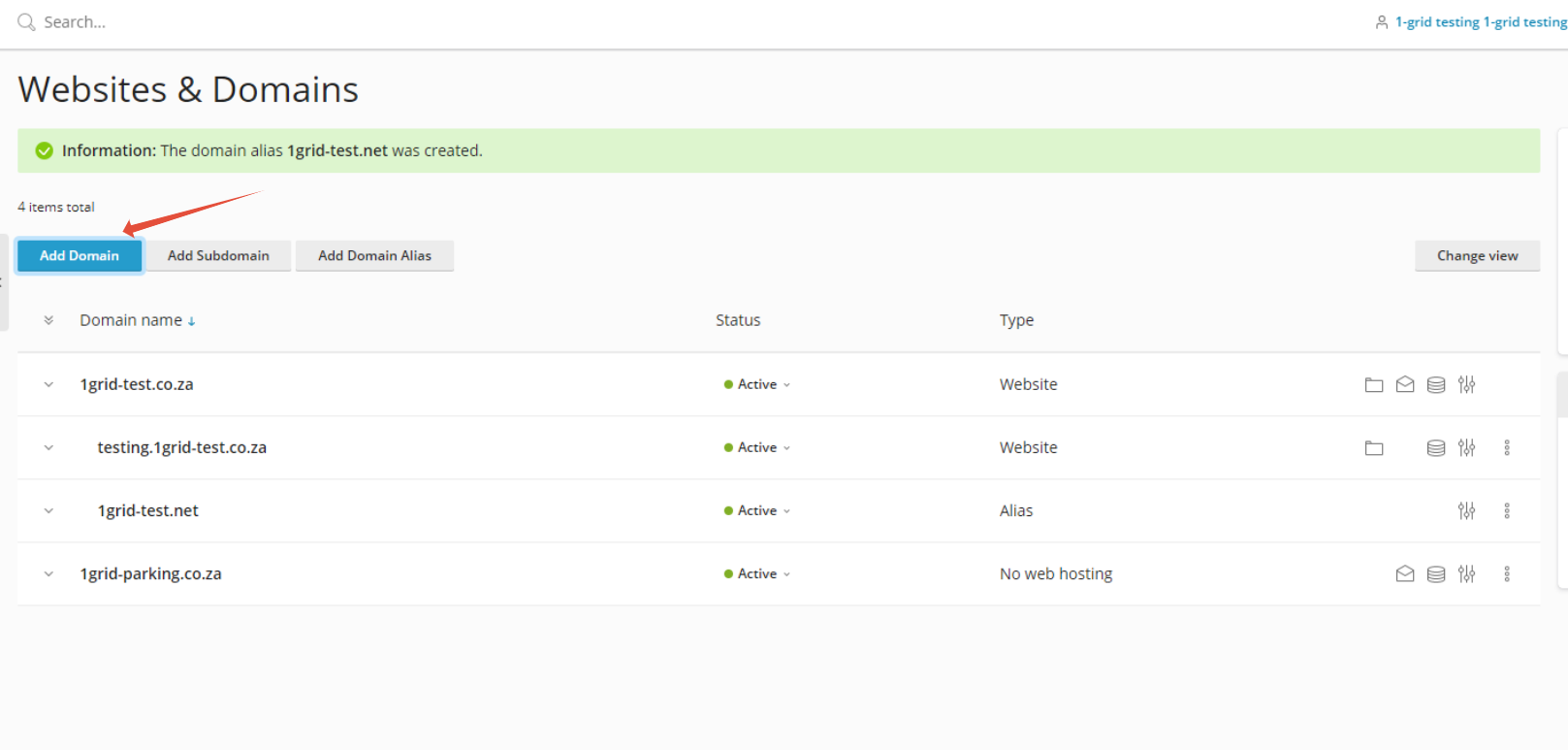
Step 2. Click on Add Domain
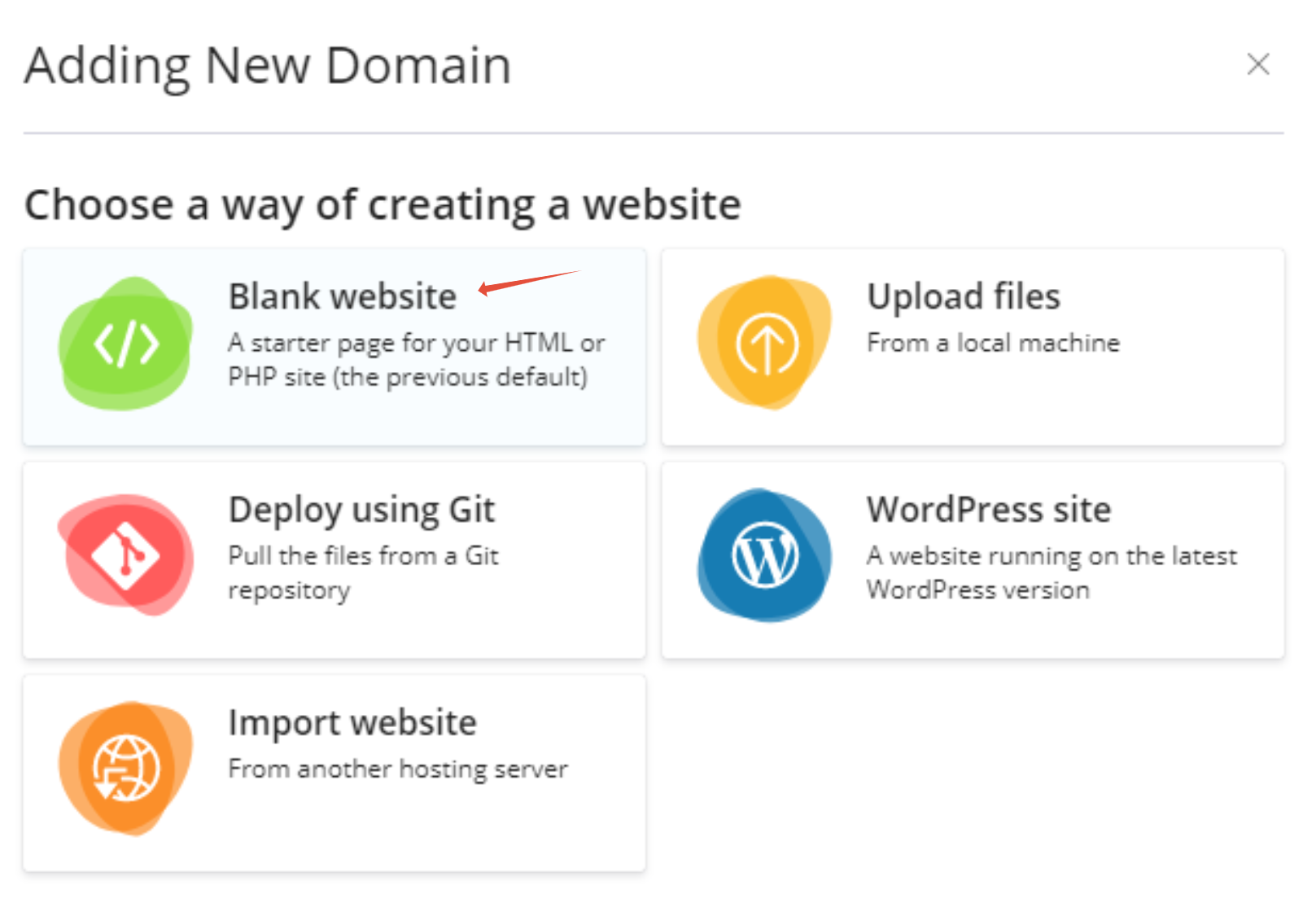
Step 3. Click on Blank Website
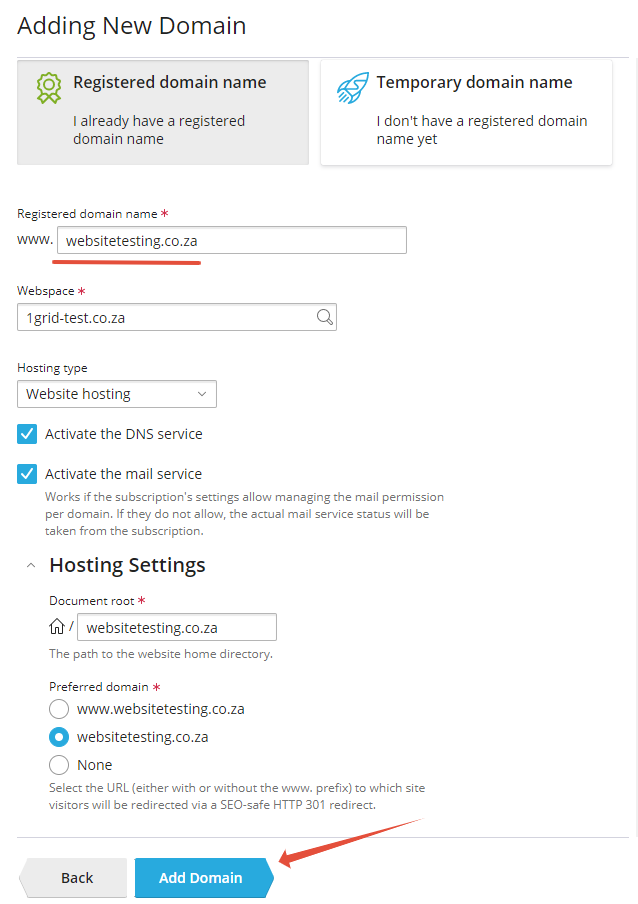
Step 4. Type in the Domain name and you can then Click on Add Domain after.


This article will show you how to add a domain to your account in Windows Plesk
Step 1. Log into Plesk
Step 2. Click on Add Domain
Step 3. Click on Blank Website
Step 4. Type in the Domain name and you can then Click on Add Domain after.